
Amazingly Consistent AI-Generated Characters From a Photo Using SeeDream 4.0

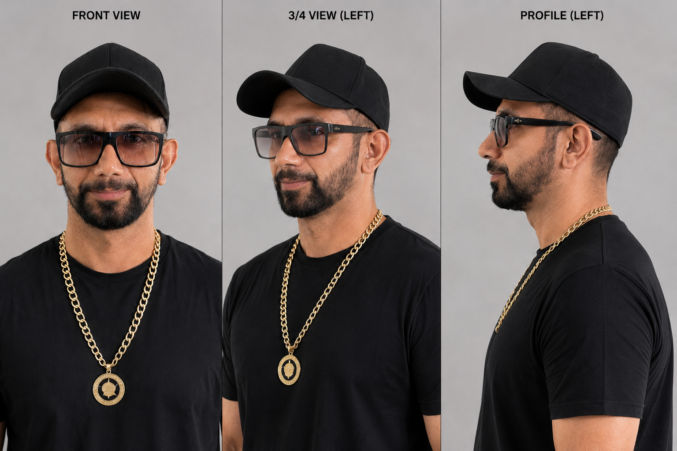
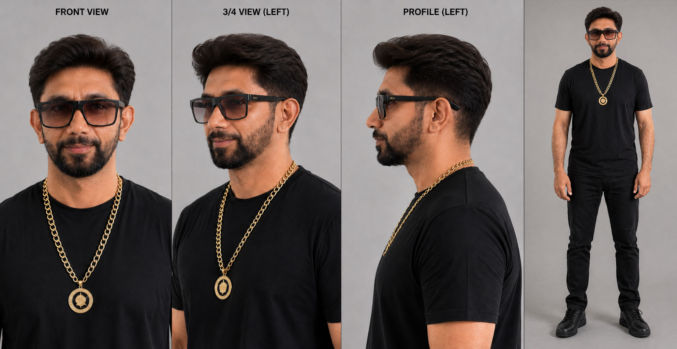
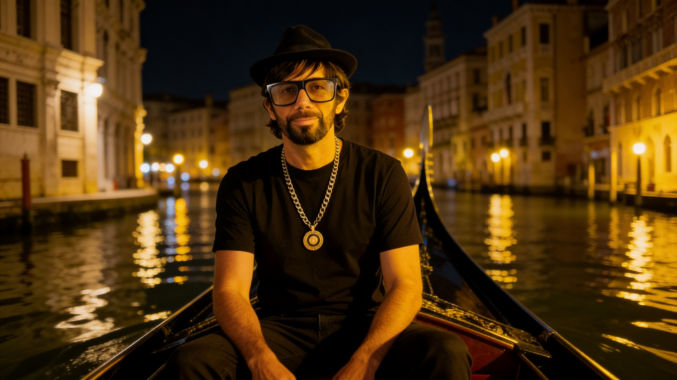
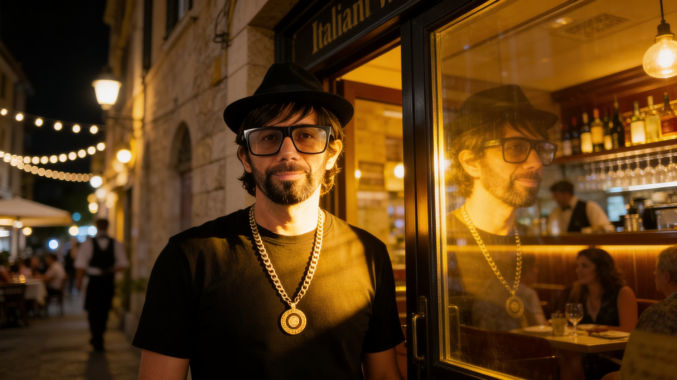
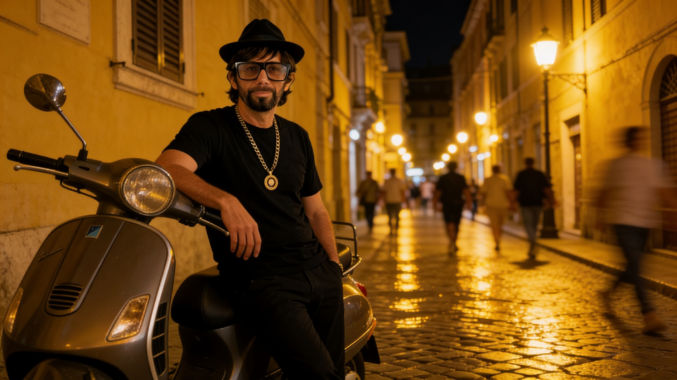
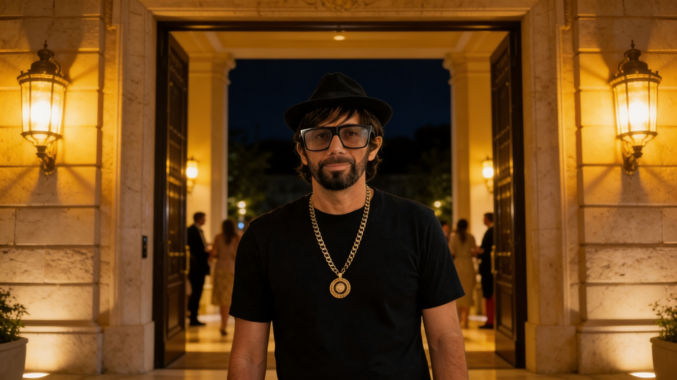
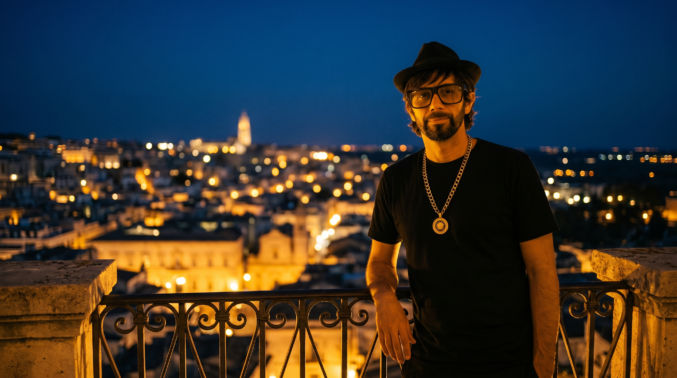
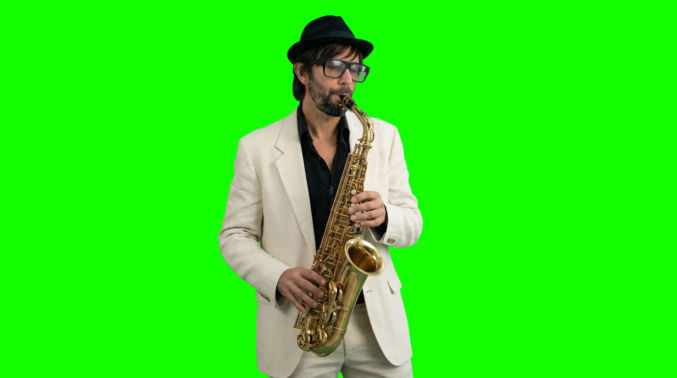
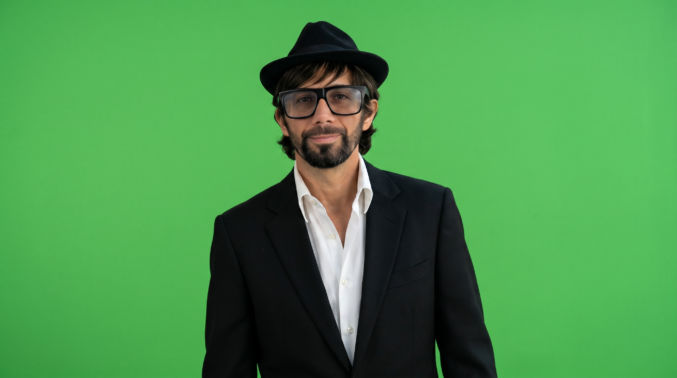
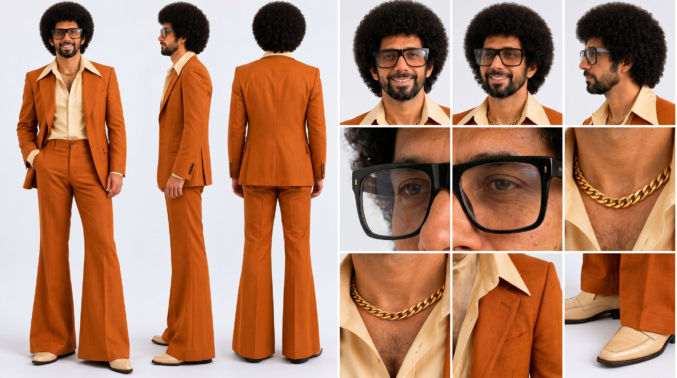
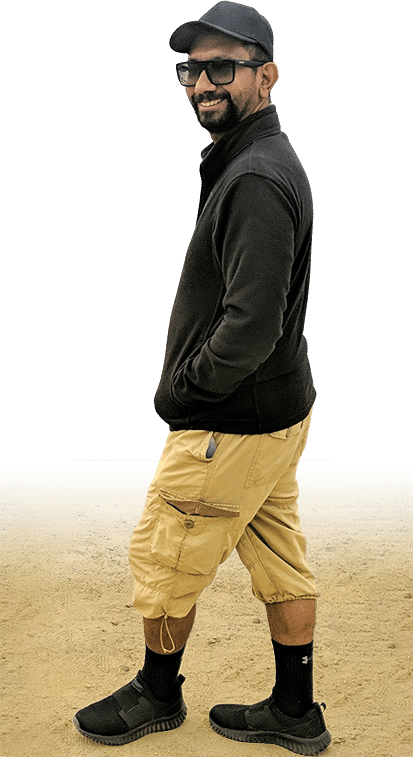
After testing various AI models to generate images of a character based on one or two reference character images, I have found SeeDream 4.0 to be the best. It’s even WAY better than Google’s Nano Banana. In fact, it’s amazingly impressive in its ability to create images of people from just two reference photos of real people. Here are some example SeeDream-generated images from two photos of me.

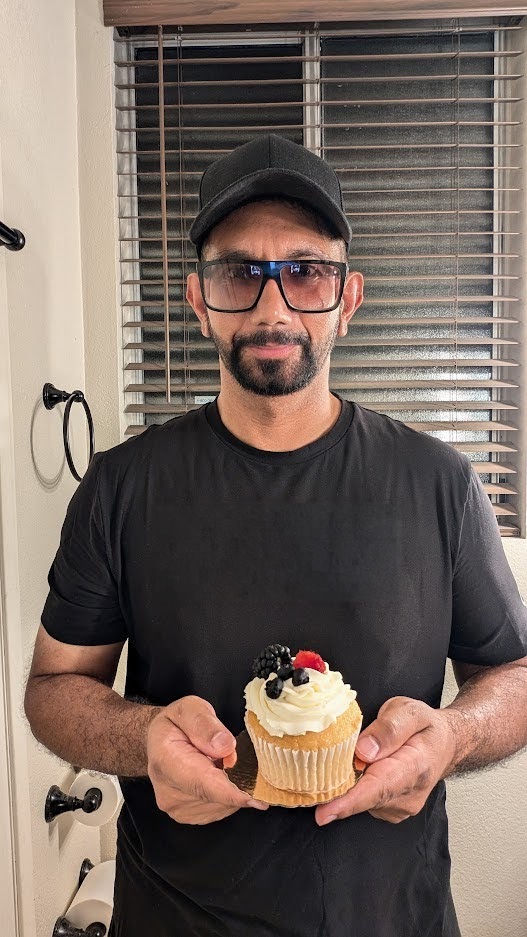
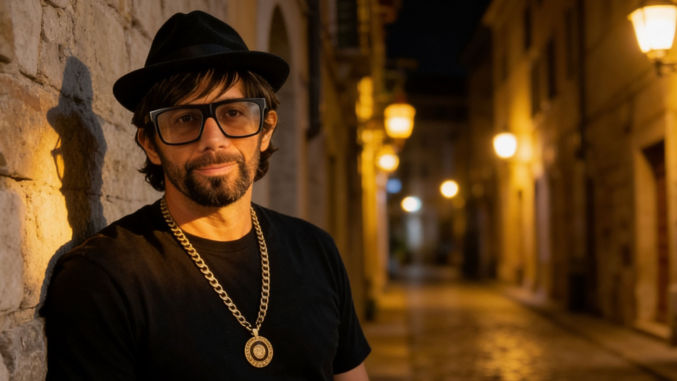
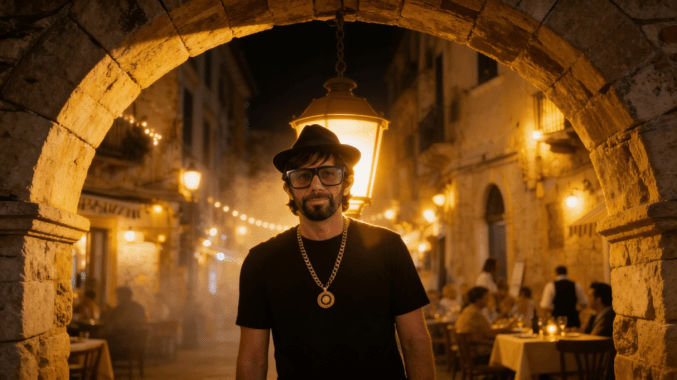
My Reference Photos

Front shot
Side shot

Prompts + Generated Images

Note: with consistent character images, you bring them into Kling AI as references to generate consistent-character videos.

Photorealistic cinematic medium shot of the man skiing, face uncovered, wearing his black hat and sunglasses, snow crystals clinging to his eyebrows and beard, breath visible in the cold air, cheeks flushed from exertion, eyes focused ahead, crisp alpine sunlight illuminating his face — ultra-realistic GoPro portrait with shallow depth of field and cinematic lighting. His entire face is visible.

Wide shot of the same man skiing down a pristine mountain slope, wearing a black baseball cap and semi-transparent gradient sunglasses. The camera faces him from the front, capturing his body leaning into a turn, powder snow flying, blue sky above, cinematic lighting, GoPro ultra-wide perspective.

Cinematic chest-up shot of the man wearing a black baseball cap forward and gradient sunglasses, ocean droplets on his face and shoulders, sunlight reflecting in his lenses, deep blue waves behind him, captured from a GoPro mounted near the surfboard’s nose.

Wide front-side GoPro shot of the man surfing a curling turquoise wave, wearing his black baseball cap and gradient sunglasses, camera facing him from low on the wave surface, dynamic water spray and cinematic sunlight.

Chest-up shot of the man free-falling through a bright blue sky, wearing a black baseball cap forward and gradient sunglasses, wind sweeping his jacket and straps, sunlight reflecting off his glasses, clouds far below, cinematic color and realism.

Wide cinematic shot of the man skydiving, body stretched out and stable, camera facing him from the front at mid-distance, black cap and sunglasses clearly visible, clouds and the earth below in vast perspective, soft sun haze.

Chest-up shot of the man riding a sports motorcycle, wearing a black baseball cap facing forward and gradient sunglasses, wind flowing through his clothes, warm golden-hour lighting, GoPro mounted near the handlebars, cinematic clarity.

Wide front-side GoPro shot of the man on a motorcycle, black cap and gradient sunglasses visible, leaning slightly into a curve, mountain road ahead, trees and sunlight framing the motion, cinematic outdoor tone.

Wide underwater GoPro shot of the man swimming near a massive whale, camera facing him from the front, black swim cap and swimming goggles visible, sunlight streaming through the blue water, cinematic and peaceful tone.

Cinematic chest-up side-profile shot of a man in a helicopter cockpit, camera positioned slightly in front and to the left of him, showing the cockpit controls in front of him and his face in profile as he pilots, wearing a black baseball cap facing forward and semi-transparent gradient sunglasses, sunlight streaming through the windshield, clouds ahead, highly realistic lighting and detail.

Wide front-side shot from outside the helicopter, camera hovering just ahead of the cockpit, showing the man’s face through the glass, wearing a black baseball cap and gradient sunglasses, mountain clouds around the aircraft, cinematic aerial composition.

Cinematic chest-up side-angle shot of a man actively climbing a rugged rock wall, camera positioned slightly below and to his right, angled upward toward his face. He’s wearing a black baseball cap facing forward, semi-transparent gradient sunglasses, and mountain-climbing gear with a harness, rope, and gloves. His left hand grips a rock hold firmly while his right hand reaches upward, sunlight illuminating his face and the textured stone surface. Sharp, realistic detail with warm mountain tones.

Wide front-side GoPro shot showing the man mid-climb on a tall cliff face, wearing a black baseball cap, gradient sunglasses, and full climbing gear. Camera positioned several meters away at a diagonal angle showing his full body against a vast mountain backdrop. His left leg is bent, right leg extended, and the valley below stretches into hazy sunlight. Cinematic scale and clarity.

Chest-up shot from a GoPro mounted near the motorcycle’s front handlebars, camera angled slightly upward toward the man’s face as he rides. He’s wearing a black baseball cap facing forward, gradient sunglasses, and gloves. Dust trails swirl behind him under golden desert sunlight, with blurred dunes in the background. Cinematic and ultra-realistic motion energy.

Wide front-side shot of the man speeding across desert dunes on a dirt bike, camera hovering ahead and slightly to the right of the vehicle. He wears a black cap, gradient sunglasses, and gloves. Sand sprays from his back tire as he leans into a curve, sunlight casting long shadows across rippling dunes. Cinematic wide desert action.

Chest-up shot from a GoPro mounted on the kayak’s bow, camera angled back toward the man’s upper body and face. He’s wearing a black baseball cap forward, gradient sunglasses, a water-resistant jacket, and a life vest. His arms are mid-stroke with a double-bladed paddle, water splashing upward, sunlight sparkling on droplets, dynamic river motion, cinematic realism.

Wide front-side GoPro shot from low on the river surface, camera facing the man as he navigates a turbulent section of rapids. He’s wearing his black cap and gradient sunglasses, gripping the paddle firmly, kayak tilted slightly as water churns around him, cinematic sunlight filtering through mist.

Chest-up shot from a GoPro mounted on the paraglider harness bar, camera angled slightly upward toward the man’s face. He’s wearing a black baseball cap facing forward, gradient sunglasses, a light windbreaker, and safety harness straps. Clouds drift behind him, sunlight flaring through, mountain peaks faintly visible below, cinematic aerial serenity.

Drone shot showing the man from the chest up as he hikes through a dense green forest. The camera hovers at eye level slightly ahead of him, capturing his focused face under a black baseball cap and gradient sunglasses. Sunlight filters through tree leaves, creating a shadow across his jacket and backpack straps, cinematic natural lighting.

Wide drone shot slightly elevated in front of the man as he walks between tall pine trees. His cap and sunglasses reflect the early morning light while his backpack swings gently with his steps. Mist floats through the shafts of sunlight, cinematic forest depth.

Drone hovering close to the cliff edge on the side of the man, capturing his profile from the chest up as he stands poised ready to jump from above the turquoise ocean below. His black cap and gradient sunglasses face forward. Behind him, the vast sea glimmers beneath a bright sky, cinematic tension and anticipation.

Wide drone shot halfway between the top of a cliff and the ocean below showing the side/profile of the man mid-air after jumping from the cliff, face down, feet up, and body stretched toward the turquoise ocean water below. His face and cap visible from the side, cinematic natural lighting and energy.

Drone hovering ahead of the man, showing him from the chest up as he snowboards down a slope. He wears a black cap, gradient sunglasses, insulated jacket, and gloves. Snow trails burst behind him as he cuts through the powder under a bright winter sky, cinematic frozen landscape.

Drone shot showing the man from the chest up as he wakeboards across a shimmering blue lake. The drone hovers ahead and slightly above, facing him directly. He wears a black cap, gradient sunglasses, and life vest, holding the tow rope tightly, droplets splashing midair, cinematic high-speed energy.

Wide drone shot showing the man wakeboarding across open water, his body leaning slightly as he balances on the board. The drone moves ahead and to the side, keeping his face visible as water trails behind him in sparkling arcs, cinematic energy and clarity. The drone is not visible in the image. He wears a black cap, gradient sunglasses, and life vest.

Drone hovering ahead of the man at chest height as he runs across a wide desert plain. His black baseball cap and gradient sunglasses stand out against the golden dunes. He wears a sleeveless athletic shirt, sweat and dust on his skin, sunlight glowing in orange hues, cinematic desert light.

Drone hovering ahead of the man at chest height as he pedals up a rugged mountain trail, black baseball cap facing forward and gradient sunglasses catching the sunlight. His shirt and arms are dusted from the trail, and trees blur behind him as sunlight filters through pine branches, cinematic outdoor realism.

Wide drone shot from a front-side angle showing the man biking along a narrow ridge path surrounded by green valleys below. His black cap and sunglasses glint in the sun as the trail twists ahead, cinematic adventure composition.

Drone hovering ahead of the man, chest-up shot showing him ziplining through a lush tropical jungle. He wears a black baseball cap and gradient sunglasses, his shirt rippling from the wind, treetops blurring behind him, cinematic motion and sunlight streaming through green canopy.

Wide drone shot capturing the man ziplining high over dense jungle canopy, seen from a front angle that shows his face. His cap and sunglasses are visible, body extended midair, forest stretching below in cinematic scale. The drone is not visible in the image.

Drone hovering just above the sailboat deck, chest-up view of the man at the helm steering through calm blue water. He wears a black baseball cap and gradient sunglasses, soft wind rippling his shirt, ocean horizon stretching behind him, cinematic ocean serenity.

Cinematic chest-up shot of the man standing inside a colorful hot air balloon basket. The camera is positioned level with his chest, facing his face at a 45-degree angle from the front as the balloon floats above scattered clouds. He wears a black baseball cap and gradient sunglasses, his face softly illuminated by golden morning light. The colorful canopy rises above him, adding visual warmth and adventure.

Cinematic chest-up shot of a man standing on the deck of a fishing boat, holding a fishing rod angled toward the sea. The camera is positioned at chest height, facing him slightly from the side so that both his expression and the ocean behind him are visible. He wears a black baseball cap and gradient sunglasses, wind brushing against his shirt, sunlight reflecting on the waves, cinematic natural realism.

Cinematic chest-up shot of a man riding a horse across an open golden plain at sunset. The camera faces him slightly from the front at chest level. He wears a black baseball cap forward, gradient sunglasses, and short hair (no long hair at the back). The sunlight warms his face, cinematic natural beauty and motion.

Wide cinematic shot showing the man on horseback galloping across the open field, the horizon glowing orange behind him. His face is visible under a black cap and sunglasses, short hair beneath. Dust and grass swirl around, cinematic sweeping grandeur.

Cinematic chest-up shot of the man driving a vintage convertible along a coastal highway. The camera faces him from the passenger side, sunlight reflecting off his gradient sunglasses. He wears a black baseball cap forward and short hair, no long hair at the back. The ocean glimmers beyond the road, cinematic freedom and motion.

Cinematic chest-up shot of a man sandboarding down a tall golden dune, even though only his upper body is visible. The camera faces him from the front at chest level, capturing grains of sand flying around. He wears a black baseball cap forward, gradient sunglasses, and has short hair. His shirt ripples in the desert wind under warm sunset light, cinematic thrill and freedom.
Wide cinematic shot of the man carving across a massive dune while standing on a sandboard, his body angled into the slope as sand billows behind. The camera faces him from the front-side, 45 degrees from the front of his face, showing his all-black cap, and sunglasses illuminated by the sunset glow, cinematic desert scale. He has no hair at the back of his head.

Cinematic chest-up shot of a man trekking a rugged volcanic ridge, visible from chest up with his hiking backpack straps showing. The camera faces him slightly from below. He wears a black baseball cap, gradient sunglasses, and a determined look. Faint volcanic steam rises behind him, cinematic endurance and heat.

Wide cinematic shot from the side of the man walking along the sharp crest of a volcanic ridge. His face is visible under the black cap and sunglasses, catching the backlight, cinematic scale and strength.

Wide cinematic shot of a dune buggy going up the side of a steep sand dune, camera facing the front corner of the vehicle. The man’s face is visible through the open window, cap and sunglasses reflecting sunlight, cinematic rugged adventure.

Wide cinematic shot of the man crossing the middle of a long bridge stretched over a deep canyon, facing forward. His cap and sunglasses glint in sunlight, cinematic height and bravery.

Cinematic chest-up shot of a man riding a jet ski across turquoise tropical water, visible from the waist up with the handlebar in frame. He wears a black baseball cap, gradient sunglasses, and a determined smile as spray splashes around, cinematic speed and excitement.

Wide cinematic side/profile shot of the man cutting across tropical turquoise water on his jet ski, small islands in the background. His face remains visible as sunlight glints off his sunglasses, cinematic power and summer vibrance.

Cinematic chest-up underwater shot of a man swimming alongside dolphins, visible from the shoulders up. He wears a black swimming cap, gradient sunglasses, and a joyful expression. Dolphins swim beside him as sunlight patterns ripple across his face, cinematic harmony and wonder.

Cinematic chest-up shot of a man standing on a paddleboard on a still mountain lake, visible from chest to hat top. He’s holding a paddle. He wears a life vest, black baseball cap, gradient sunglasses, and calm focus, reflections of clouds in the water, cinematic serenity.

Wide cinematic side shot showing the man paddleboarding toward distant mountains on mirrored water. The entire paddleboard and the man standing on it are visible in the side profile shot. His face is visible as he looks to the camera, cap and sunglasses glinting in the sunlight, cinematic peaceful scale.

Cinematic chest-up shot of a man wearing a wingsuit mid-flight, camera facing him slightly from below to show air rushing around. He wears a black baseball cap, gradient sunglasses, with parts of the red wingsuit visible at his shoulders. Vast cliffs blur behind, cinematic thrill and velocity.

Cinematic chest-up shot of a man riding a camel across golden desert dunes, only his upper body and part of the camel’s saddle visible. He wears a black baseball cap, gradient sunglasses, and relaxed posture under warm sunlight. The horizon glows orange, cinematic calm and travel spirit.

Cinematic chest-up shot of a man ascending Mount Everest in climbing gear, rope visible over his shoulder, breath misting in the cold air. He wears a black beanie, gradient sunglasses, expression focused with snowflakes clinging to his jacket. Harsh sunlight reflects off snow, cinematic struggle and determination. He is not wearing a baseball cap.

Wide cinematic shot of the man scaling an icy slope near Everest’s peak, rope anchored below, prayer flags fluttering in the distance. His face is visible. He is wearing climbing gear, rope visible over his shoulder, thick gloves, a black beanie and sunglasses, cinematic grandeur and persistence. He is not wearing a baseball cap.

Cinematic chest-up shot of a man floating in space tethered to the International Space Station, wearing a detailed astronaut suit with a large glass helmet revealing his full face, he’s wearing a thin black beanie covering his hair and black sunglasses with a semi-transparent gradient lens. Earth glows blue below, cinematic awe and isolation. He is not wearing a baseball cap.

Cinematic chest-up shot of a man seated in a luxurious first-class cabin of an A380 commercial jet, eating a gourmet meal beside the window. He wears a black baseball cap, gradient sunglasses, short hair, relaxed smile, soft daylight illuminating his face and tableware. Background shows blurred clouds outside, cinematic comfort and refinement.

How to Make an AI Video With Consistent Characters

In this post, I’ll show how I made this AI video containing a consistent main character.

Note: as I made this video, I kept finding and learning better ways to make it, so this video is not as good as could be had I started over using the techniques in this post.

Decide on a theme/setting

I wanted to make a music video using the song “When You Believe” from the movie “The Prince of Egypt”. For that reason, I chose ancient Egypt for my setting.

Create your main character

I wanted to see if I could create an AI version of me with changes to suit my desired main character, i.e., I wanted the character’s face to look as close as possible to me, but have other features like physique be more athletic and sculpted. To create the main character, I chose a picture of me that I liked and I asked ChatGPT to give me a prompt to create an image of a person that matches an example image I found.

ChatGPT analyzed the outfit in the image I uploaded and gave me a prompt to generate an image with that outfit applied to a reference image I would upload. For the reference image, I chose this picture of me.

In OpenArt, I did the following

  1. Image > Create Image
  2. Model = Nano Banana
  3. Uploaded my reference image to the Omni Reference input
  4. Clicked “Create”

Nano Banana gave me this:

It was good, but I ended up making various changes until I got this:

This final character image is based on another photo of mine. Tweaking the character photo was a lot more difficult than it should have been. I had to tell Nano Banana to make my arms a little darker and have me facing straight at the camera. When you create your main character, whether from a photo of a real person or not, try to have the character standing straight and facing the camera with a neutral facial expression. In my image above, I have a little smile, which kept getting carried over into various AI image generations. To fix this, I had to update every prompt that used this image to include the comment, “Subject is not smiling”. Also, AI generations would often remove my sunglasses, even though my main character reference image includes sunglasses. To fix this, I had to update every prompt that used this image to include the comment, “Subject is wearing glasses or his sunglasses.”

Note: Make sure you are satisfied with your main character image because you will use it to generate many images and videos with it as a reference.

Decide on your video content structure

In my case, I didn’t want to show viewers the main character non-stop throughout the video, so I decided to have alternating clips showing clips with and without the main character, i.e.

Scene 1Video clip without the main character
Scene 2Video clip with the main character
Scene 3Video clip without the main character
Scene 4Video clip with the main character
Scene 5Video clip without the main character
Scene 6Video clip with the main character

Generate image and video prompts

Generating images is much cheaper than generating videos. For example, in OpenArt, here’s what I paid in credits for each type:

Image using Flux Pro model5 credits
Image using Nano Banana model16 credits
Video using Kling 2.5 model100 credits

For this reason, I created an image of the first frame of each scene (video clip) before creating each video clip. If I didn’t like an image that was generated, I could regenerate it, which is much cheaper than regenerating a video.

For the scenes without the main character, I didn’t need a reference image, so I used the Flux Pro model, which was cheap (5 credits) and produced great results.

For the scenes containing the main character, I needed to upload my reference image. Flux Pro doesn’t support reference images, so I used the Nano Banana model, which does support reference images.

UPDATE: actually, Seedream 4.0 does a WAY BETTER job than Nano Banana. Use Seedream instead.

For video generation, I chose Kling 2.5 because it supports a first-frame image option and produced good results.

Since we want the final video not to show a bunch of random content, I had each pair of consecutive scenes with and without the main character be relevant to each other. To do this, and to generate detailed prompts that matched my theme and setting, I used ChatGPT. For example, I asked ChatGPT the following:

Give me 10 pairs of cinematic video prompts along with their first-frame image prompt. For each pair, the first set of image and video prompts will not include my main character reference image, and the second set of image prompts will include my main character reference image.

I will use Flux Pro to generate images that don’t include the main character, I will use Nano Banana to generate images with the main character reference image, and I will use Kling 2.5 to generate each video using the corresponding image as the first frame. Every detail that will be referenced in the video prompt should be included in the image prompt.

Since I am making a music video of the song “When You Believe – The Prince of Egypt”, the theme/setting of the scenes should be ancient Egypt. The scenes should include popular landmarks, like the pyramids and the Nile River, people in a busy market, ancient mosques, and, of course, a royal palace for the prince. Each pair of prompts with and without the main character should be relevant to each other so as to flow as a story. If possible, all scenes should flow together as a cohesive story.

After answering a few follow-up questions from ChatGPT, it gave me the prompts, like the following:

1. The Desert Procession (without the prince)

Image Prompt (Nano Banana)
Epic realism, ancient Egyptian soldiers and servants walking through golden desert dunes at dusk, carrying ornate banners and treasures toward a distant palace on the horizon. The sky glows crimson-orange, sand whipping lightly in wind, dust haze around the caravan, footprints trailing through rippled dunes. Cinematic depth, ultra-detailed, 50mm lens realism, warm atmospheric glow.

Video Prompt (Kling)
Dynamic tracking shot alongside the caravan; camera glides parallel to marching servants, banners flapping, sand swirling, sunlight catching on gold ornaments; as the procession nears the palace, a subtle lens flare crosses frame, suggesting the arrival of royalty; ambient desert wind and drum rhythm underscore the movement.


2. The Prince’s Arrival (with the prince)

Image Prompt (Nano Banana)
Epic realism, regal Egyptian prince wearing a black tunic with gold trim, ornate jewelry, and a linen cloak, descending from his chariot before the grand palace gates. Behind him, the same caravan from previous scene arrives in the background. The palace gleams under the last light of sunset, palm trees swaying gently, atmosphere majestic and warm. The prince’s face is clearly visible, confident and composed, cinematic lighting on his features, 50mm shallow depth.
Video Prompt (Kling)
Camera begins low behind the prince’s boots stepping onto polished stone, then cranes upward to reveal his full figure framed against the glowing palace. Cloak moves naturally in breeze, chariot wheels still turning in background, banners from previous scene flutter in golden light. Subtle push-in as the prince lifts his gaze toward the palace — the soundtrack swells, symbolizing destiny and return.

Generate Images and Videos

Now that we have our inputs (prompts and main character image), we can generate images and videos for each scene.

For the images without the main character, I used Flux Pro like this

In this example, I got the following image:

I then used that image as the first frame to generate a video using Kling 2.5 as follows:

This produced the following video:

For the images with the main character, I used Nano Banana like this:

Notice that I uploaded my main character reference image in the Omni Reference field. I also uploaded the image from the previous prompt showing the caravan since this prompt references it. This prompt generated the following image:

Again, I then used that image as the first frame to generate a video using Kling 2.5 as follows:

which generated the following video:

Repeat for all prompts

I then just repeated the previous image and video generation step for all the prompts that ChatGPT gave me.

Create final video

Lastly, I added all assets (video clips, music) to a video editing to (I used Capcut), put them on the timeline in my desired sequence, and exported the final video.

Create a poster image

Since I published my video on YouTube, I wanted an attractive thumbnail / poster image. I scrubbed through the video in the timeline in Capcut until I found a frame that I like, and then exported that frame as a still image. I then added the title of the song (“When You Believe”) to it in Photoshop. This is the poster image I ended up with.

How to Make an AI Music Video

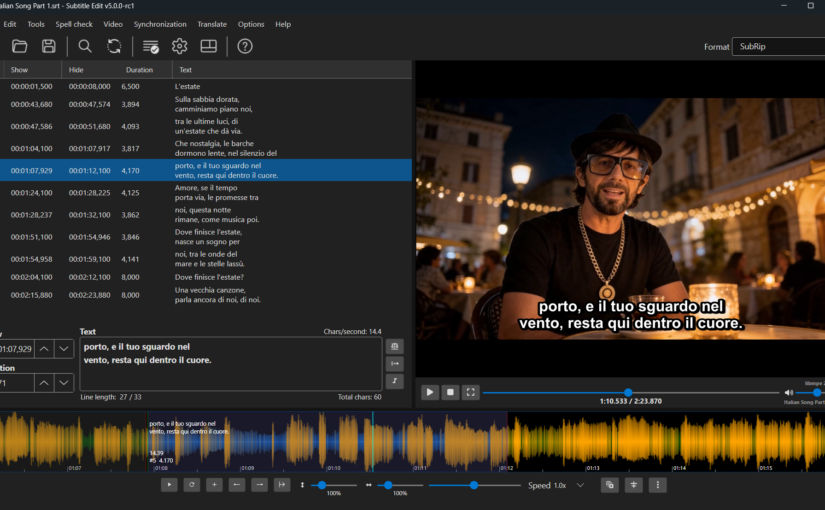
In this post, I’ll explain how to make a music video using AI like the one below.

Get a song

The first step is to get a song. Here are some options:

  1. Buy a song, e.g., on Amazon
  2. Download a song from YouTube, e.g., using a YouTube music downloader
  3. Create a song using AI, e.g., using Suno or TopMediAI

I chose the song “California Love” and I had it in mp3 format.

Optionally, separate vocals from backing track

Sometimes, when you upload a song to generate a lipsync video, the tool can’t distinguish between the vocals and the backing track, resulting in imperfect lip movements. For example, using this song segment

we see that the lipsync results near the end are inaccurate.

If you created the song using Suno, TopMediAI, or any other AI music generation tool, you may be able to cleanly separate the vocal track. Look for “get stems”. Otherwise, you can try to separate the vocals from the backing track using UVR Online.

Here’s how the same lipsync video looks using this vocal track separated using UVR Online.

In this case, the lip movements at the end look accurate, but the beginning looks imperfect, which is why it’s better to get the vocal track from the source.

Get a photo of your singer

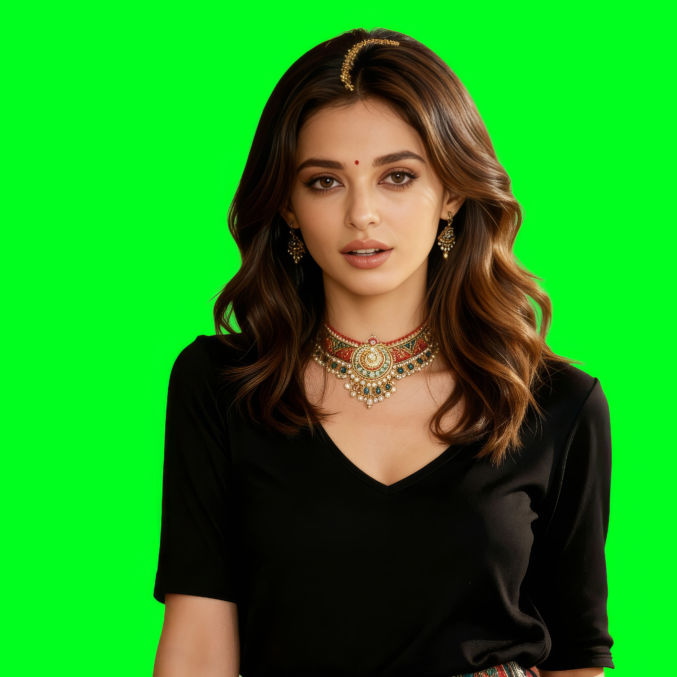
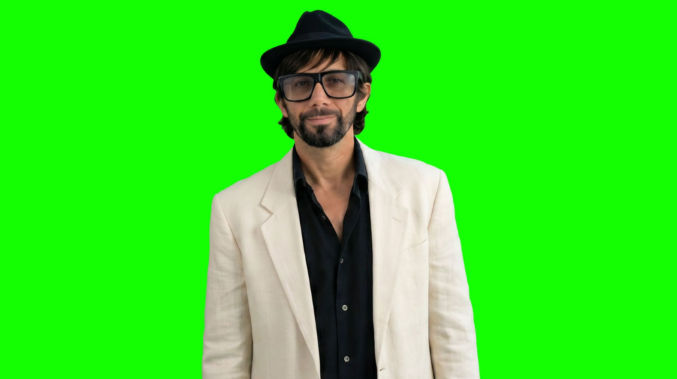
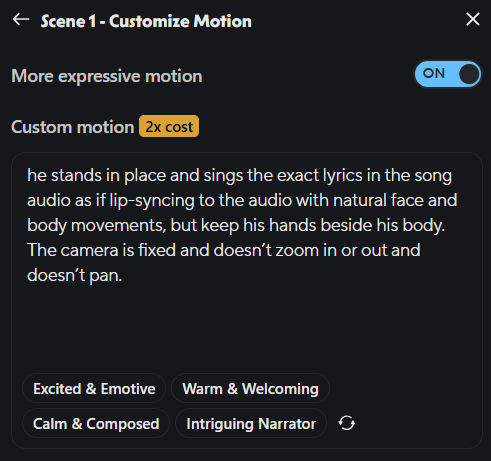
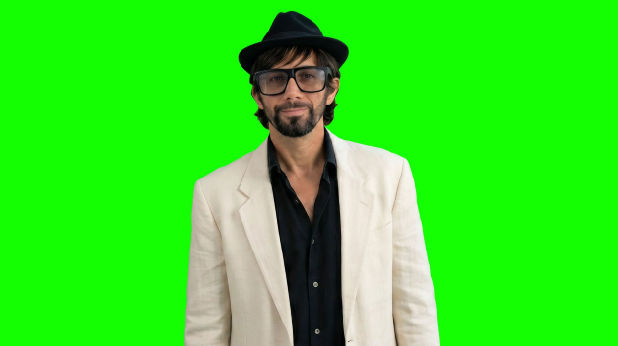
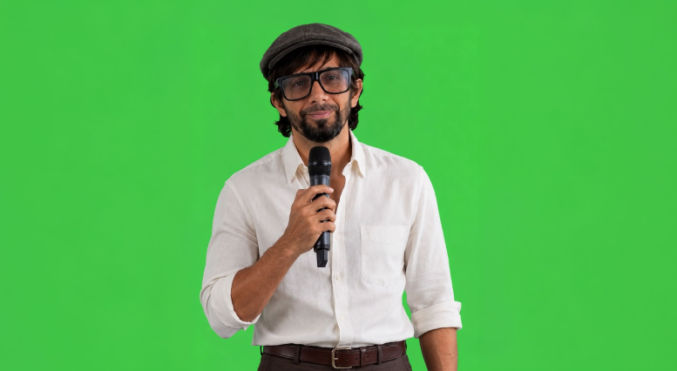
In the video above, I wanted to be the singer, so I found a clear, front-facing photo of myself. I then removed the background. Make sure to have a clear photo for better results.

Generate AI prompts for different scenes of the music video

When it comes to generating AI prompts, I find it easier to use AI (I use ChatGPT) to generate the prompts. Later, we will use AI to generate a lip sync of the singer singing the song. Unfortunately, at the time of this writing, AI is not good enough to lip sync images of subjects where their faces are too small, so for the AI prompts, we want to tell ChatGPT to show a close-up of the subject such that their face occupies 1/3 or 1/2 the image height.

Here’s an example prompt to generate a list of prompts.

Give me 20 prompts to generate 20 images using AI with the following criteria:

  • the generated images should be relevant to the theme or lyrics of the song “California Love” by 2pac, ft. Dr. Dre.
  • the singer in the generated images will come from an uploaded reference image
  • the singer should be shown close up from the waist up so that an AI lip sync tool will produce better results
  • the singer should be either facing the camera or at most facing 45 degrees from the camera

ChatGPT may ask for more information or inputs, like the image of the singer or the lyrics to the song.

Here is example output from ChatGPT.

It’s important to ensure the face of the subject is clear so the lip-sync video generation results are good. Here’s a comparison of video results from images with a small and large subject face.

Subject is not close up
Subject is close up
Subject is not close up
Subject is close up

Notice how the videos where the subject is not close up show facial distortion. The videos with the subject close up show much less distortion. The closer the subject (extreme close up), the less the distortion, e.g.,

Extreme close up

Generate still images using the prompts and the singer image

I like to use OpenArt and Google Nano Banana to generate the images. In OpenArt, go to

  1. Image > Create Image
  2. Model: Choose the “Nano Banana” model (I prefer this model for this purpose)
  3. Prompt: enter one of the prompts from the previous step
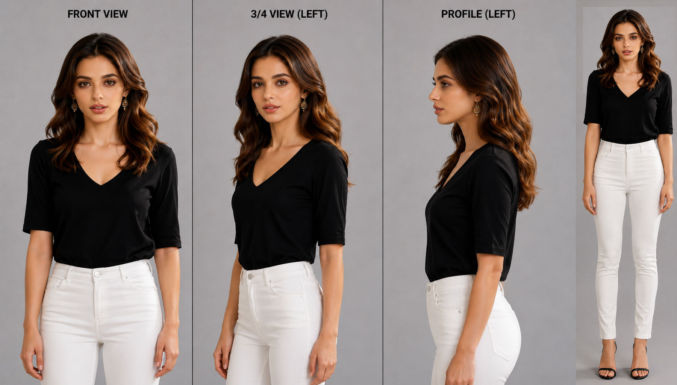
  4. Omni Reference: upload the image of the singer from the previous step (you can optionally upload more than one image, e.g., a front-facing image, a side-facing/profile image, etc)
  5. Output Size: I prefer 16:9
  6. Upscale output: x2 (if you choose x4, the image will be too large for TopMediAI – the lipsync tool – so I choose x2)
  7. Number of images: 1 (you can choose more than one, but you’ll pay more. I prefer to start with one, and if the results are okay, I’ll regenerate more images to get a variety)

Here’s an example of the interface.

After you do this for each prompt, you should end up with an array of images.

Note that you will likely need to tweak some of the prompt text and regenerate images until you get results you like.

Organize files

Since you’ll be working with many files, you’ll want to organize them so you don’t get lost and make mistakes. I like to put all files in a folder like this

“California Love” (folder)

  • california-love.mp3
  • img-01.jpg
  • img-02.jpg
  • img-03.jpg

Split the song in a video editor

I like to use Capcut for video editing. Import the audio file and all image files to Capcut.

  1. Add the audio file to the audio track
  2. Play the video (audio only at this point) and place a marker where you want different scenes to appear
  3. Listen to the audio and move the marker so that it is located between words or sentences.
  4. Split the audio track at the marker
  5. Repeat for as many scenes (clips) as you want

Add an image to each audio clip

  1. On a video track, add an image for each audio clip such.
  2. Set the duration of the image clip to match the duration of the audio clip by dragging either end of the image clip to the left or right.
  3. Play the video in the preview window to see if you like the image sequence for the associated music.

Export the audio clips

If you like the preview in the previous step, export each audio segment in mp3 format. I use the left and right arrow keys to jump the playbar to the start or end of each segment and then I hit the “i” key to set the start point and the “o” key to set the end point so that I only export the segment that I want. The other segments will be grayed out.

Click the “Export” button and check only the “Audio” checkbox. Name each export with a number corresponding to its order in the timeline.

When done, your folder structure should look like this:

“California Love” (folder)

  • audio-001.mp3
  • audio-002.mp3
  • audio-003.mp3
  • california-love.mp3
  • img-01.jpg
  • img-02.jpg
  • img-03.jpg

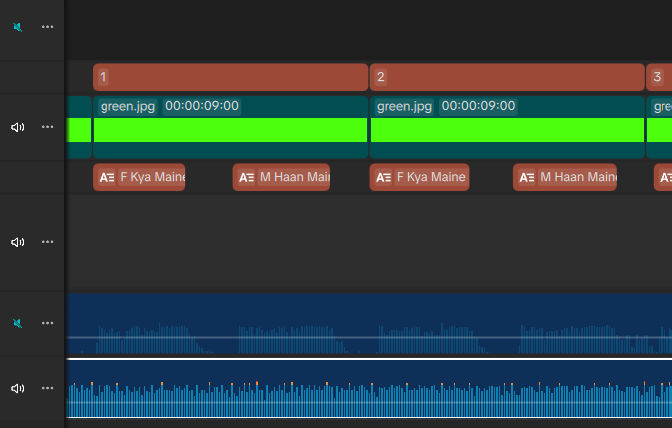
Create a lip-sync video from each image clip

There are many AI lip-sync tools, like HeyGen. HeyGen is used 3D modeling, which is good, but the output is more for talking rather than singing. As such, only the subject’s head moves. For the video above, I used TopMediAI. Though it only uses 2D modeling, it does an impressive job at animating an entire image, including the background, the subject’s head, and the subject’s body.

  1. Log in to TopMediAI
  2. Music AI > Music Tools > Singing Photo Maker
  3. Drag/upload audio segment 1 (audio-01.mp3)
  4. Drag/upload image 1 (img-01.jpg)
  5. Click the “Create” button

When generation is done, preview the lip sync video. If it’s good, save the video as “video-01.mp4” and repeat for all other images. When done, your file structure should look like this:

“California Love” (folder)

  • audio-001.mp3
  • audio-002.mp3
  • audio-003.mp3
  • california-love.mp3
  • img-01.jpg
  • img-02.jpg
  • img-03.jpg
  • video-01.mp4
  • video-02.mp4
  • video-03.mp4

Add the lip-sync videos to the video timeline

  1. Import all lip-sync videos to Capcut
  2. Drag each lip-sync video to a new video track above the track containing images, making sure the video matches the image.
  3. Optionally add transitions, e.g., fade in/out audio or still images, crossfade between video clips, etc
  4. Disable the audio in the lip-sync video track so that only the audio from the music track is heard.
  5. Preview the entire video

If everything looks good, export the video. Click the “Export “button, check the “Video” checkbox, and set parameters (4K resolution, etc).

B-roll

Many videos include B-roll, which is filler content. In my music video above, my B-roll includes video footage of various iconic locations in California. To create this footage, I did the following:

  1. Asked ChatGPT to give me a list of the top 20 most iconic landmarks in California
  2. Asked ChatGPT to give me an image and video prompt for each of those 20 landmarks
  3. Used OpenArt > Image > Google Nano Banana to generate an image using the image prompts from the previous step. Generating images is much cheaper than generating videos, so I prefer to generate images first. If I like an image, I use it as a reference to create a video.
  4. Used OpenArt > Video > From Image to create a video from the images and video prompts generated in the previous steps.
  5. Added the videos to the timeline in Capcut.

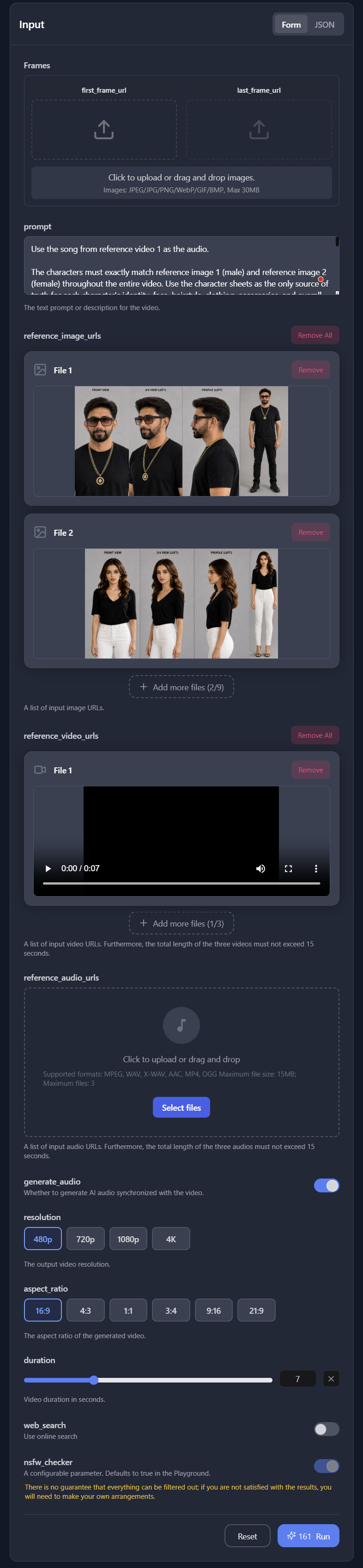
If you want to create B-roll footage using the same character, the following process produced good results.

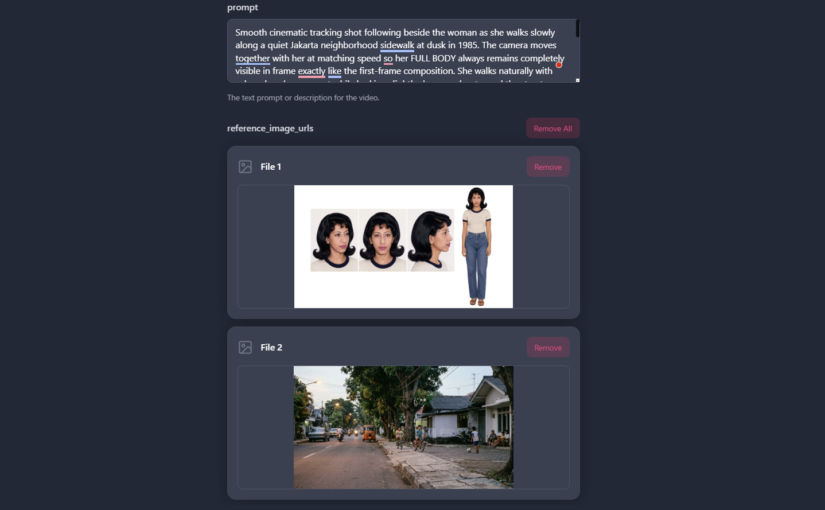
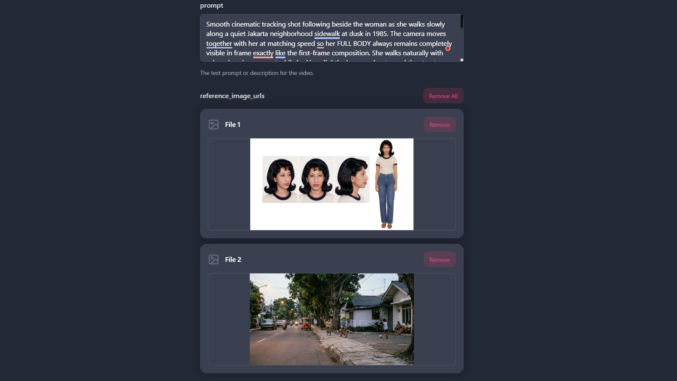
  1. Go to OpenArt > Video > Elements to Video
  2. Select the Vidu Q2 model (you can use other models, like Google Veo 3, but they can be way more expensive)
  3. Upload your character and optionally some other reference images
  4. Enter a text description of the video scene
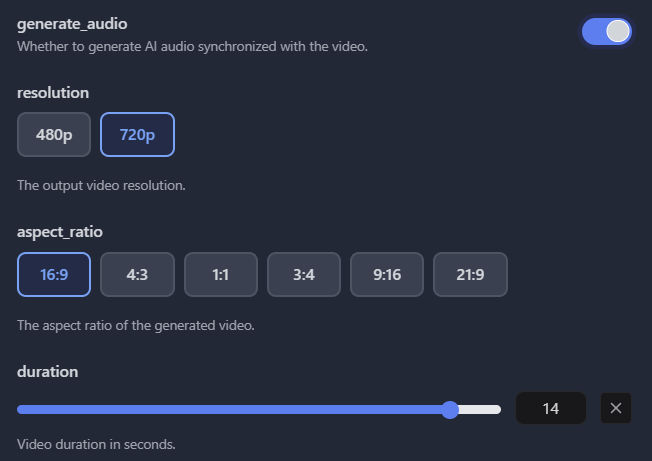
  5. Choose other settings (aspect ratio, duration, resolution)
  6. Click “Create”

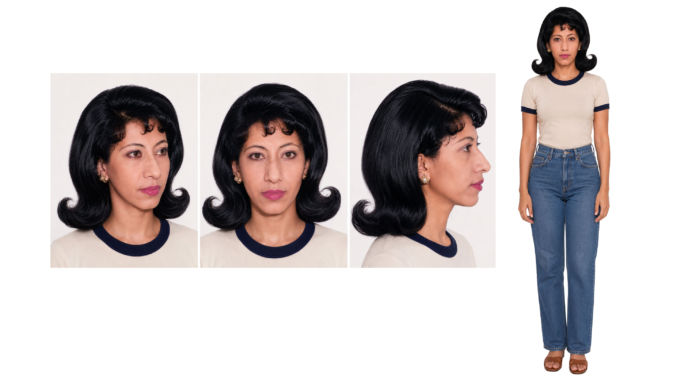
For example, using this character image

and this description text:

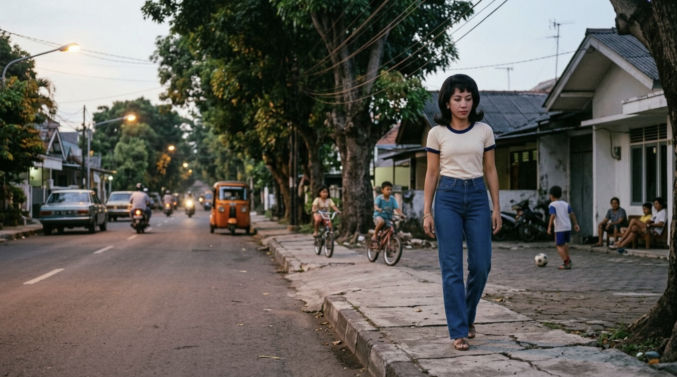
Wide slow-tracking shot following the woman as she walks along glowing dunes. Fire lines cross behind; embers trail — cinematic motion, 8K realism.
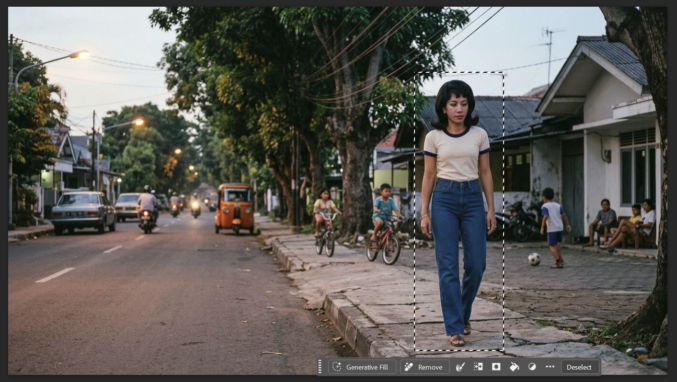
I was able to create this video

and many other ones using the same character.
How to Replace a Rooftop HVAC Package Unit

In this post, I’ll explain step by step how my HVAC guy replaced an old rooftop HVAC stand with a modern HVAC curb.

I had this done due to water leaking into the building from multiple places below the HVAC unit. The entire process took 6 hours nonstop. These steps can also be used to replace an old HVAC unit.

Below are before and after pictures showing the difference.

BEFORE

In the following photo, you’ll see the rusted metal stand below the HVAC unit. That stand was from 1978. The HVAC unit was replaced in 2025, but the HVAC contractor was cheap and didn’t replace the stand with a modern curb. Instead, since the new HVAC unit was too large for the stand, he strapped two pressure-treated 2x4s to the stand using a strip of thin metal.

In the photo below, you’ll also see the old “elbow” at the back of the HVAC unit where the air flows into the ducting in the attic and into the building. The elbow is from 1978. Had the HVAC contractor replaced the stand with a modern curb (shown in the “after” photo below), the elbow would be removed and air from the HVAC unit would flow straight down from below the unit.

AFTER

In the following photo, you’ll see the old stand was replaced with a “curb”, which is an enclosed stand. Also, the elbow was removed and the air inlet/outlet on the back of the HVAC unit was closed off with sheet metal because the air now flowed into the building from below the HVAC unit. You’ll also notice the electrical wires (power and thermostat) come out of the roof below the HVAC unit rather than next to it.

If you’re replacing a rooftop HVAC unit, you won’t need to follow all of the steps here.

Note: Most of the screenshots below were taken from this corresponding video.

Order a curb that is designed for the HVAC unit you have. A curb looks similar to the picture below.

Disconnect everything from the HVAC unit so it can be lifted using a crane and replaced with the same or a newer one.

Have a crane operator come to lift the curb onto the roof.

Connect the 4 rope hooks to the 4 holes in the metal base of the HVAC unit. Instruct the crane operator to life the HVAC unit and place it somewhere else.

In my case, since we weren’t replacing the HVAC unit itself, we just placed the HVAC unit on another area of the roof.

With the HVAC unit out of the way, we can see the old elbow and ducting that goes into the attic. The left duct is for air to return to the HVAC unit and the right duct is for conditioned air to flow into the building.

Remove the elbow. You may need a pry bar to lift some shingles and a utility knife to cut some sealant connecting the elbow to the shingles.

Here’s how the opening in the roof looks with the elbow removed.

After dry-fitting the curb on the roof where you want it to go, mark along the inside perimeter and then cut the shingles along the left and right edges of the perimeter. If using a circular saw, adjust the blade cutting depth to avoid cutting deeper than the shingles.

Using a pry bar, a row or two of shingles at the top edge and a bit of shingles on the left and right edges.

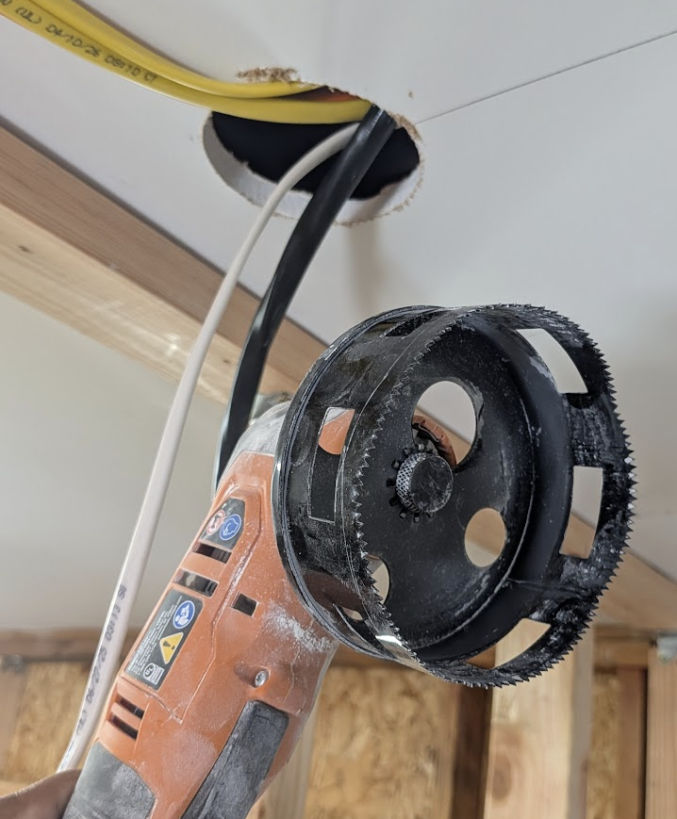
Drill a hole in the roof inside the curb so that the electrical cables can come up through the roof from below the HVAC unit rather than next to the unit.

Turn off the circuit breaker to the HVAC unit and check for any voltage. My Lennox 2.5 ton package HVAC unit had two hot wires, red and black, each at 120V, for a total of 240V. The green wire was for ground.

Remove the line cable, which supplies electrical power from the circuit breaker box, from the HVAC electrical box.

Since the Romex line cable will be moved to come up through the roof from under the HVAC unit, we removed the conduit.

We then pushed the Romex back into the attic so we could push it through the hole in the roof we made earlier.

Then go into the attic so you can push the Romex cable through the new hole in the roof.

Slide the top half of each side of the curb under the shingles and move the curb into its final position.

You may need to remove some nails holding some shingles down.

Place a magnetic torpedo level on one side of the curb, then lift the front of the curb up until the level shows it is level. This is so the HVAC unit will sit level on the curb rather than angled following the slope of the roof.

When it’s level, drill a self-tapping screw for metal from the outer side of the curb through the inner side of the curb to hold the outer side in place.

Drill screws in multiple places to ensure the top of the curb remains level and can support the weight of the HVAC unit.

Install the 4 brackets that came with the curb – 2 on the front and one on each side.

Drill a 3/4″ diameter hole in the front of the curb for the electrical Romex cable and the t-stat (thermostat) cable to go through.

We needed some sheet metal to connect some ducts and cover some openings. It’s much cheaper to buy a roll at a dedicated HVAC store than the big-box stores like Home Depot, which only sell small sheets. However, some HVAC stores only allow licensed contractors to buy from them.

The sheet metal roll is held in place using a long zip tie.

When going up and down the ladder, make sure to strap the ladder to the building, like an eye hook in the eaves, to keep the ladder from moving. Some city inspectors require this when they come for an inspection.

Cut pieces of sheet metal to connect the duct in the attic to the curb.

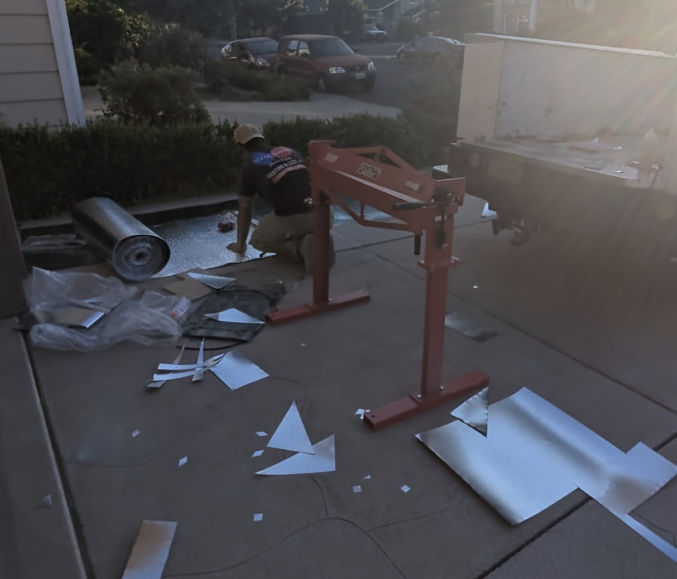
Use a flashing folding tool to fold some edges of the sheet metal.

Position the cut sheet metal to connect the duct to the curb.

Then screw the cut sheet metal to the curb.

Repeat until you’ve connected the duct in the attic to the curb.

Apply HVAC foil sealer duct tape at the edges of the sheet metal connections.

If it helps, you can reuse old duct parts to connect the duct in the attic to the curb. In the following photo, the left opening is where air flows into the building. The right opening is where air flows from the building back into the HVAC unit.

Connecting the duct to the curb can be tricky because there may not be enough slack in flexible ducts and you are sometimes working in tight spaces.

In this case, the contractor had to create a short circular duct to extend the flexible duct that was in the attic.

He inserted the duct at an angle since the flexible duct in the attic came in at an angle.

Then, he screwed in the extension piece using self-tapping sheet metal screws.

Then he screwed the flexible duct to the duct extension he just created.

And he applied HVAC tape to all duct and curb connections.

He also covered all gaps with HVAC tape. For big gaps, as shown below, the tape will serve as backing for the HVAC sealant (Pookie).

Apply HVAC sealant (Pookie) to all seams and connections. When dry, this sealant becomes very hard.

Stick the electrical line cable and load wires (red, black, and green) through the hole previously made in the curb. The load wires connect from the wires in the line cable to the terminals in the HVAC unit.

Insert a 3/4″ plastic bushing in the hole in the metal curb to prevent the wires from getting cut if they slide against the sharp metal hole in the curb.

Stick the wires through the hole in the electrical box.

Screw the box to the curb.

Since both the black and white wires in the line cable are hot (120V), the white wire must be colored black to indicate it is hot. You can cover a portion of the white cable sleeve with black electrical tape.

Connect the wires to the appropriate terminals in the electrical junction box.

Screw the plastic cover over the terminals.

Insert the circuit breaker.

Close the box door.

Optionally lock the door by inserting a lock through the hole.

Tape the ends of the load wires and the thermostat wires together to make it easier to access them when the HVAC unit is lowered onto the curb.

Screw the base of the curb into the roof at various places.

Drill a 3/4″ hole at the bottom of the HVAC unit near where the power and thermostat wires will connect to the unit.

Since the previous HVAC contractor connected the unit to the elbow at the back of the unit, we had to remove the tape and sealant that remained after disconnecting the elbow from the unit.

The contractor unscrewed and removed the two panels at the bottom of the HVAC unit since airflow will flow through the bottom rather than the back.

He then measured the openings so he could create some custom panels using sheet metal.

The crane returned to lift the HVAC unit and lower it onto the new curb. The contractor inserted the 4 hooks into the 4 holes at the base of the unit.

The contractor pulled the load and thermostat wire through the hole he made in the base of the HVAC unit.

The unit was then lowered onto the curb such that the base would sit on the 4 brackets around the top of the curb.

The contractor routed the wires to where they need to be connected.

He connected the load wires (black, red, and green) to the appropriate terminals.

He connected the thermostat wires to the corresponding color-coded wires in the HVAC unit.

He then connected the gas line to the unit.

He applied PVC glue to connect the drip line to the unit.

He put HVAC tape to close the gap between the openings at the bottom of the unit and the duct openings in the roof.

He brushed on some HVAC sealant (Pookie) over the tape.

He cut some sheet metal to cover the two openings at the back of the unit.

He folded the 4 corners of the sheet to fit over the lip of the openings at the back of the unit.

And he screwed the panels in place

He put HVAC tape around the panels, but he didn’t apply HVAC sealant (Pookie) over the tape so that maintenance and inspection can easily be done in the future, if needed. (Pookie dries really hard and is hard to remove)

He screwed the electrical panel back on the unit.

He put new shingles over the area where he had to remove some old shingles.

Since replacing the stand with a curb, the HVAC unit was moved up, so he had to add an extension to the old PVC drip line.

Since the old electrical line cable was moved from outside the HVAV unit to under the unit, he covered the old hole in the roof with HVAC tape, which is very sticky tape.

He applied silicone sealant over screws that could result in roof leaks.

He also applied silicone sealant around the electrical box.

The feet of the old stand were screwed into the roof. He lifted the shingles where the feet were using a pry bar.

And applied sealant in the holes beneath the top layer of shingles.

He then pressed down on the top layer of shingles so the sealant would squeeze out of the holes.

He smeared the sealant to completely cover the holes.

He also applied sealant over the tape that covered the hole where the electrical Romex line cable came out.

And here’s how everything looked when he was done.

He only needed the shingles to cover the top half of both sides of the curb because the lip at the perimeter of the curb would force water to run down the roof rather than sideways.

Temporary Dust Blocker and Privacy Wall While Renovating Your Home

Some home improvement projects can produce a lot of dust, like when dealing with drywall, concrete, and mortar. Additionally, when you have contractors coming and going into your home, it’s nice to have a temporary partition for privacy. You can buy a plastic dust containment door at Home Depot for $30, but that’s expensive for a piece of plastic, and it only covers a 3′ x 7′ door opening. One option for covering a large space to both block dust and create privacy is by hanging blackout curtains on a sliding track, as shown below.

Note: if you don’t need to slide open the temporary wall, you can screw some 2×4 pieces of wood to the ceiling and then screw or staple the curtain to the 2×4 wood. You can also replace the curtains with thin (or thick) plastic or canvas drop cloth. In my case, I wanted the ability to easily slide the curtain wall open when the contractors weren’t working.

I first bought a lightweight shower curtain, but it was more expensive than the blackout curtains, and it filtered light, so anyone could see through both sides.

The curtain track just screws into your ceiling, either into joists or just drywall, using anchors.

You can also adjust the length of the track.

I went with two tracks and two curtains. Where the curtains meet in the middle, I had one curtain partially hang on the hooks of the other track for about 1 foot of overlap. This minimized any gaps in the middle for dust to get through.

CAUTION: While you might not think dust will get very far, you’d be surprised how wrong you are. Before I put up these curtains, dust managed to make it all the way to my living room, as I saw a thin film of it on my laptop cover. Also, there was a thin film of dust on the kitchen floor as well. While cleaning large flat surfaces like floors is easy, it’s not when dust gets into many nooks and crannies or in rugs.

The next time you need to do home improvement that could generate a lot of dust, or if you just need a temporary privacy wall, the ceiling track and curtain solution above may be just what you need, unless you want to spend all day removing dust everywhere.

Should You Finance or Pay Cash for Rental Properties?

Let’s say you’re willing to invest $600,000 in rental real estate. You find the average purchase price of a multifamily triplex (3 apartments) is $600,000, with rental income potential (after one-time renovations) of $6000 per month. You can buy the property in cash and have no mortgage, or you can buy 2 or 3 such properties by financing them. Let’s analyze the finances based on current interest rates of about 6.5% for a 30-year fixed-rate mortgage.

1 Triplex2 Triplexes3 Triplexes
Purchase Price$600,000$1,200,000$1,800,000
Down Payment (%)100%50%33.3%
Down Payment ($)$600,000$600,000$600,000
Mortgage (P&I) 10$3,792$7,590
Insurance + Taxes$379$758$1,137
Rental Income$6,000$12,000$18,000
Profit 2$5,621$7,450$9,273
Increased Profit ($)$1,829$3,652
Increased Profit (%)32.5%65.0%
Net Rental Yield (%)11.24%14.90%18.55%

1 The mortgage (P&I, or Principal and Interest) and the insurance and taxes are based on the Zillow mortgage calculator.
2 Profit in this calculation is just gross rental income minus large expenses, like mortgage, insurance, and taxes. It excludes water, garbage, business license, etc,)

If we ignore closing costs, which are a one-time cost and can be wrapped into a mortgage, we find that for the same $600,000 investment, we can make an additional

  • $1,829 per month if we buy 2 properties instead of one (32.5% increase)
  • $3,652 per month if we buy 3 properties instead of one (65% increase)

From a net rental yield perspective, which is annual profit divided by purchase price, the ratios for each case are 11.24%, 14.9%, and 18.55%. The yield if we buy just one triplex is already very good (11.24%), but the yield when we buy 2 or 3 triplexes is amazing!

Based on this simple analysis, we can see that for the same investment amount ($600,000), we can make significantly more money if we finance multiple properties rather than pay cash for just one property. But, the financial benefits don’t end here. Since the interest rate was 6.5% (current as of this writing), there is potential to make even more money if we refinance when interest rates drop. Let’s compare the numbers for interest rates of 5%, 4%, and 3%. Note that during the pandemic in 2021, it was possible to get a rate of 3% for a 30-year fixed mortgage on an investment property.

Interest Rate = 5%

1 Triplex2 Triplexes3 Triplexes
Purchase Price$600,000$1,200,000$1,800,000
Down Payment (%)100%50%33.3%
Down Payment ($)$600,000$600,000$600,000
Mortgage (P&I)0$3,220$6,444
Insurance + Taxes$379$758$1,137
Rental Income$6,000$12,000$18,000
Profit$5,621$8,022$10,419
Increased Profit ($)$2,401$4,798
Increased Profit (%)42.7%85.4%
Net Rental Yield ($)11.24%16.04%20.84%

If you refinance to a 5% interest rate, the rental yield for 2 and 3 triplexes jumps to 16.04% and 20.84%, respectively.

Interest Rate = 4%

1 Triplex2 Triplexes3 Triplexes
Purchase Price$600,000$1,200,000$1,800,000
Down Payment (%)100%50%33.3%
Down Payment ($)$600,000$600,000$600,000
Mortgage (P&I)0$2,864$5,733
Insurance + Taxes$379$758$1,137
Rental Income$6,000$12,000$18,000
Profit$5,621$8,378$11,130
Increased Profit ($)$2,757$5,509
Increased Profit (%)49.0%98.0%
Net Rental Yield ($)11.24%16.76%22.26%

If you refinance to a 4% interest rate, the rental yield for 2 and 3 triplexes jumps to 16.76% and 22.26%, respectively.

Interest Rate = 3%

1 Triplex2 Triplexes3 Triplexes
Purchase Price$600,000$1,200,000$1,800,000
Down Payment (%)100%50%33.3%
Down Payment ($)$600,000$600,000$600,000
Mortgage (P&I)0$2,530$5,061
Insurance + Taxes$379$758$1,137
Rental Income$6,000$12,000$18,000
Profit$5,621$8,712$11,802
Increased Profit ($)$3,091$6,181
Increased Profit (%)55.0%110.0%
Net Rental Yield ($)11.24%17.42%23.60%

If you refinance to a 3% interest rate, the rental yield for 2 and 3 triplexes jumps to 17.42% and 23.60%, respectively.

Conclusion

If your goal is to maximize ROI, then it should be clear now that financing the purchase of many rental properties is better than paying cash for fewer properties.

Compare Property Investments Using Rental Yield

There are many ratios investors use to compare rental property investments. To quickly estimate the profitability of an investment, I like to use price rental yield, which can be either gross or net.

  • Gross rental yield (%) = (annual rental income / purchase price) x 100
  • Net rental yield (%) = (annual rental income – expenses / purchase value) x 100

One popular measurement is the capitalization rate (cap rate), but it requires having detailed income and expenses, which are not necessarily available. It is similar to the net rental yield. The formula is

  • Cap rate (%) = (net operating income / current value) x 100

where

  • Net operating income = annual rental income – all operating expenses (excluding mortgage payments, depreciation, or amortization)

If you are buying a property, then the current value is usually the same as the purchase price.

According to AI, a “good” rental yield is between 5-8%. I personally target a gross rental yield of about 12%. Let’s see how to calculate rental yield on some properties.

Apartment building in Stockton, California

  • Zillow Listing
  • Address: 1135 N Sutter St, Stockton, CA 95202
  • 8 apartments
  • Each apartment is 1 bedroom, 1 bathroom
  • Total 4192 sqft (524 sq ft / apartment)
  • Zillow Estimate: $766,000
  • Sale Price: $800,000
  • Estimated rent for a 1 bd, 1 ba apartment in/around 1135 N Sutter St, Stockton, CA 95202 according to Rentometer: $1000
  • Actual rental income per listing: 4 units @ $1000 / month, 3 units @ $900 / month, 1 unit vacant
  • Cap rate per listing: 8.5%
  • Gross rental yield potential: (8 units x $1000 / month x 12 months) / $800,000 = 12%

This property has a potential gross rental yield of 12%, which is good. I would look further into this property as an investment.

Townhouse in Hayward, California

  • Zillow Listing
  • Address: 841 W Sunset Blvd #B, Hayward, CA 94541
  • 1 townhouse
  • 3 bedrooms, 2.5 bathrooms
  • Total 1448 sqft
  • Zillow Estimate: $713,000
  • Estimated rent according to Zillow: $3626
  • Cap rate per listing: details unavailable to calculate
  • Note: This property is in an HOA with monthly dues of $200 / month
  • Gross rental yield potential: ($3626 / month x 12 months) / $713,000 = 6.1%

The property has an estimated gross rental yield of only 6.1%, which is closer to the low end of the range of what is considered good. I wouldn’t bother considering this property as a rental investment.

Single-family house in Hayward, California

  • Zillow Listing
  • Address: 28578 Harvey Ave, Hayward, CA 94544
  • 1 single-family house
  • 3 bedrooms, 3 bathrooms
  • Total 1,709 sqft
  • Zillow Estimate: $971,800
  • Estimated rent according to Zillow: $3,862
  • Cap rate per listing: details unavailable to calculate
  • Gross rental yield potential: ($3,862 / month x 12 months) / $971,800 = 4.7%

At an estimated gross rental yield of 4.7%, this is not a good investment. However, if you convert the house into a co-living space, you can increase the rental yield as follows:

  • Convert 2-car garage into a JADU with 2 rooms, each of which can be a bedroom
  • Convert the family room into a bedroom
  • Depending on the house layout, it may be possible to convert other rooms into a bedroom

In doing so, the house would have at least 6 bedrooms, which, at $1000 of rental income each, would bring in $6000 / month, resulting in a rental yield of 7.4%.

Tasty Toasted Turkey, Egg, Cheese, and Guac Sandwich Recipe

This came out better than I thought, so it’s blogworthy.

Ingredients

  • French roll (I wish there were keto rolls, but they don’t seem to exist)
  • 2 eggs
  • Guacamole
  • 1 slice of turkey deli meat
  • 1 slice of cheddar cheese
  • Avocado oil spray
  • Salt and pepper

Directions

  1. Spray avocado oil in a frying pan
  2. Add the eggs, break the yolk, and cook to your preferred doneness
  3. Sprinkle the eggs with salt and pepper as desired
  4. Heat the French roll in a microwave for 20 seconds to soften it
  5. Spread a layer of guacamole on the bottom half of the roll
  6. Add the slice of turkey meat on the guac
  7. Add the scrambled eggs on the turkey slice
  8. Cut a square slice of cheddar cheese in half and place it over the eggs lengthwise
  9. Spray the base of your air fryer basket with avocado oil (optional)
  10. Fold the sandwich roll and place it in the air fryer basket
  11. Spray a bit of avocado oil on the top of the sandwich (optional)
  12. Place a metal air fryer rack on the sandwich to prevent it from unfolding
  13. Air fry at 390 degrees for 2-3 minutes

Photos

Delicious Egg, Cheese, Turkey, & Guac Air-Fried Sandwich

Ingredients

  • 2 slices of French sourdough bread (Costco Business Center sells a 2-pack of sourdough bread loaves for just $7. Each slice is square, not oval, so each slice is the same size). You can also try soft Ciabatta bread, available at both Costco and Costco Business Center.
  • 2 eggs
  • 2 slices of turkey deli meat
  • 2 slices of cheddar cheese
  • Guacamole
  • Avocado oil spray
  • Salt and pepper
  • Mayonnaise

Directions

  1. Spray a frying pan with avocado oil, add the eggs, and fry them to your desired doneness, optionally adding salt and pepper or other spices.
  2. Spread mayonnaise on one side of each sourdough bread slice. This side will be the outside.
  3. Spread guacamole on the other side of one slice of bread
  4. Add the eggs on top of the guacamole
  5. Add the cheese slices on top of the eggs
  6. Add the turkey slices on top of the cheese
  7. Add the other bread slice on top of the turkey slices (mayo side up)
  8. Place the sandwich in an air fryer and air fry at 390 degrees for 5 minutes
  9. Enjoy

Healthy, Keto-friendly Quesadilla in an Air Fryer

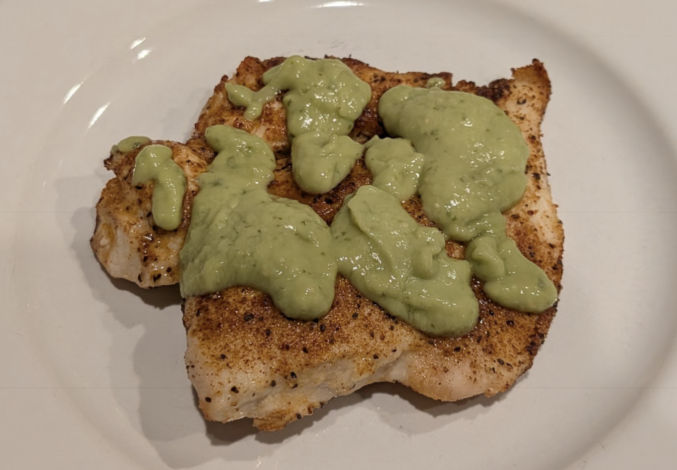
The other day, I went to El Pollo Loco and had their chicken quesadillas with avocado salsa verde. It was delicious, so I sought out how to make a healthy version at home using my air fryer. Though my version doesn’t taste as good as El Pollo Loco’s, it’s healthier, still tastes pretty good, and is much cheaper. For the salsa, I found one that tastes almost the same as El Pollo Loco’s. Here’s my recipe.

Ingredients

Directions

  1. Heat the precooked chicken breast strips in a microwave
  2. Spray avocado oil on the air fryer basket
  3. Place a tortilla in the air fryer
  4. Put cheese on one half of the tortilla
  5. Place some chicken breast strips over the cheese
  6. Top the chicken strips with more cheese
  7. Fold the other half of the tortilla over the first half
  8. Spray avocado oil on the folded half
  9. Keep the tortilla from unfolding by either sticking a toothpick through both sides of it or placing a metal air fryer rack over it
  10. Cook at 390 degrees F for about 4 minutes
  11. To consume, dip it in the guacasalsa or spoon some guacasalsa on it