


Over the past year, I’ve spent a lot of time making AI-generated music videos.
At first, I thought the hardest part would be getting AI to generate good images and videos.
It wasn’t.
The harder part was keeping everything organized.
A three-minute music video can easily contain dozens of scenes. Each scene may need a first-frame image, a last-frame image, a video prompt, reference images, and multiple generation attempts before I finally get something I like.
Pretty quickly, the workflow starts getting messy.
I would have:
- prompts scattered across browser tabs and text files
- reference images buried in folders
- multiple versions of the same scene
- downloaded files with meaningless names
- no easy way to remember which settings produced the version I liked
- no simple way to see the structure of the whole video at once
The AI models kept getting better, but the workflow around them still felt primitive.
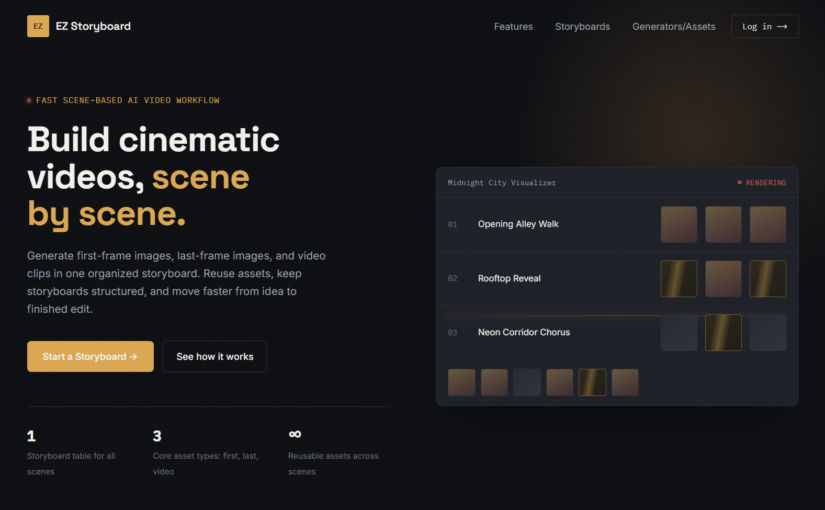
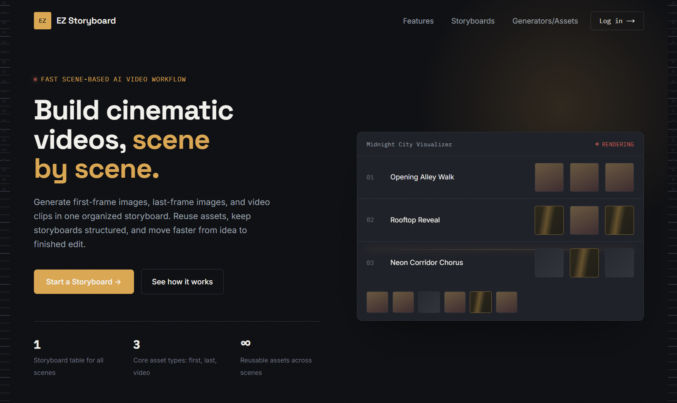
So I built EZ Storyboard.
The realization: I’m not really making one video
When people see an AI-generated music video, they sometimes imagine that I type a prompt and an AI generates the whole thing.
That’s not how it works.
In practice, I’m building the video scene by scene.
For one scene, I may first generate an image.
Then I may regenerate it several times until the composition is right.
Then I might create a different final frame.
Then I animate the first and last frame into a video.
If the motion isn’t right, I regenerate the video while keeping the images.
Then I move on to the next scene.
Repeat that dozens of times.
Eventually, I bring all those clips into something like CapCut and edit them together into the finished music video.
Once I started thinking about the workflow that way, the structure of EZ Storyboard became pretty obvious.
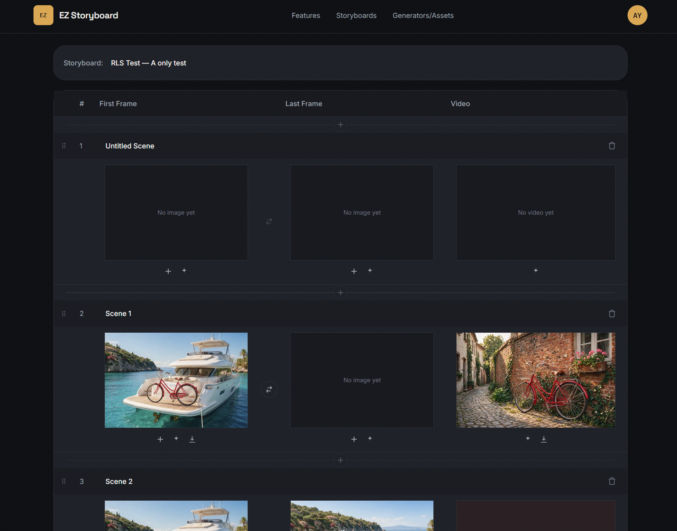
One row per scene
Every project in EZ Storyboard is a storyboard.
Each row represents one scene, and each scene has three main assets:
- First Frame
- Last Frame
- Video
That’s it.
Instead of thinking about folders full of files, I can look at one table and immediately understand the state of the video.
I can see which scenes are complete, which ones still need an ending frame, which videos are rendering, and which scenes I haven’t started yet.
This also makes it much easier to think about pacing.
If I decide that I need another shot between scene 8 and scene 9, I can insert one right there instead of creating a new scene at the bottom and dragging it through a long list.
Scenes can also be reordered by dragging them into place.
Generate images directly inside the scene
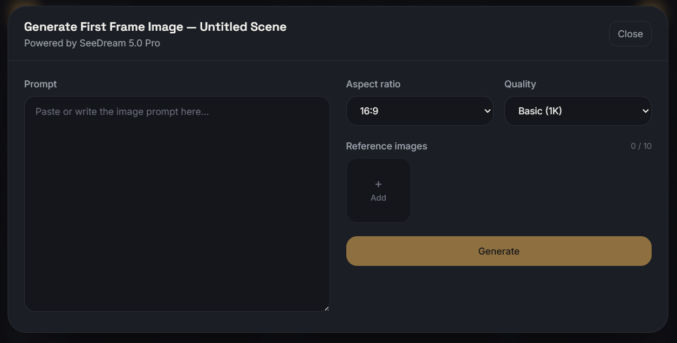
For images, EZ Storyboard currently uses Seedream 5.0 Pro.
Each First Frame and Last Frame cell has its own Generate button.
I can write a prompt, add up to 10 reference images, choose the aspect ratio and quality, and generate the image without leaving the storyboard.
This is especially useful for character consistency.
When I’m making a music video, I may have a character sheet for the singer, another reference image for the location, and maybe another image showing the outfit or lighting style I want.
Instead of repeatedly uploading those files every time I create a new shot, I can keep them in the asset library and reuse them.
Generate the video from the frames
Once I have the first and last frames I want, I can generate the video directly from the same row using Seedance 2.0.
There are two generation modes.
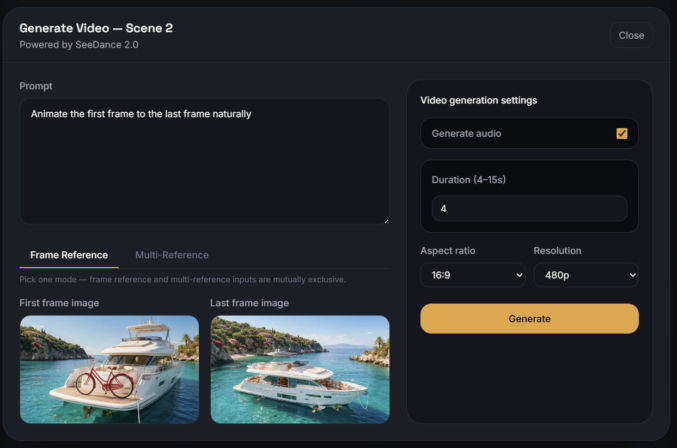
Frame Reference
This is the mode I expect to use most often.
It uses the scene’s own First Frame and/or Last Frame to generate the video.
For example, I might have:
- the singer standing in one position at the beginning
- the singer farther down the street at the end
Then I ask Seedance to create the motion connecting those two images.
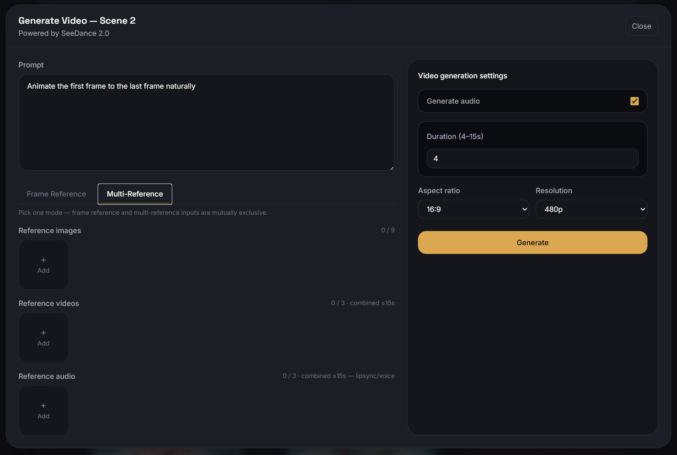
Multi-Reference
Some scenes are more complicated.
For those, I can provide up to:
- 9 reference images
- 3 reference videos
- 3 reference audio clips
along with controls for duration, resolution, aspect ratio, and audio generation.
Audio references are particularly interesting for shots involving singing or speech.
Regeneration was one of the biggest things I wanted to fix
One thing I’ve learned from making AI videos is that you almost never get the perfect result on the first try.
Sometimes I generate the same image five times.
Sometimes the image is perfect, but the video motion is wrong.
Sometimes I just want to change one sentence in the prompt and try again.
That sounds simple, but it gets annoying when every regeneration means rebuilding the entire prompt and configuration from scratch.
So when I reopen a generator in EZ Storyboard, it remembers what created the current asset.
The prompt comes back.
The reference images come back.
The settings come back.
If the previous attempt failed, even that attempted configuration is preserved.
Regenerating becomes editing rather than starting over.
That sounds like a small feature, but after hundreds of generations, it saves a lot of time.
Sometimes I generate first and decide where it belongs later
Not every image starts as part of a specific scene.
Sometimes I just want to explore.
For example, I may generate:
- several outfits for a singer
- different versions of a palace
- ten possible establishing shots
- alternate lighting styles
- different character poses
For that, EZ Storyboard also has standalone Image Generator and Video Generator pages.
Anything generated there goes directly into the asset library and can be assigned to a storyboard later.
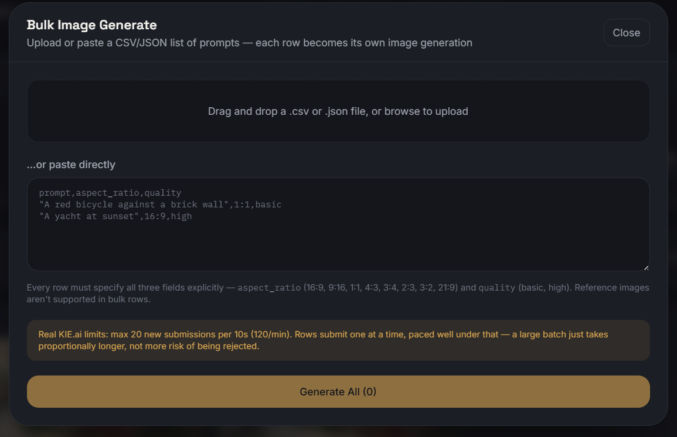
Bulk image generation
There are also times when I already have a long list of prompts.
Maybe I want to generate twenty storyboard images from a shot list.
Doing them one at a time is tedious.
The Bulk Image Generator accepts CSV, JSON, or pasted text and processes the prompts row by row.
Each row shows its own status, so if one generation fails, the others keep going.
This is especially useful when I’ve already planned an entire sequence and just want to start generating options.
One asset library for everything
This was another problem I kept running into before building the app.
When you’re generating hundreds of assets, eventually you lose track of where everything came from.
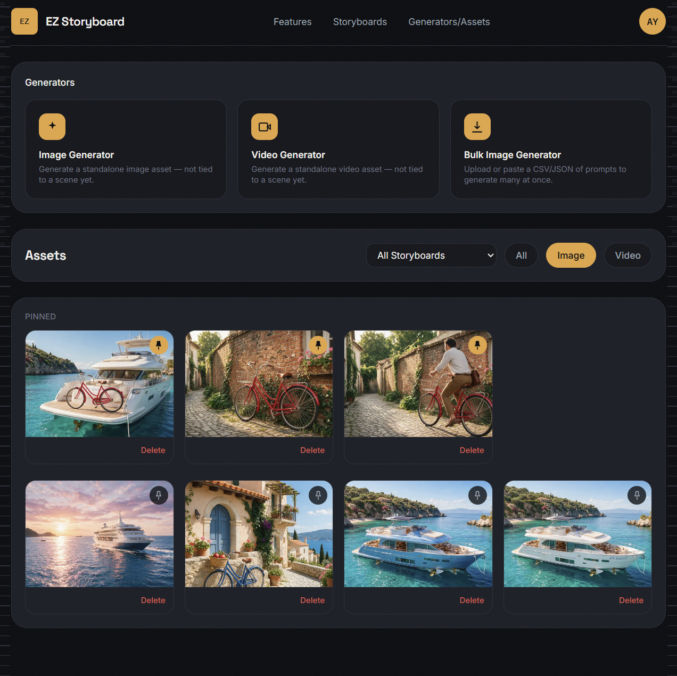
EZ Storyboard keeps images, videos, and audio in one asset library.
I can filter them by:
- asset type
- storyboard
- or everything across all projects
More importantly, a generated asset doesn’t just remember the file.
It remembers:
- the prompt
- generation settings
- reference images
- reference videos
- reference audio
So if I create a shot I really like, I can see exactly how I made it.
There is also a one-click button to copy the prompt.
Pinning the assets I use all the time
Certain references get reused constantly.
For example:
- a singer’s character sheet
- a particular outfit
- a location reference
- a style reference
Those can be pinned.
Pinned assets stay near the top of the asset library and also appear first when I’m choosing references during generation.
It sounds trivial until you have fifty or a hundred files in a project and keep scrolling past all of them looking for the same character sheet.
Small workflow details matter
A lot of the features in EZ Storyboard came from annoyances I encountered while actually making videos.
For example, generated images can be several megabytes each.
Loading dozens of full-resolution images just to display tiny storyboard previews would be unnecessarily slow, so the app automatically serves optimized thumbnails while keeping the original files intact.
Generated assets are also private by default and served through temporary signed links rather than public URLs.
And if I delete a scene, the associated generated assets don’t disappear.
They stay in the asset library.
I’ve accidentally deleted or replaced things enough times while experimenting with AI that I specifically didn’t want scene organization to determine whether an asset continued to exist.
What EZ Storyboard does — and what it doesn’t
I didn’t build EZ Storyboard to replace every part of video production.
It doesn’t try to write my prompts for me.
It doesn’t replace the final video editor.
I’m still going to assemble the finished clips in CapCut or whatever editor I happen to be using.
What EZ Storyboard handles is the part in between:
generating, iterating on, and organizing all the individual scenes that eventually become the finished video.
That was the part of AI video production that kept becoming more tedious as the models themselves became more capable.
Why I built it
The funny thing about AI video right now is that the generation technology is moving incredibly fast.
Models can already produce shots that would have seemed impossible just a couple of years ago.
But making a full video still involves a surprising amount of manual organization.
The bottleneck is increasingly not:
Can AI generate this shot?
It’s:
Can I keep track of the 60 shots, 150 images, 30 reference files, and multiple generations that make up the project?
That’s the problem EZ Storyboard is meant to solve.
I built it because I wanted it for my own projects.
Now it’s live for anyone else who has the same problem.
Try it: ezstoryboard.com
Here’s one music video I made using the same techniques, though I made it the hard way, before I built ezstoryboard.com.