There are many types of videos you can make to make money on YouTube, but arguably the easiest type is where you do nothing but walk around somewhere interesting. For example, here are a few YouTube channels dedicated to walking tours.
According to SocialBlade, their estimated monthly earnings is between $157 and $2.5K and their estimated annual earnings is between $1.9K and $30.1K. We can also see their estimated earnings for each video.
Let’s check another channel’s estimated revenue.
@t0urister
This channel makes between $634 and $10.1K per month and between $7.6K and $121.8K per year. With this type of income, you can quit your job and literally just walk around to make a living (plus some minor video editing).
Camera
If you want to start your own YouTube walking tour channel, you’re going to need a camera. One of the cheapest and smallest cameras with impressive features for its price range is the DJI Osmo Pocket 3.
If you don’t want to hold the camera in your hand, you can mount it on your chest or a backpack strap for hands-free filming.
According to one of the most famous studies of anabolic steroids by Bhasin and colleagues
you can gain more than double the amount of muscle from using steroids than if you didn’t use steroids
you can gain almost double the amount of muscle from using steroids and without training than if you trained without using steroids
600 mg of steroids per week
It’s clear that steroid use makes a huge difference in your ability to grow muscle. The test above was conducted by given each subject 600 mg of steroids per week, which is the amount for entry-level bodybuilders, as indicated in the chart below.
High-level competitive bodybuilders typically take between 1000 – 5000 mg of steroids per week.
Interestingly, by just taking 600 mg of steroids per week, people can gain on average 1 lb of muscle per week without even lifting weights.
Average, not max, lean mass gained
To see the difference in body size between a natty (natural) bodybuilder and a bodybuilder who take steroids, consider Shaun Clarida, Mr. Olympia 212 Division Champion in 2020 and 2022.
Below are photos of Shaun before and after taking steroids. With steroids, he gained 3 times the amount of muscle that he was able gain naturally.
Genetics affect the ability to grow muscle and response to steroid use
According the chart below, the worst responding subject gained only 9 lbs of muscle in 20 weeks whereas the best responding subject gained 31 lbs of muscle in 20 weeks. This study was done where each subject simply took 600 mg of steroids every week and without lifting any weights.
Average muscle gain
The table below shows average muscle gain depending on whether you are a natural bodybuilder (no steroids), an enhanced bodybuilder (you take 600 mg of steroids per week), or a very enhanced bodybuilder (you take between 1000 – 5000 mg of steroids per week). The figures below refer to pure muscle gain, not total weight gain. People can gain more mass than the numbers shown, but some of that mass will be fat. Also, the figures below are averages. Some people will gain more, and some will gain less. Women can multiply the figures by ~60%.
Steroid Misuse Consequences
Following are some possible health consequences of steroid misuse according to the National Institute on Drug Abuse.
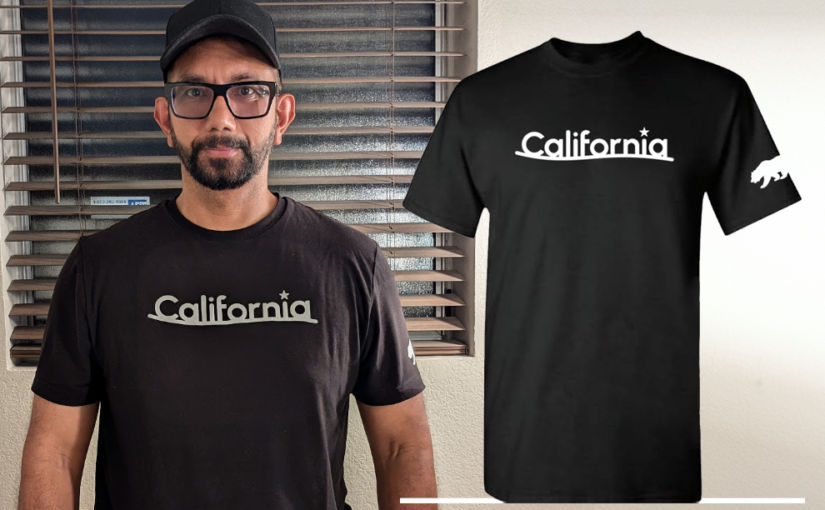
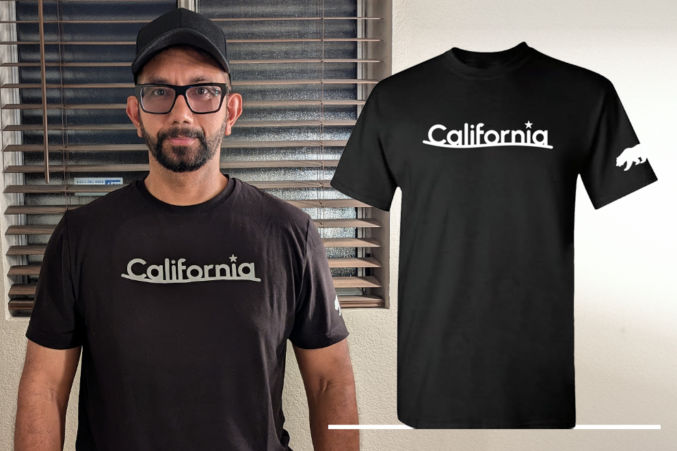
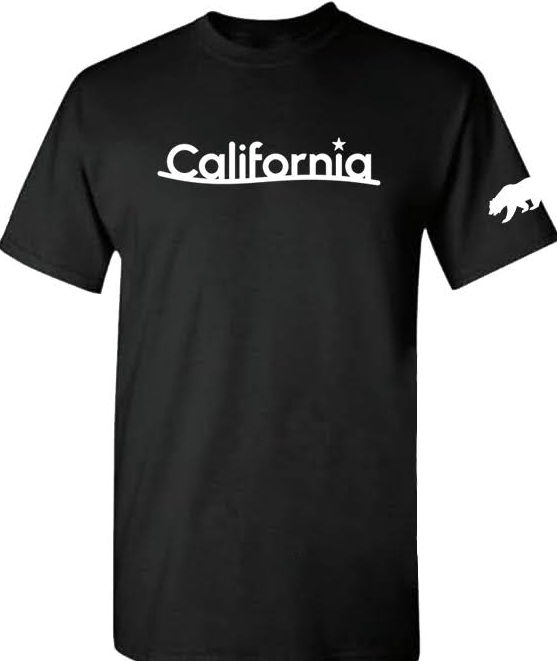
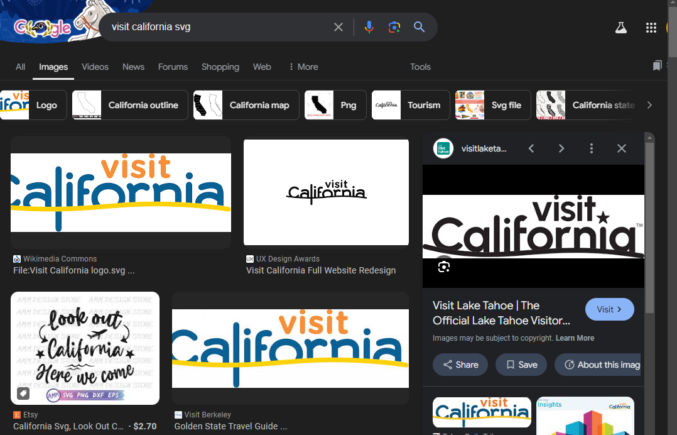
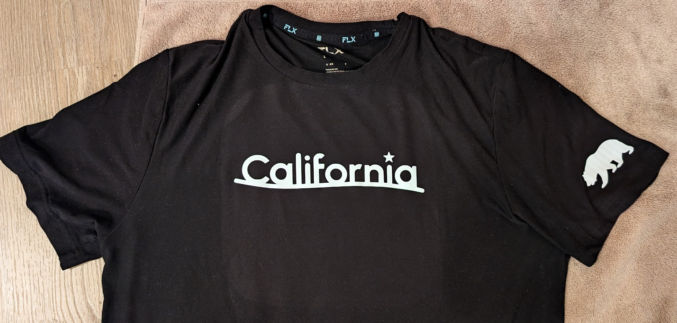
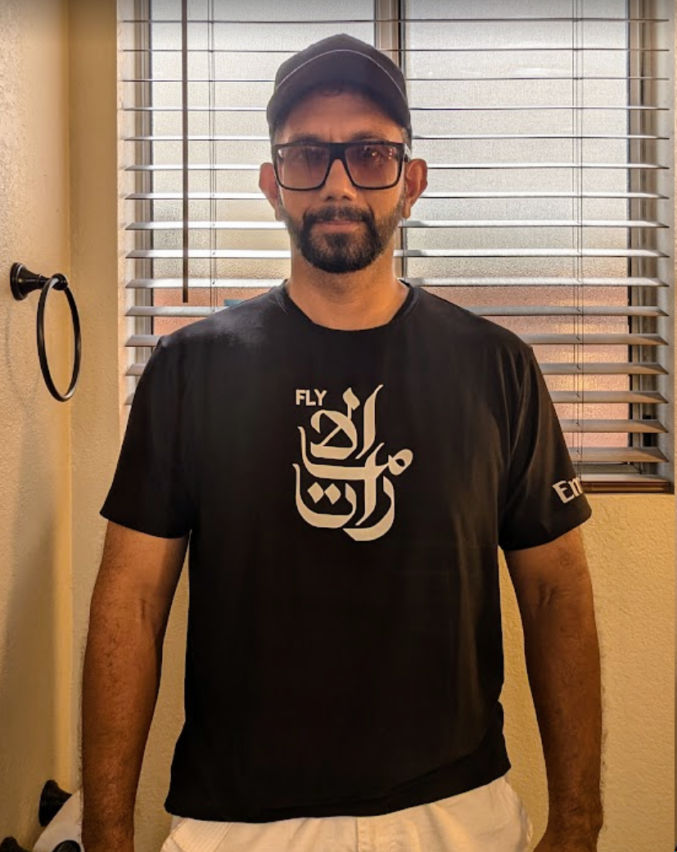
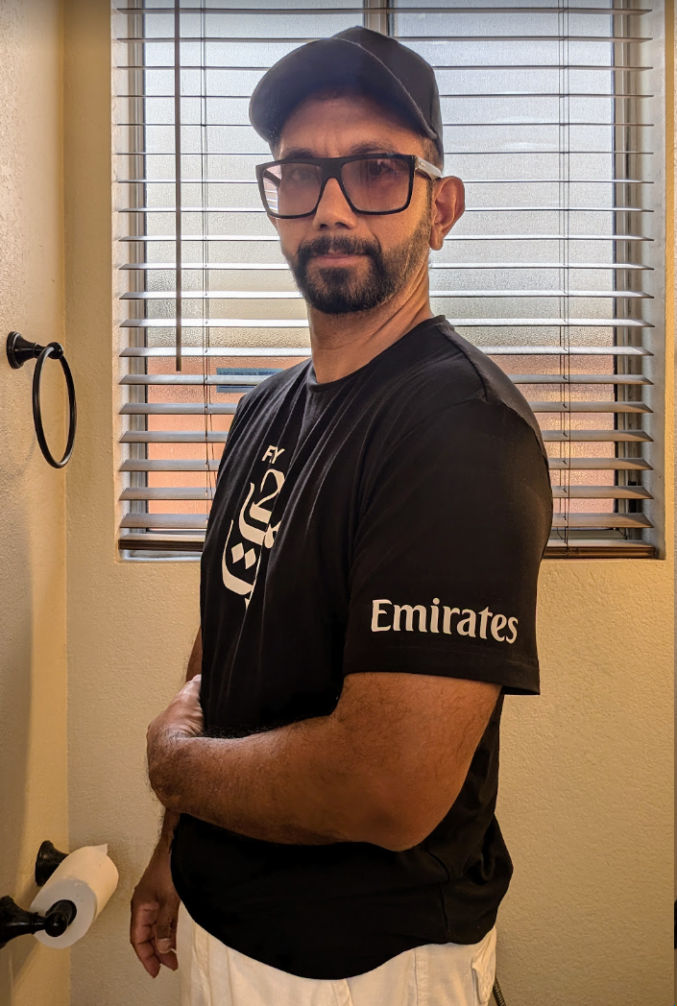
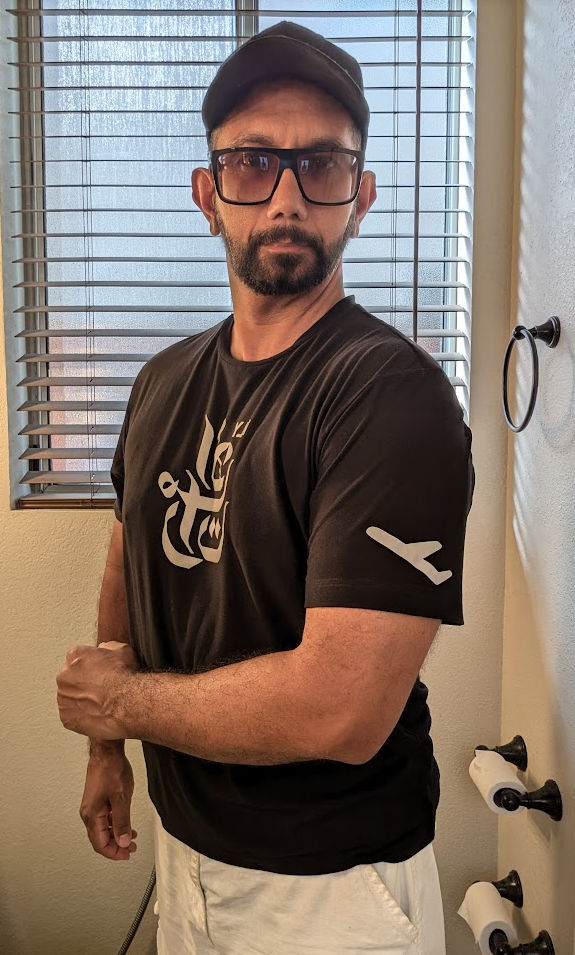
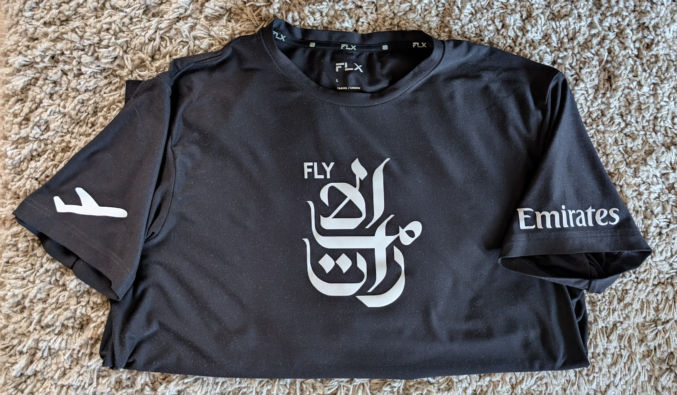
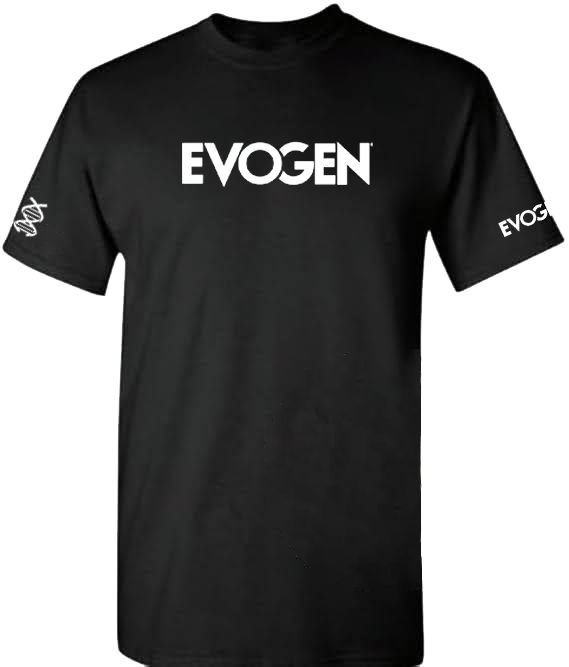
First, you need to design your shirt by finding some images. You want the images to be SVGs so that you can scale the image without losing quality. To make the shirt shown above, I searched Google for “visit California logo svg”.
I found a “California” logo that I like, but I needed to edit it to remove the “visit” part.
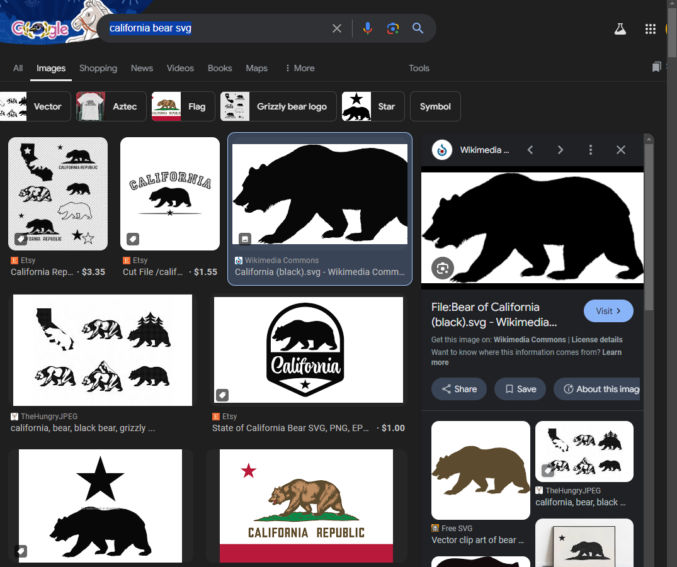
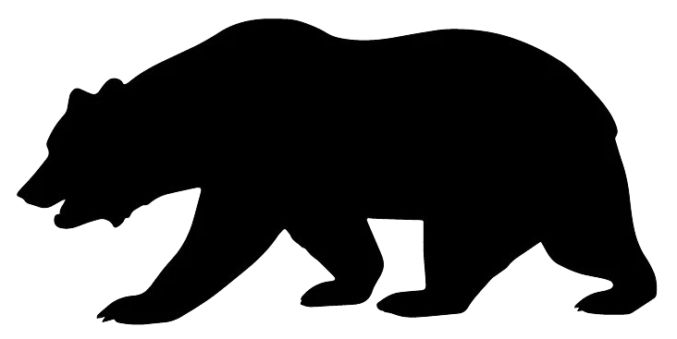
I then searched for “california bear svg” and found a bear image that I liked.
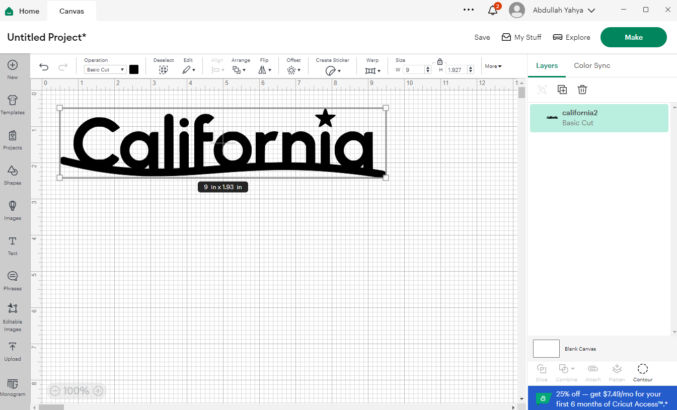
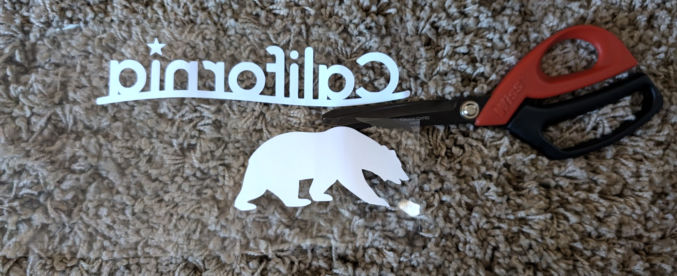
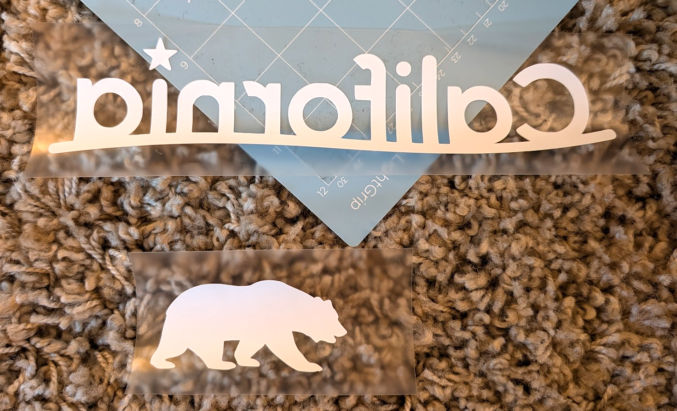
After doing some image editing, I ended up with these 2 images.
Determine printed image dimensions
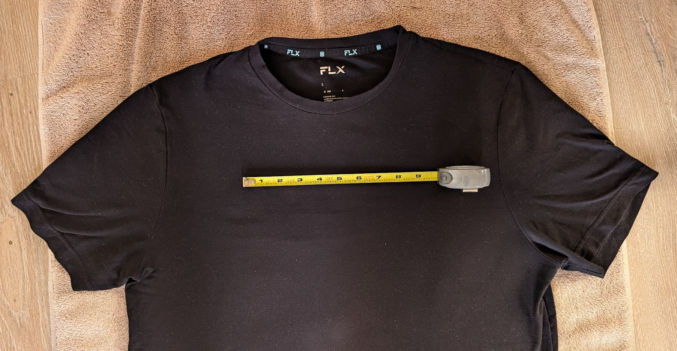
Lay your shirt down and, using a tape measure, decide how wide each image will be. For the “California” logo that would go over the chest, I chose 9 inches.
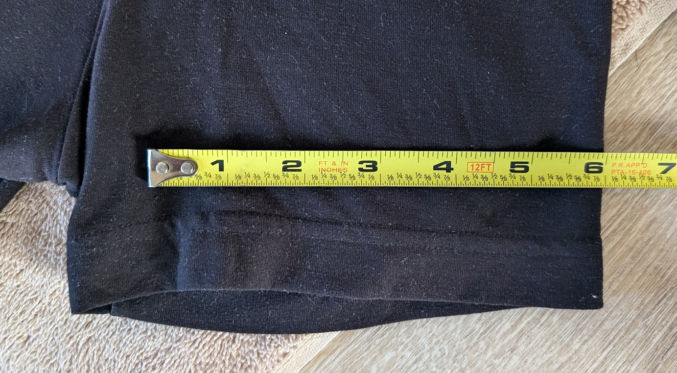
For the bear image that would go on the sleeve, I chose 5 inches.
These dimensions are not final. We will preview the design using cardstock (thick paper) first before using vinyl.
Import the images into Cricut Design Space
Download, install, and open Cricut Design Space. Follow the guided setup. Then, click the Canvas tab and then the “Upload” icon to upload each image. For the “California” text, I uploaded a large PNG on a transparent background and then set the width to 9 inches.
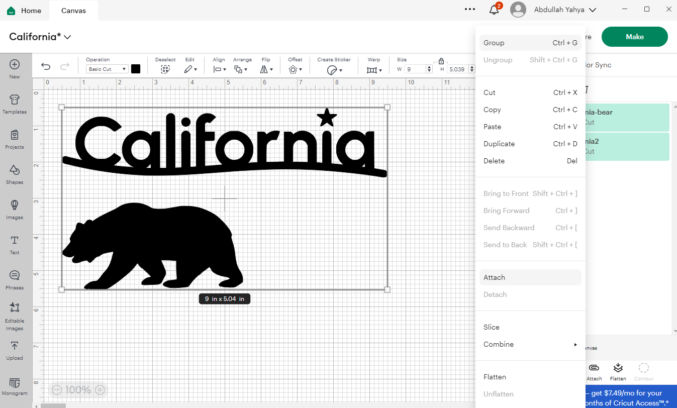
Do the same for the bear image. Since the Cricut Explore 2 machine can accommodate vinyl up to 12 inches wide and my video is 12 inches wide, I positioned the bear image below the “California” text.
After setting the width of the bear to 5 inches. I selected both image layers in the right column and chose “Attach” so that I could cut both images at the same time.
Cut images from the cardstock
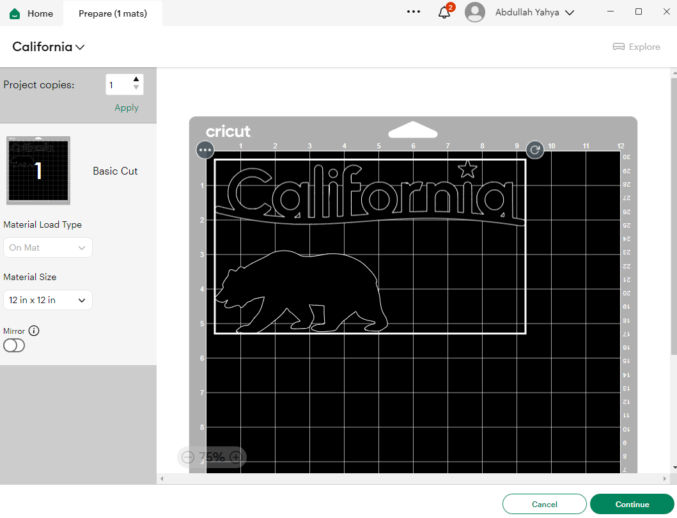
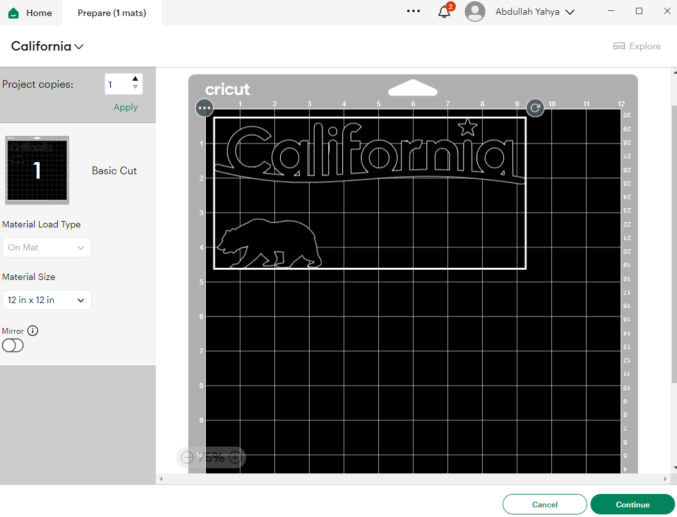
In Cricut Design Space, click the green “Make” button. You will see a preview of the images on the mat.
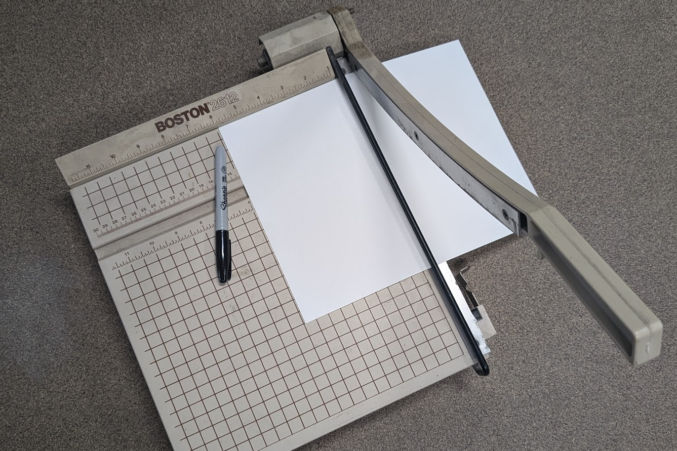
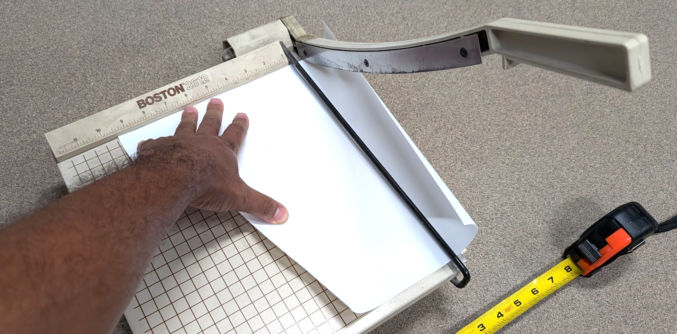
You will see a preview of the design on the board. To make weeding easier, cut a sheet of 65lb cardstock large enough to accommodate the design. In this case, I round up to the nearest inch, so my cardstock will be 10″ x 6″.
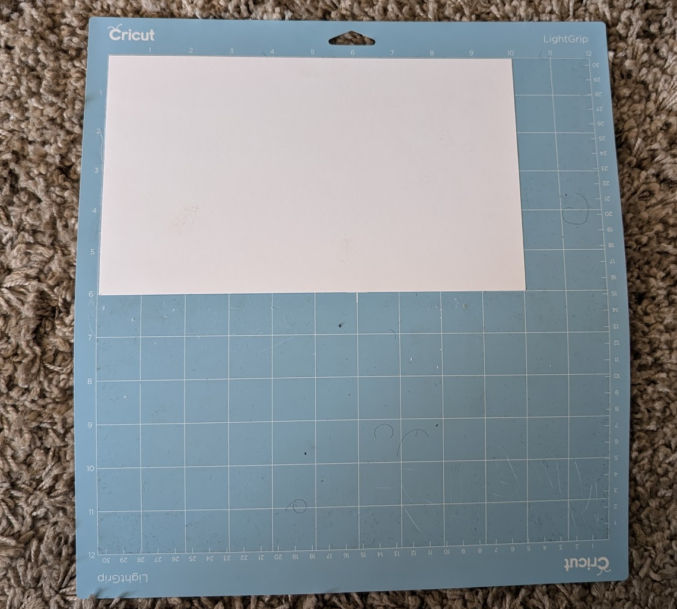
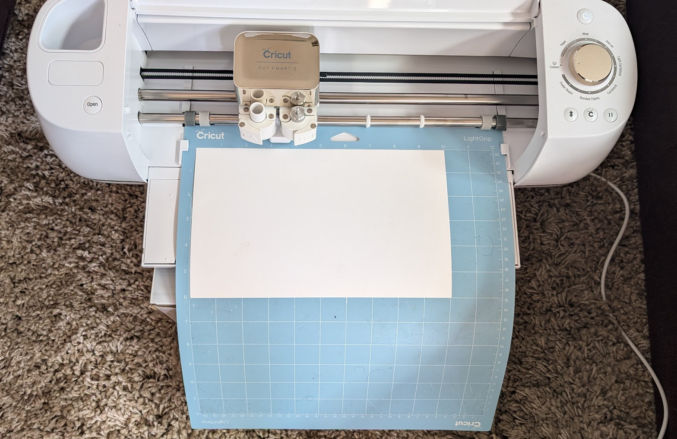
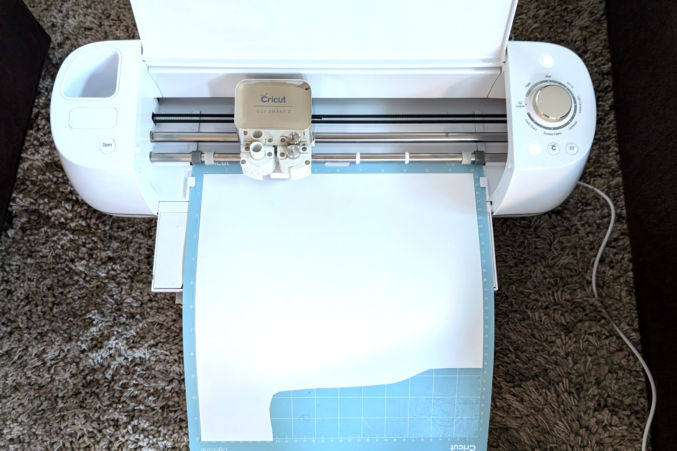
Then, place the cardstock on the lightgrip mat as shown in the preview above.
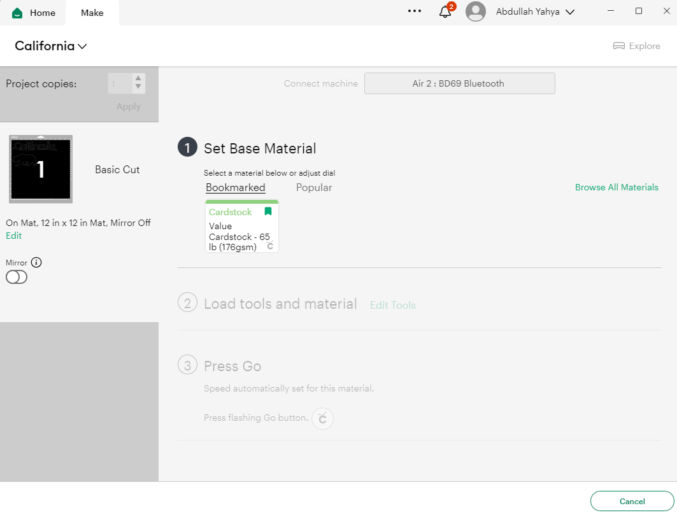
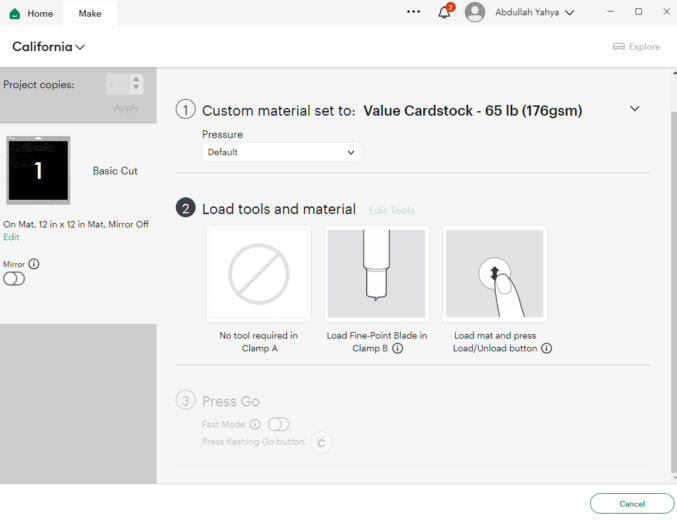
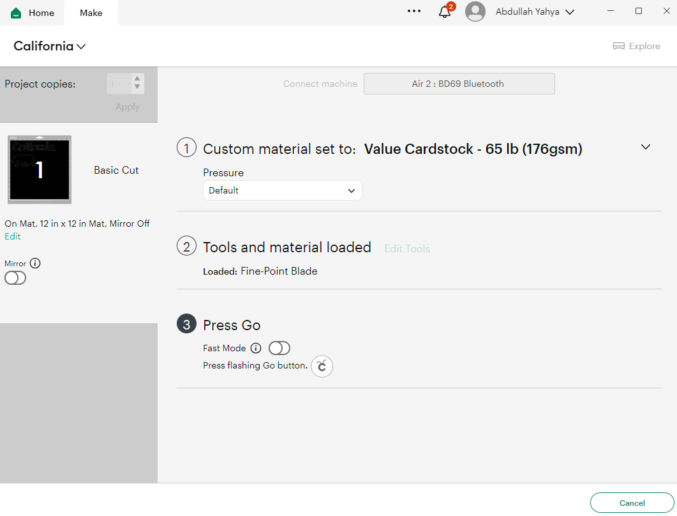
Click “Continue”. Connect the Cricut machine to your computer via bluetooth or USB. Once Cricut Design Space detects your machine, you will follow a 3-step process to cut the images on your chosen material.
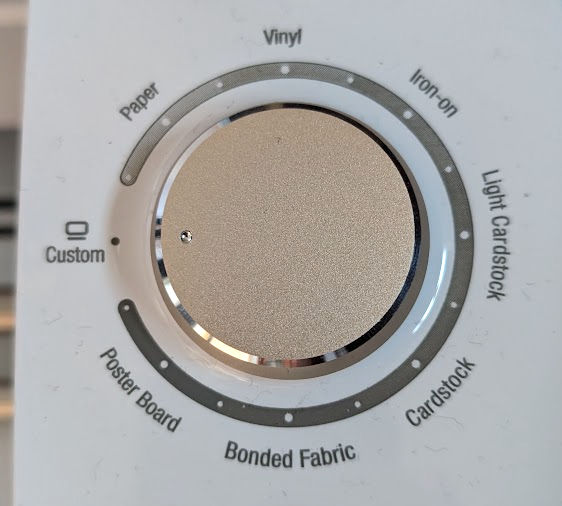
Make sure the dial on the machine is set to “Custom” because we will choose the material type in Cricut Design Space.
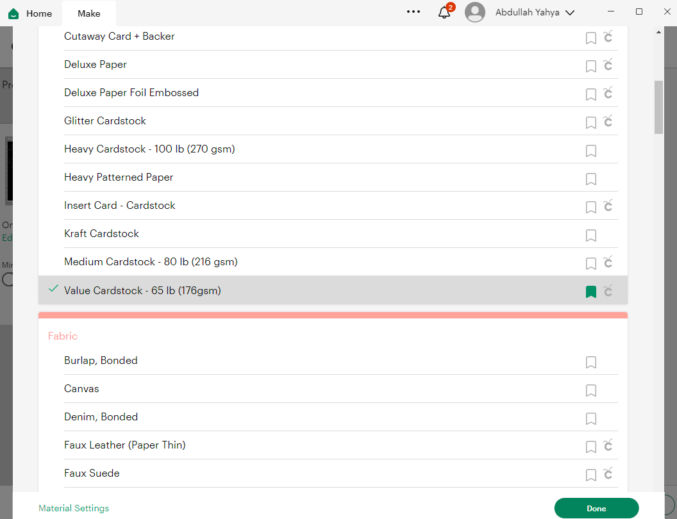
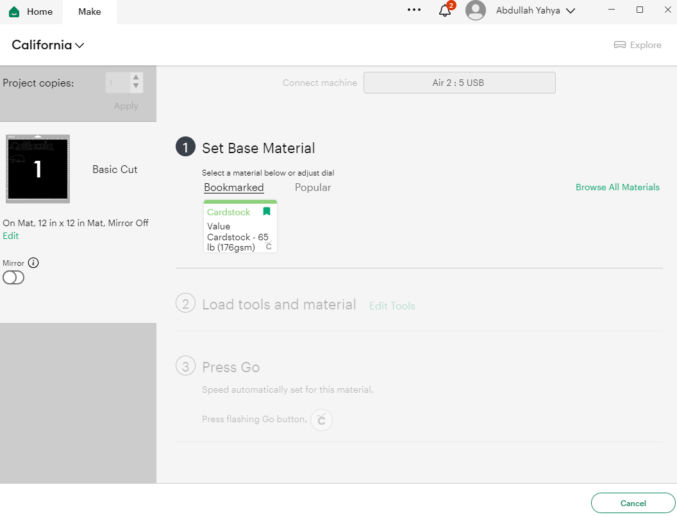
For step 1 (Set Base Material), click “Browse All Materials” and choose “Value Cardstock – 65 lb (176gsm)” since that’s the material we’re going to use first.
For step 2 (Load tools and material), make sure the correct blade is loaded in the correct clamp, load the material into the machine, and then press the flashing Load/Unload button on the machine.
When you press the “Load/Unload” button, the machine will grab and pull the mat a little to prepare it for cutting.
For step 3 (Press Go), just press the flashing “Go” button on the machine. Since we are printing on cardstock, where both sides of the cardstock are the same, we don’t need to toggle the “Mirror” option.
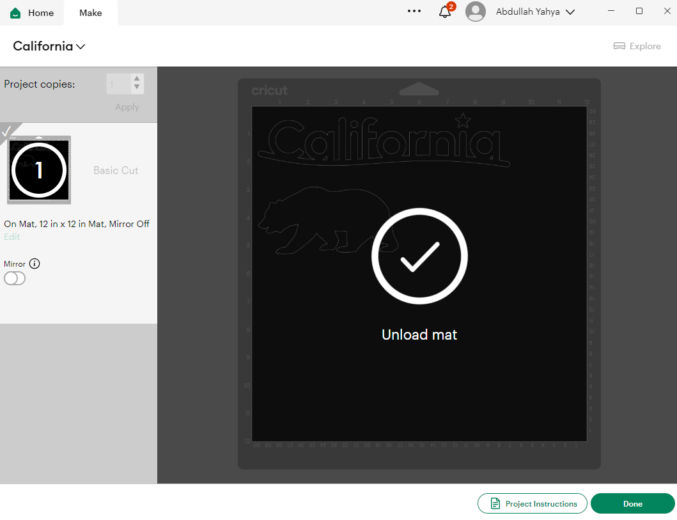
Once cutting is complete, click the “Load/Unload” button to unload the mat.
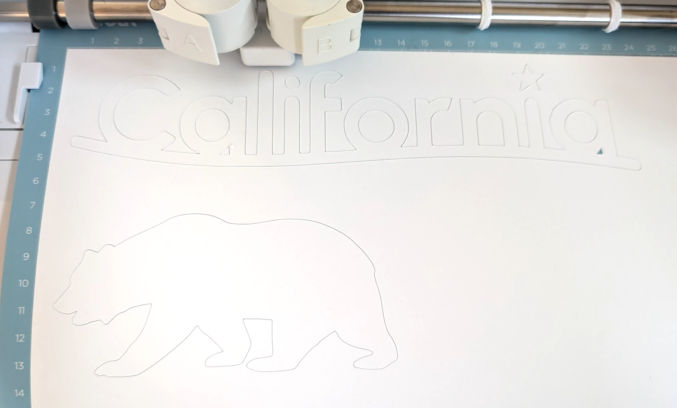
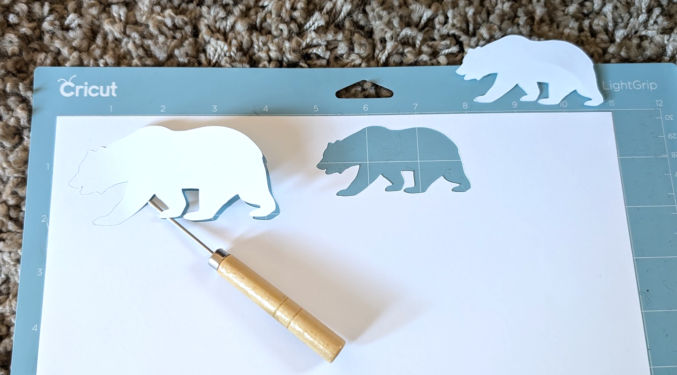
Notice the outline in the cardstock showing where the cardstock was cut.
Remove the cut images from the cardstock
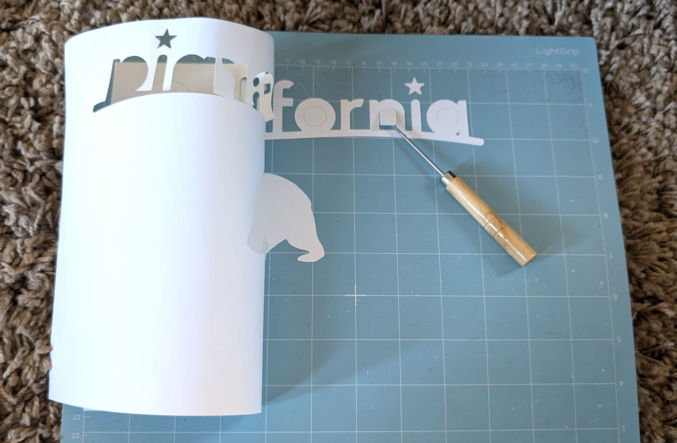
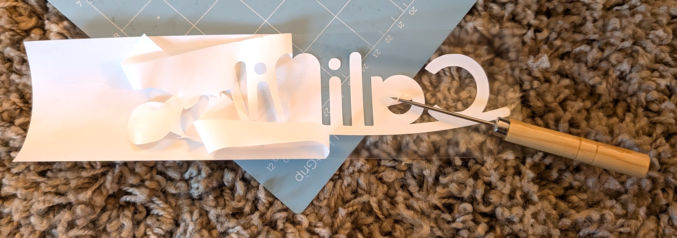
Remove the cardstock from the mat and separate the cut images from the rest of the cardstock. Use a weeding tool, if needed.
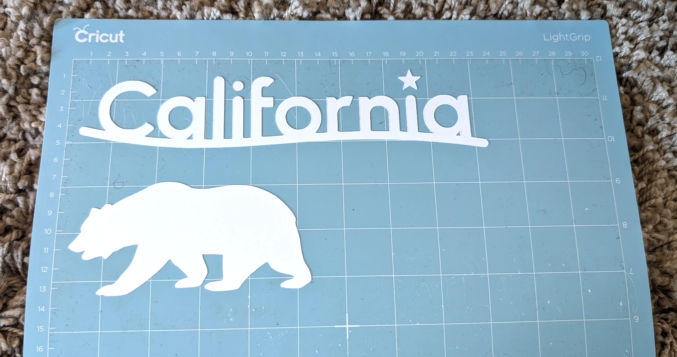
You should be left with this.
Preview cut images on a shirt
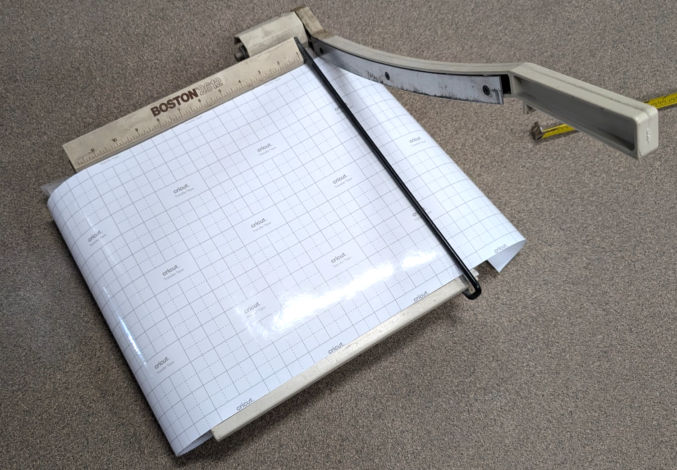
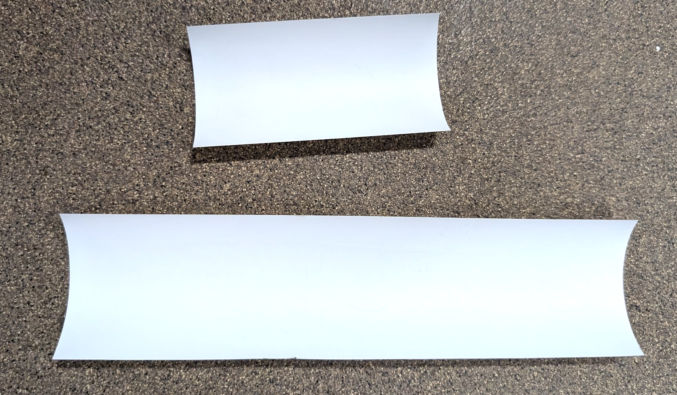
We’ll want to preview how the cut images appear on our shirt. To do this, cut the transfer tape in the size as the cardstock – in this case, 10″ x 6″. Cut straight lines as that will make it easier to center and position the design on the shirt.
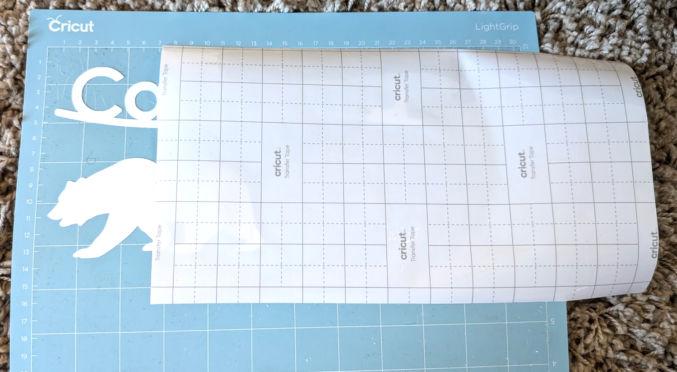
Remove the transfer tape from its backing.
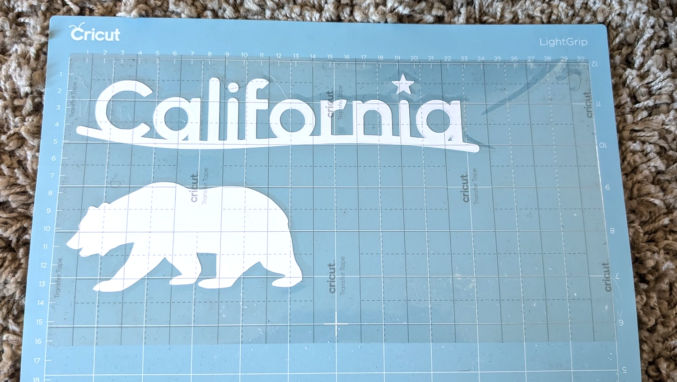
Place the transfer tape over the cut images and press it on the cut images.
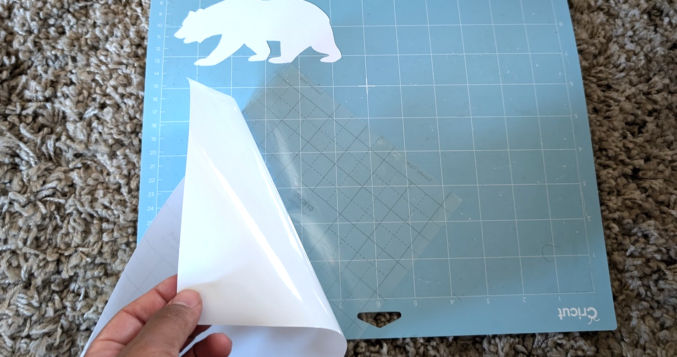
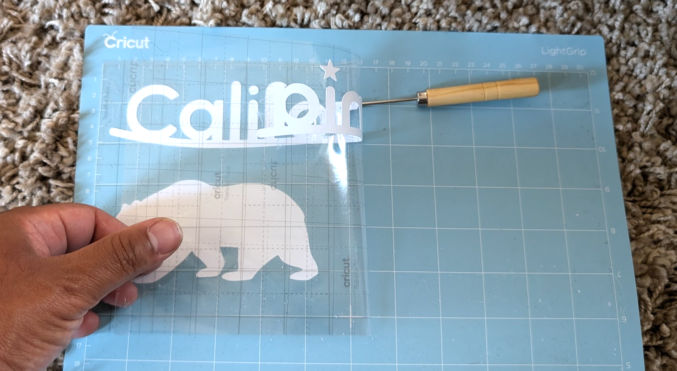
Remove the transfer tape using a weeding tool to keep the cut images stuck to the tape.
Cut the transfer tape around the individual images.
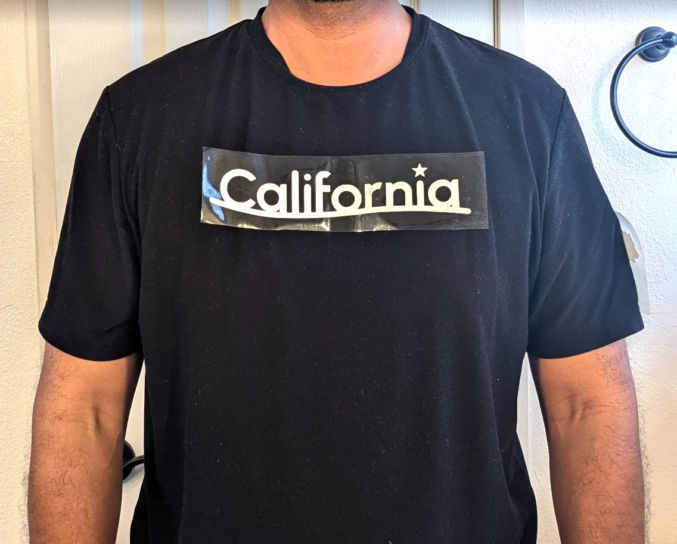
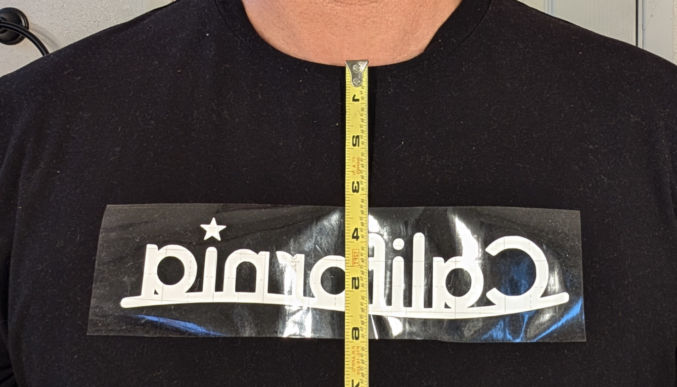
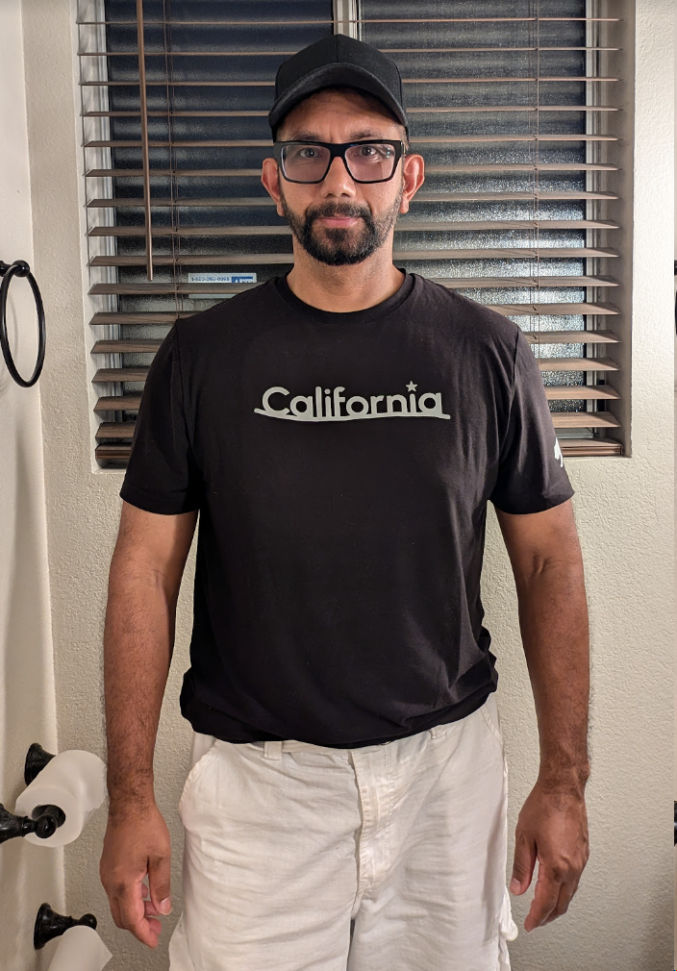
Wear your shirt and place the cut images on the shirt where you want them to go.
The size of the “California” text looks good to me.
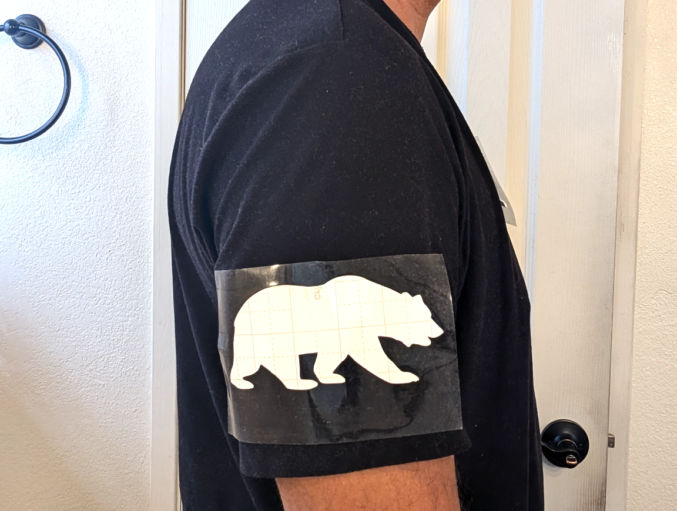
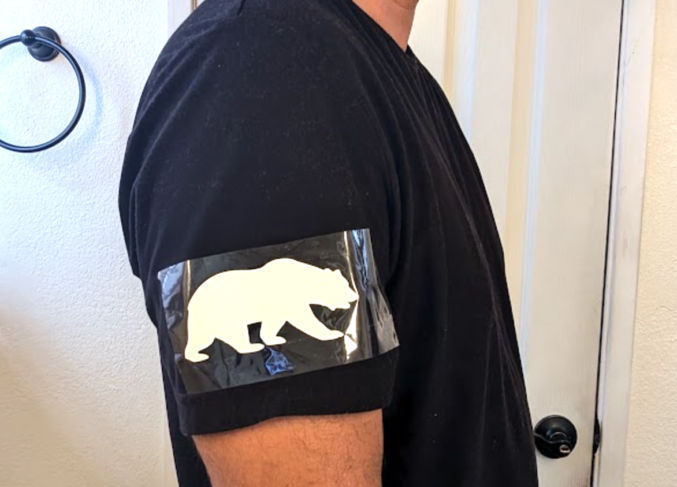
The size of the bear, on the other hand, looks way too big.
Iterate
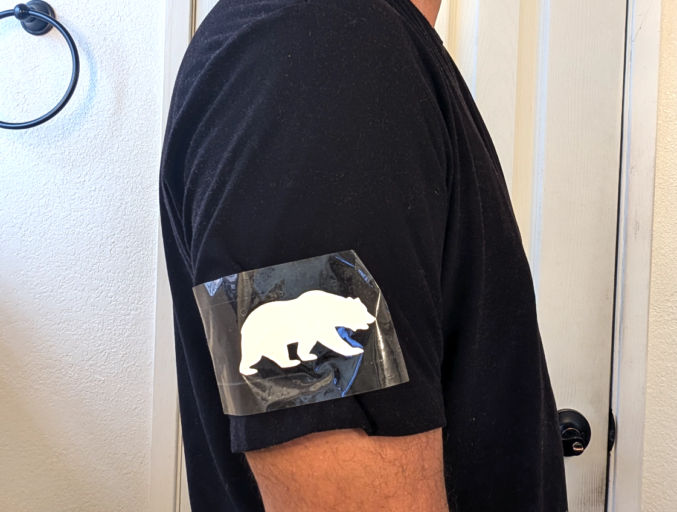
Since the bear looks too big, I’ll reduce the size from 5″ wide to 4″ and 3″, repeat some of the previous steps, and see how that looks.
This is how the 4″-wide bear looks on the sleeve of the shirt. It still looks too big.
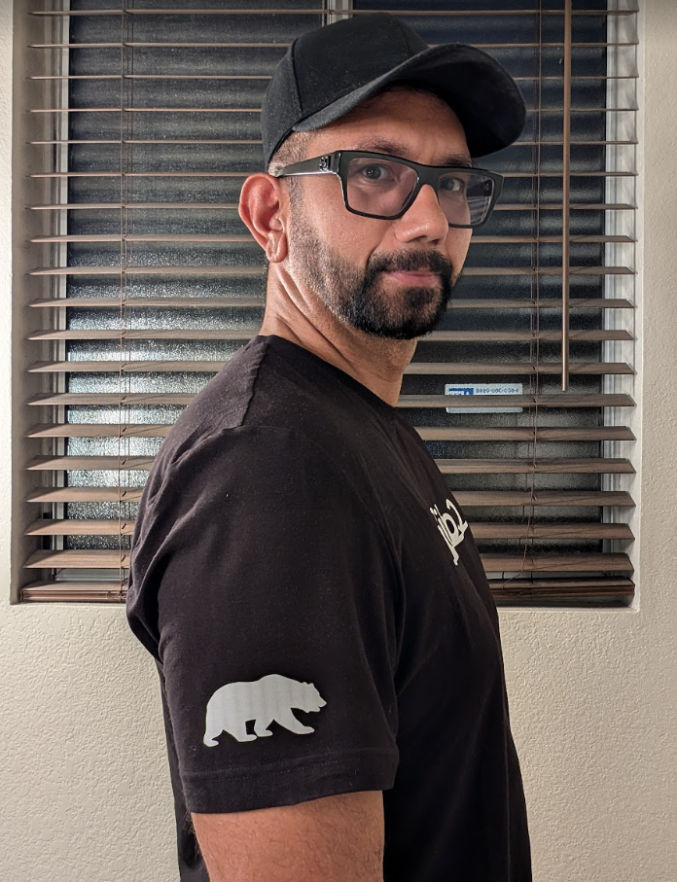
This is how the 3″-wide bear looks. I think that’s a good size.
Now that we have our images and final dimensions, we’re ready to cut the images on heat-transfer vinyl (HTV) and iron them on our shirt.
Prepare images
Follow the same steps as above except instead of a 4″-wide bear, make it 3″ wide.
Trim heat-transfer vinyl
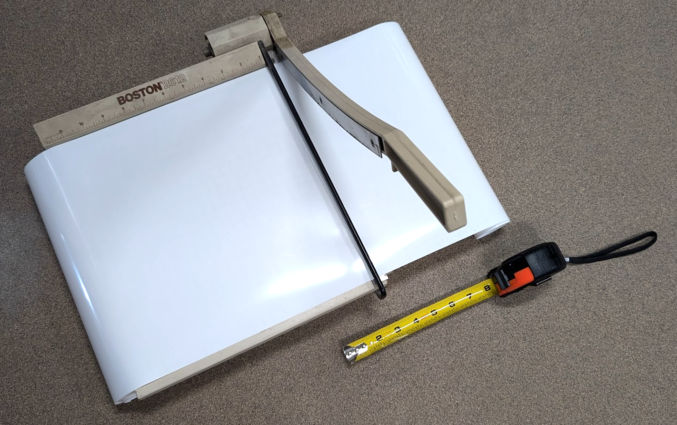
The vinyl I bought is an 8-foot long roll that is 12 inches wide. Since our mat is 12″ x 12″, I cut it to make it easier to work with.
I actually have some leftover vinyl from a previous project, so I’m going to use that.
Cut images from the vinyl
In Cricut Design Space, click “Make” and then “Continue”.
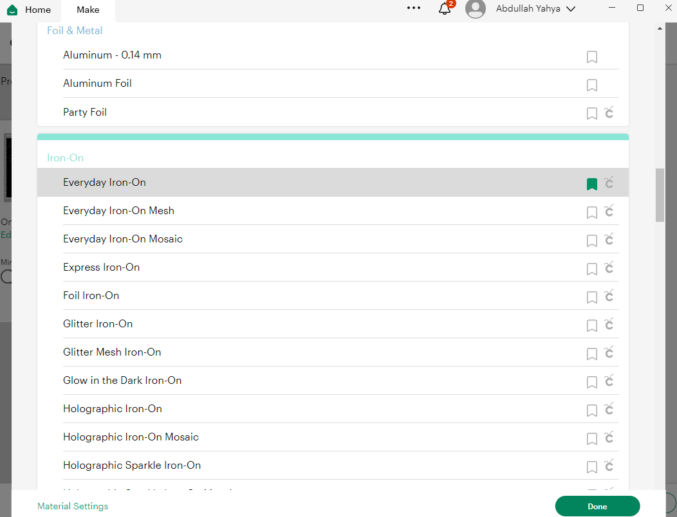
For step 1 (Set Base Material), click “Browse All Materials” and choose “Everyday Iron-on”
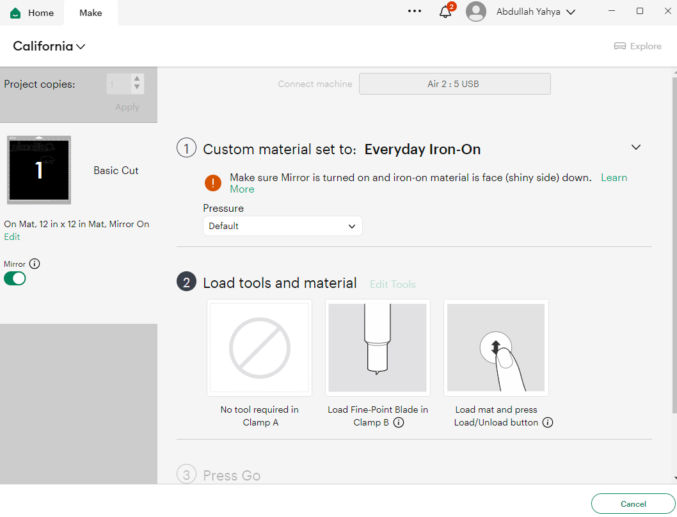
For step 2, you’ll notice 2 things:
For iron-ons, the “mirror” must be turned on. This flips the images so that when they are ironed on, they appear correctly. Cricut Design Space automatically toggles this on for you.
You need to place the iron-on material face (shiny side) down on the mat.
For step 3 (Press Go), go ahead and press go to start cutting.
Trim heat-transfer vinyl
Remove the vinyl from the mat and trim away material from the designs. To make it easier to position and align the designs on a shirt, I like to cut straight lines around the designs so I end up with perfect rectangles.
Remove the dull side of the vinyl
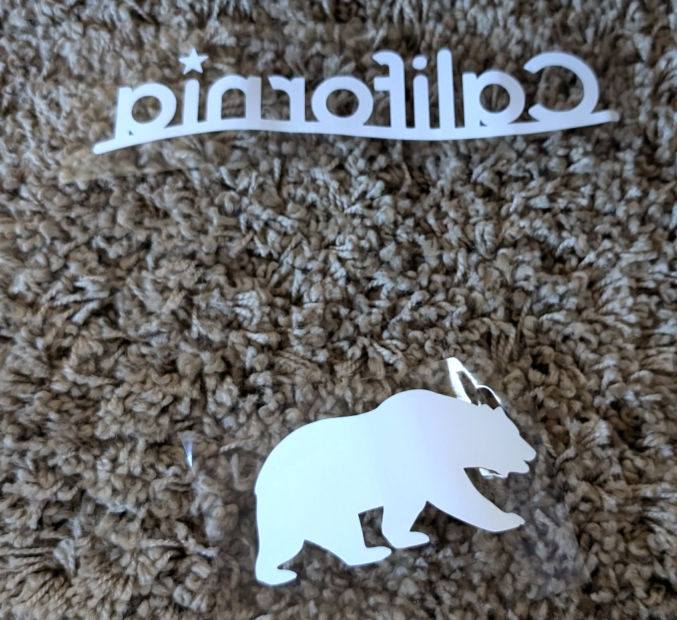
Use a weeder tool, if necessary.
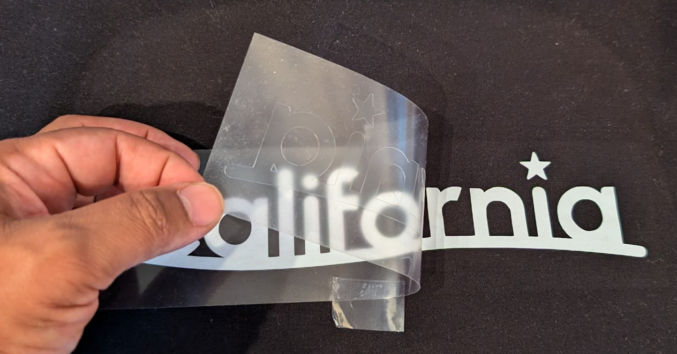
You should be left with your designs on a transparent liner.
Determine design placement on shirt
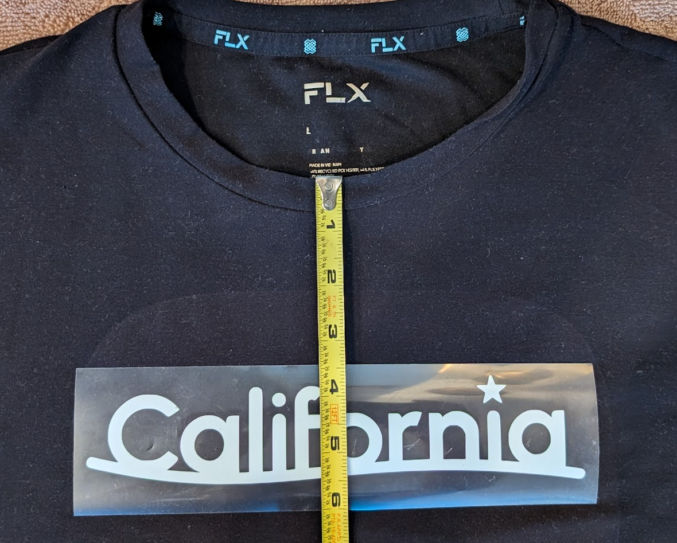
Measure where you want the designs to be on the shirt. I’m going to position the top part of the “California” text to be about 3.75″ from the top as shown below.
Turn on heat press
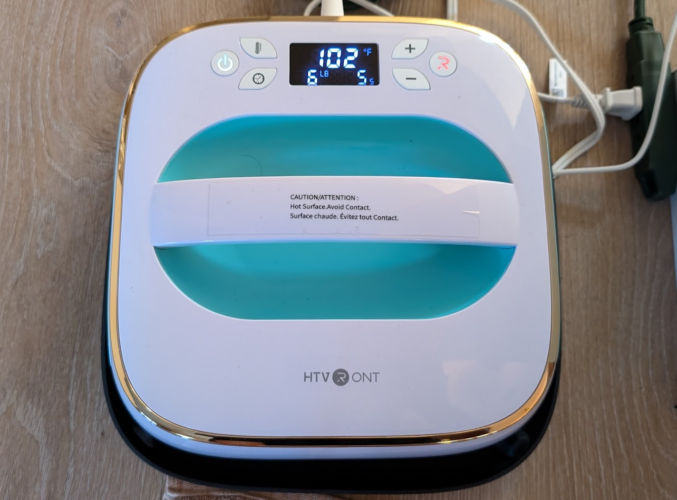
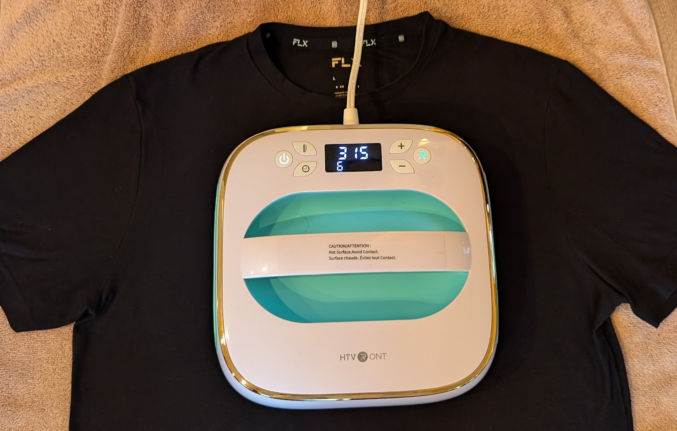
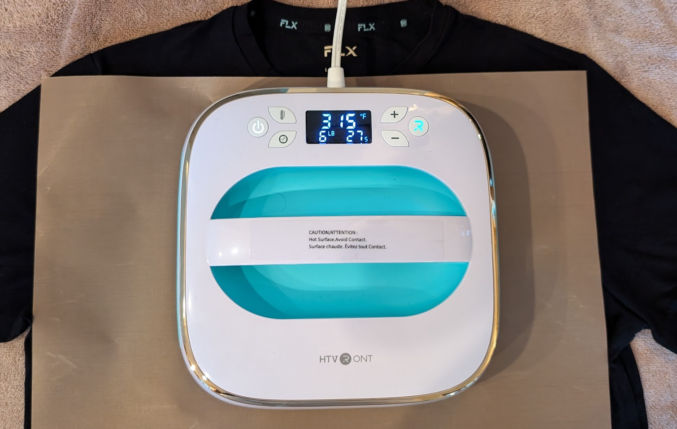
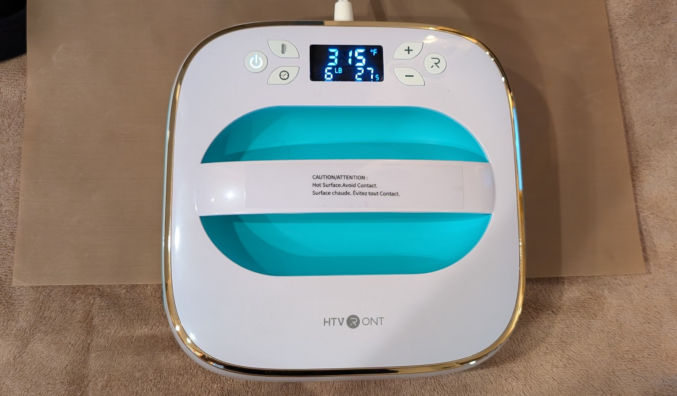
Turn your heat press on and set the target temperature to 315 degrees Fahrenheit. Set the timer to 5 seconds.
Press the designs on the shirt
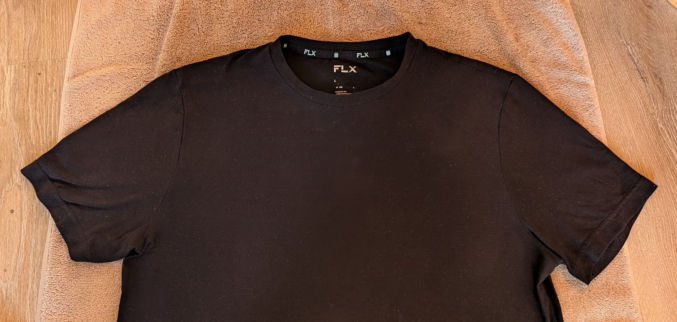
Put the shirt on a bath towel on a hard surface like the floor.
When the heat press is ready, place it on the shirt for 5 seconds where the design will go. This will remove wrinkles from the shirt.
Set the heat press timer to 30 seconds
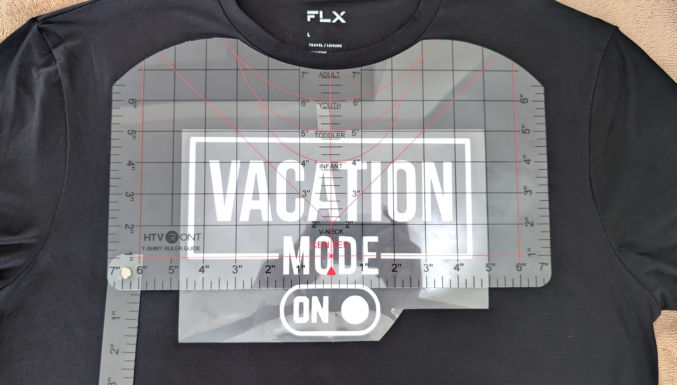
Place the design on the shirt exactly where you want it to go. Use this measurement guide to make it easy to center designs.
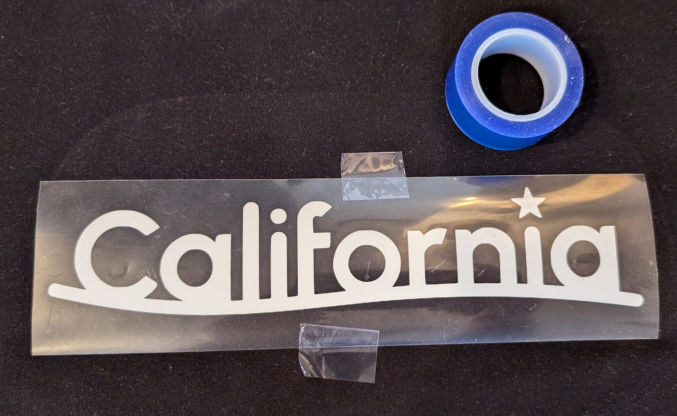
Optionally, secure the design to the shirt using heat transfer tape.
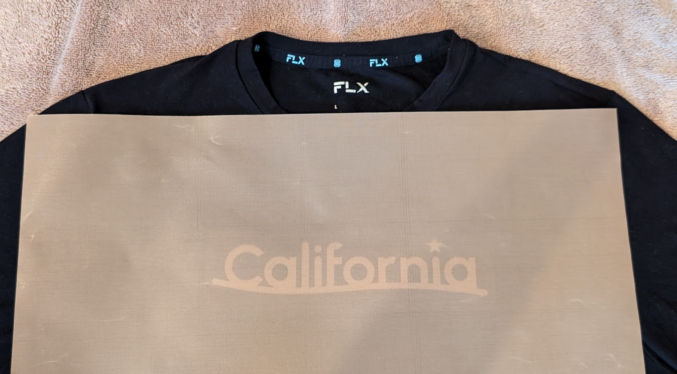
Place a sheet of teflon on the design to protect the shirt and the heat press.
Place the heat press on the design until the 30 second timer is up.
Wait one minute. Then, remove the transparent liner from the design. If the design comes off the shirt, then put the heat press back on and press firmly on it for another 30 seconds.
Once the transparent liner is removed, I like to put the teflon sheet over the design and apply the heat press once again for 30 seconds.
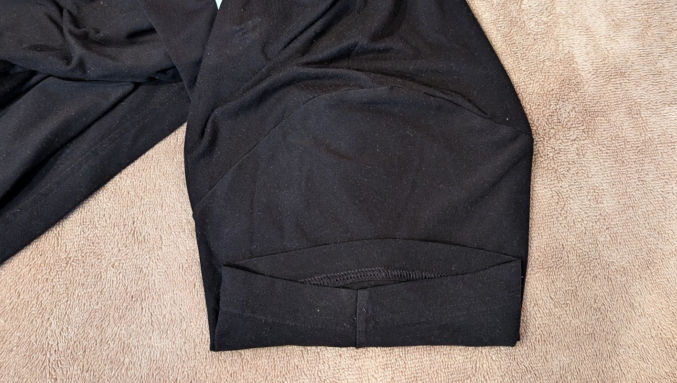
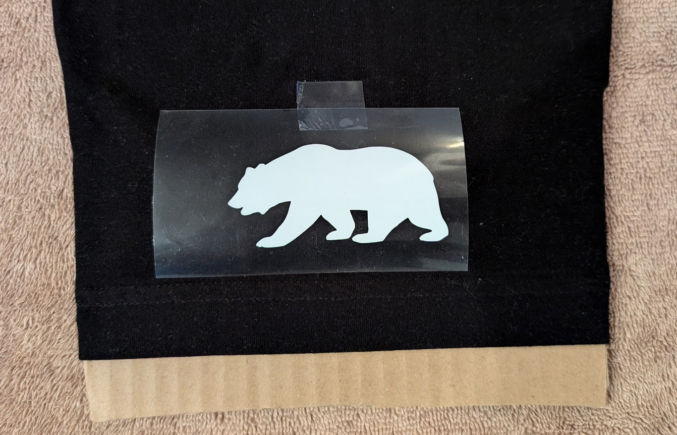
Now, let’s apply the bear to the sleeve. Lay the shirt down such that the seam is at the bottom and in the middle.
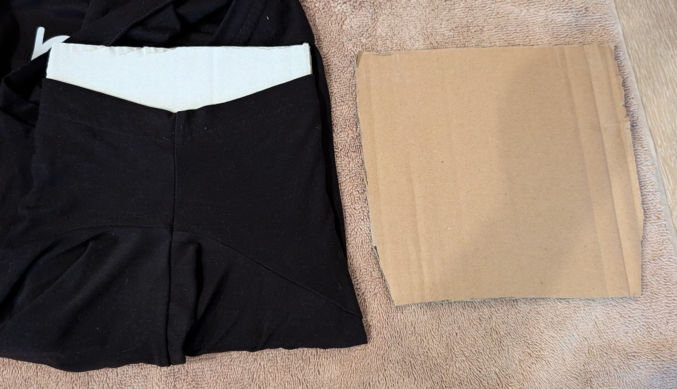
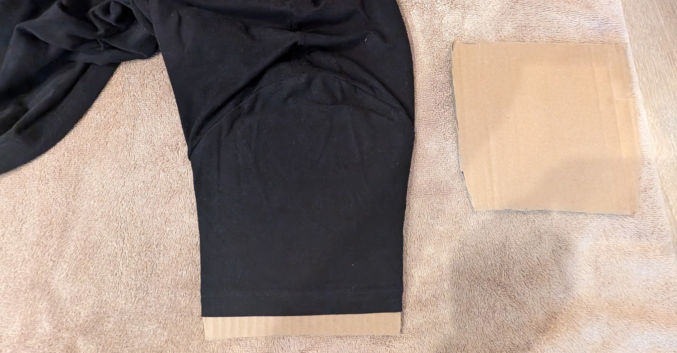
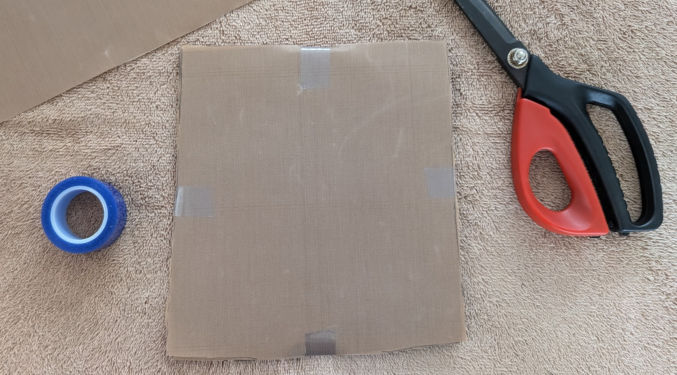
Cut a piece of cardboard and insert it into the sleeve as shown below. We need the surface of the top part of the sleeve to be flat. Otherwise, the design can be ruined due to the bump from the seam.
Remove wrinkles from the shirt by place the heat press on it for 5 seconds.
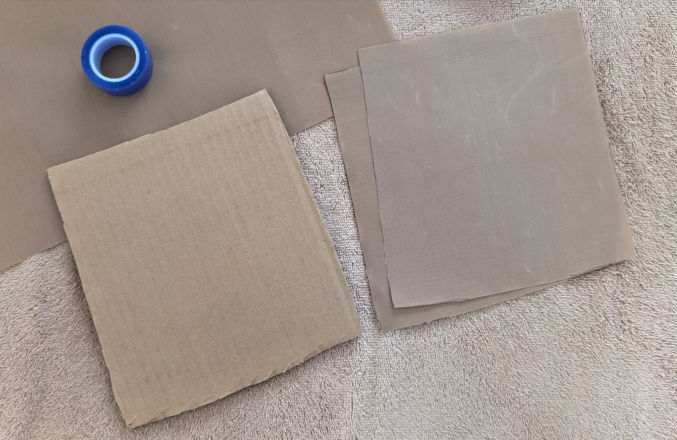
The brown cardboard could cause discoloration in the white design. Cover the cardboard in the sheets of teflon first as shown below.
Secure the teflon to the cardboard using heat-resistant tape.
Place the design on the sleeve where you want it.
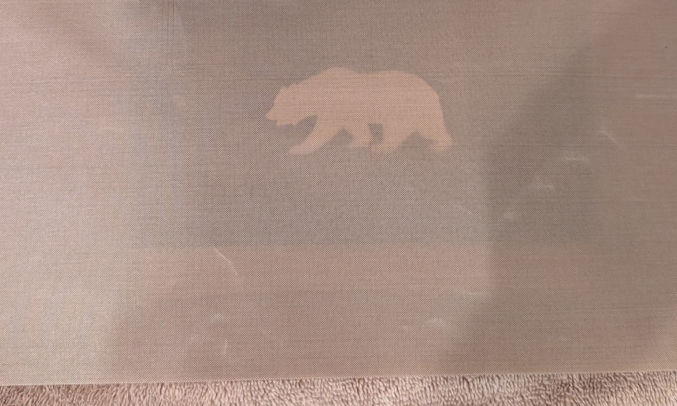
Put a sheet of teflon on the design.
Press the heat press firmly on the design for 30 seconds.
Wait one minute. Remove the transparent liner.
Optionally, place a teflon sheet on the design and apply the heat press again for 30 seconds.
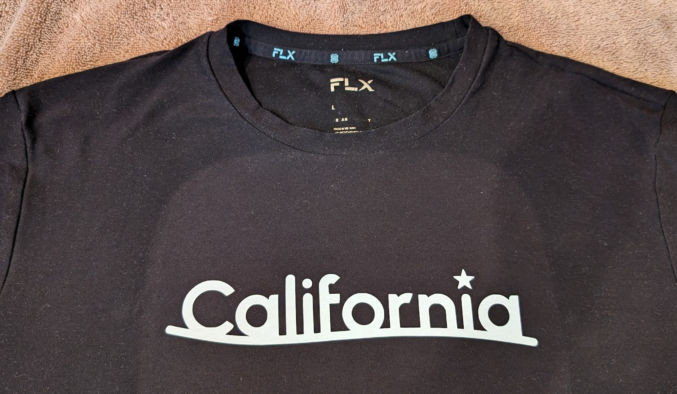
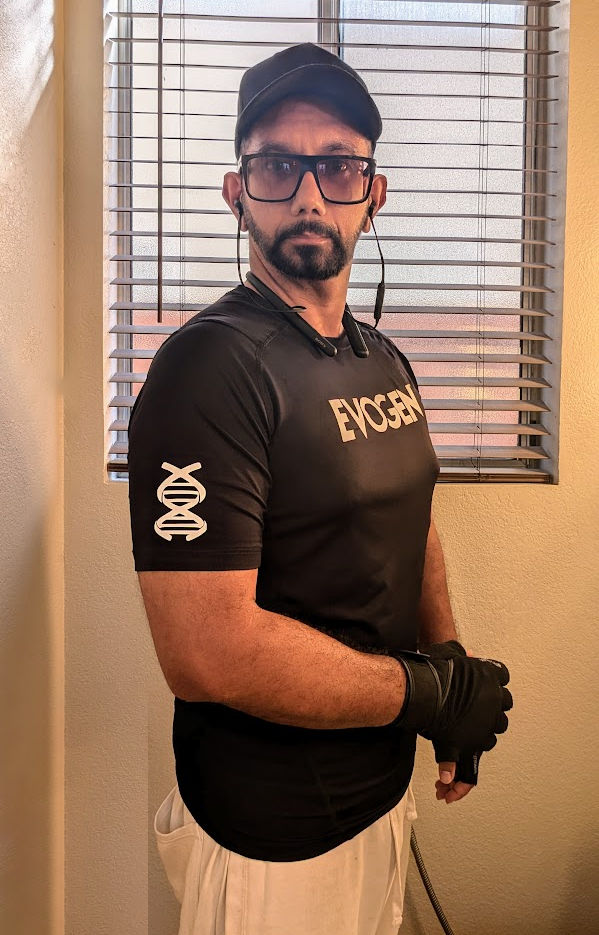
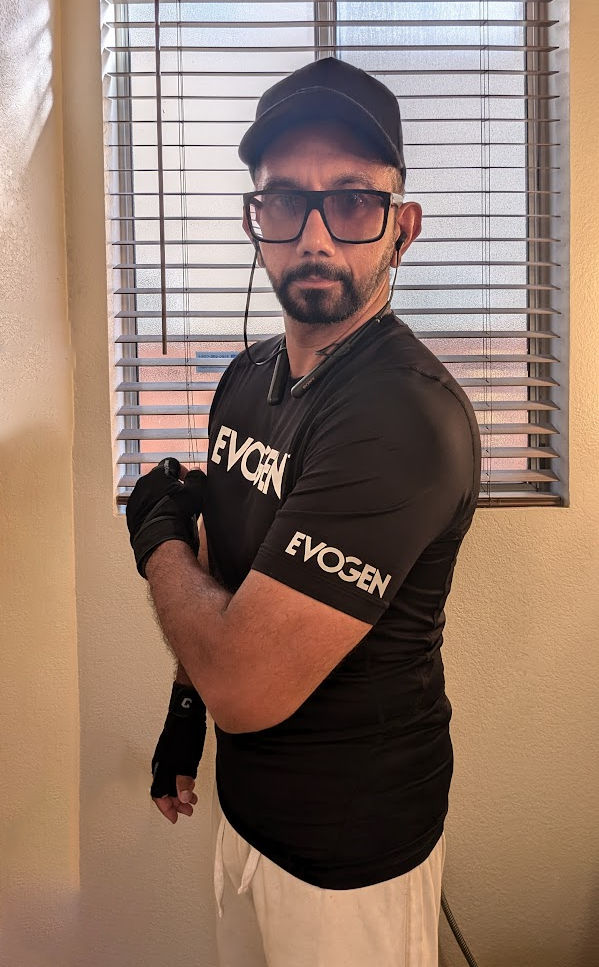
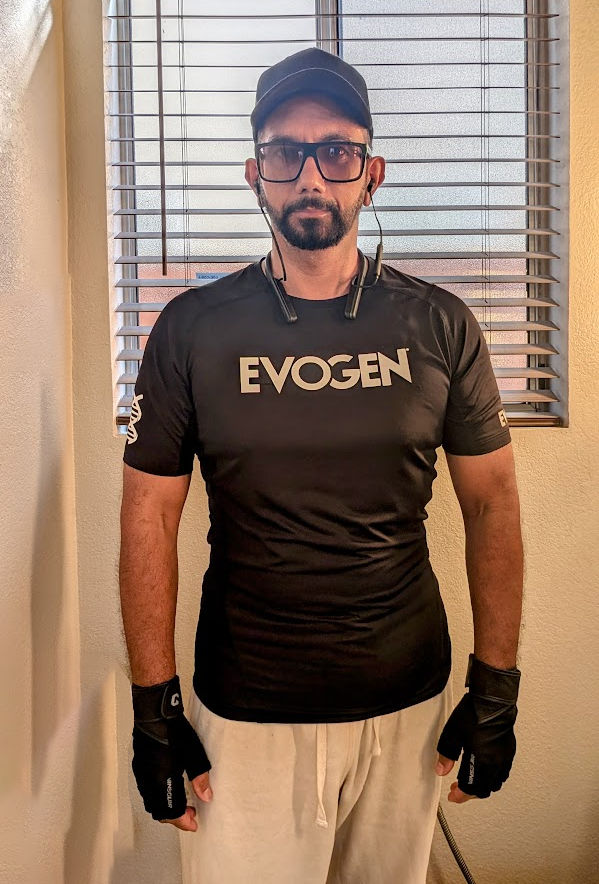
The finished product
Removing vinyl
If you make a mistake, this video will show you how to remove vinyl from your shirt.
Most people assume that all proteins are equal. You read the nutrition labels on foods, and you check how many grams of protein there is.
However, 3 grams of protein from one food source, like beef, is not the same as 3 grams of protein from another, like rice. That’s because not all amino acids that make up proteins can be absorbed as effectively as others.
Macronutrients
Macronutrients are nutrients that the body needs in large quantities to provide energy. The three main macronutrients are carbohydrates, proteins, and fats:
Fats: Help the body absorb vitamins A, D, E, and K, and are important for feeling full and balancing hormones.
Carbohydrates: Provide energy to the body and are found in foods like rice, pasta, bread, and starchy vegetables.
Proteins: Help repair and rebuild body tissues.
Protein
Proteins are essential nutrients found in the human body and are the major structural component of all cells, including muscle, body organs, hair, and skin health.
Amino acids
Amino acids are molecules that combine to form proteins. Amino acids and proteins are the building blocks of life. When proteins are digested or broken down, amino acids are the result. The human body then uses amino acids to make proteins to help the body:
Break down food
Grow
Repair body tissue
Perform many other body functions
Amino acids are classified into three groups:
Essential amino acids
Nonessential amino acids
Conditionally essential amino acids
Essential amino acids cannot be made by the body. They must come from food. Of the 20 amino acids that make up protein, 9 of them are essential.
Unlike fat and glucose, our bodies do not store proteins. If more amino acids are needed, protein will be taken from the breakdown of muscle fibers. This is why bodybuilders often consume lots of protein: to build muscle and avoid losing muscle.
Different protein food sources have different amounts of amino acids. During food processing and cooking, some of these amino acids are susceptible to damage, and so the amount of amino acids taken up by the body will vary.
DIAAS
DIAAS stands for Digestible Indispensable Amino Acid Score and is a method of measuring protein quality. It evaluates the proportion of consumed amino acids absorbed and utilized by the body.
No protein quality claim – Score of <75%
Good protein quality – Score ranging from 75% to 99%
Excellent or High protein quality – Score of 100% or more
DIAAS scores of protein sources
Protein Source
DIAAS Score (%)
Protein Quality
Whole Milk Powder
143
High
Milk Protein Concentrate
118
High
Whole Milk
114
High
Egg – Hard Boiled
113
High
Beef
111
High
Whey Protein Isolate
109
High
Chicken Breast
108
High
Soy Protein Concentrate
98.5
Good
Whey Protein Concentrate
98.3
Good
Pea Protein
91.5
Good
Soy Protein
91.5
Good
Wheat
91.5
Good
Soy Protein Isolate
90
Good
Chickpeas
83
Good
Pea Protein Concentrate
82
Good
Mixed Diet: Wheat, Peas and Whole Milk Powder
82
Good
Peas – Cooked
58
Low
Rice – Cooked
59
Low
Rye
47.6
Low
Barley
47.2
Low
Wheat
40.2
Low
Almonds
40
Low
Rice Protein Concentrate
37
Low
Corn-based Cereal
10
Low
Notice in the table above that animal-derived protein is of high quality whereas plant-derived protein is mostly of low quality.
I’ve found the following works best for depending on the scenario.
Driving
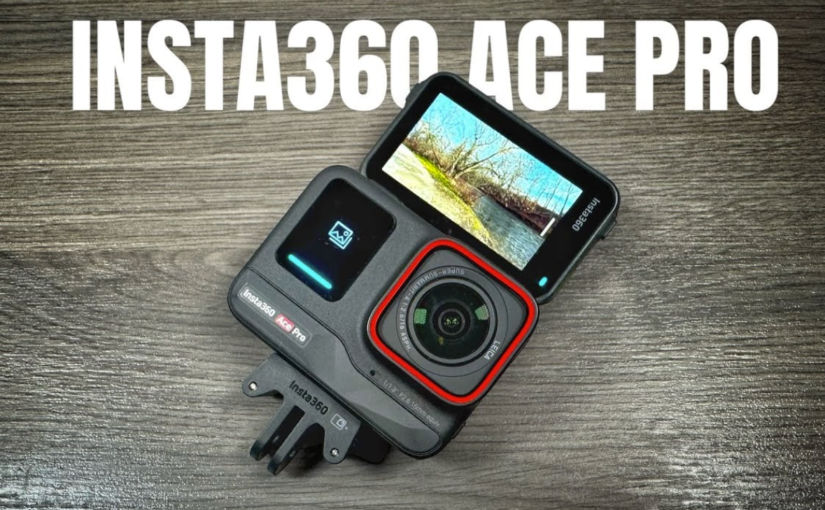
If HDR is necessary and you only want to film in one direction, mount the Ace Pro on the windshield facing the front of the vehicle (FPV)
If you want to film both the vehicle occupants and the road, mount the Insta360 X3 on the windshield
Shoot either a regular video or a Timeshift video
Walking (Daytime)
Mount one Insta360 X3 on your chest (FPV). The Ace Pro isn’t a 360 camera, so it will not allow you to reframe later on to get subjects that are not directly in front of the camera.
Hold a second Insta360 X3 or X4 on an extended selfie stick such that the camera is at eye level to film yourself
Walking (Nighttime)
For good image quality, mount the Ace Pro either on your chest or on a selfie stick and use “Pure Video” mode to get good night shots.
If you use the Insta360 X3/X4, the image quality will be much worse.
Hotel Room Tour
Mount the Ace Pro on a selfie stick and film as FPV or film with the screen flipped up so you can film yourself (selfie)
Use “Pure Video” mode because you will be indoors and with unnatural (low) light.
I tried using my phone with a gimbal, but I preferred the simplicity and the results of using the Ace Pro.
Here’s a comparison of the picture quality from taking a snapshot of a video taken by both the X3 and the Ace Pro. As you can see, the Ace Pro picture quality is way better. Click on each image to open the original files.
Snapshot from 360-deg video on X3 – View enlarged imageSnapshot from 4K, 30 fps PureVideo using “Action” (wide) setting on Ace Pro – View enlarged image
Here’s another comparison.
X3 – 1080pAce Pro – 4K PureVideo
Eating
Use X3
Airplane Take-off and Landing
When filming a take-off/landing from a window seat of an airplane, the difficult is keeping the horizon level. Also, with HDR technology, the sky can look overexposed, white, and washed out. If you use a 360 camera, you can adjust the horizon in post, but that’s a hassle. Ideally, use a gimbal, like the one integrated with the DJI Osmo Pocket.
There may be times when you want to listen to a popular song, but you just want an instrumental version of it. There are many tools that use AI to remove vocals from a song, but unless you are making a track for karaoke, where you’d provide your own vocals, simply removing the vocals from a song will not result in music you’d care to listen to. For example, if you search YouTube for an instrumental version of a song, you’ll find many where the vocals were simply removed – and with poor quality at that. A better instrumental version of a song is one made by replacing vocals with instrument, e.g. piano, saxophone, etc. Compare the 3 audio clips below.
Audio clip with original vocals
Audio clip with vocals simply removed (somewhat imperfectly)
Audio clip with vocals replaced with Alto Saxophone instrument
Audio clip with vocals replaced with Chill Wave Synth instrument
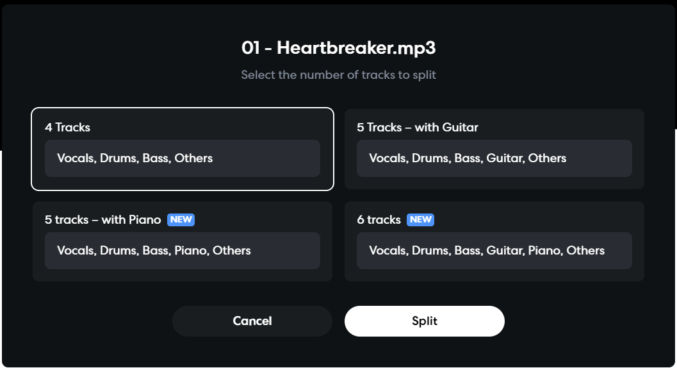
You will have to option to choose how many tracks to split the song into. Since we’re only interested in replacing the vocals, you can choose “4 Tracks”. Then, click the “Split” button.
BandLab will upload the song audio file and take a minute to split the audio.
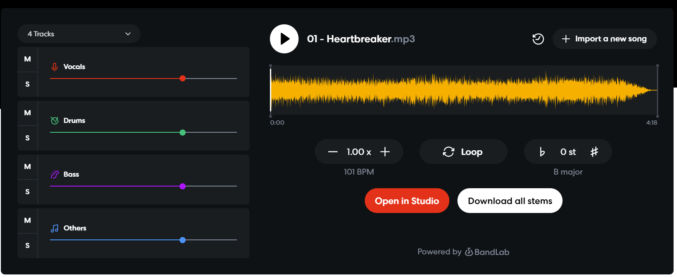
When it’s done, click “Open in Studio”.
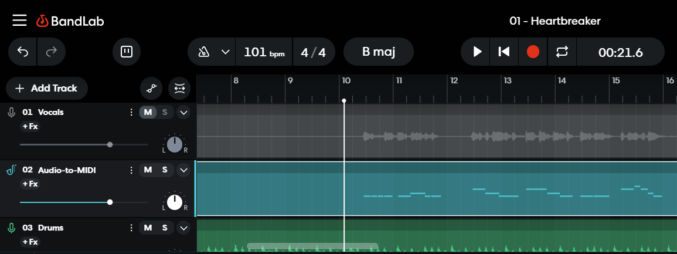
You will see the 4 tracks in the Studio.
4. Convert voice to MIDI
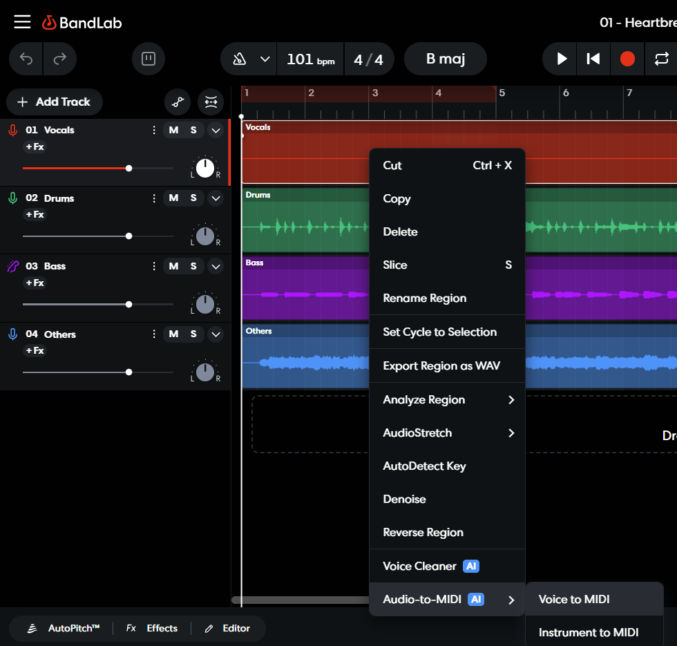
Right-click on the “Vocals” track and click “Audio to MIDI” > “Voice to MIDI”.
5. Change the MIDI track to one of 370+ instruments
You’ll see a new track below the “Vocals” track called “Audio-to-MIDI”.
On the “Vocals” track, click the “M” button to mute that track. The track’s soundwave will gray out.
6. Choose an instrument
Click on the “Audio-to-MIDI” track.
Click “Studio Grand” (the default instrument” to open the “Browse Instruments” dialog. Click on the play button to the left of an instrument to preview the sound. Search for an instrument by typing the instrument’s name in the search field. I will type “sax” and then click the “Alto Saxophone” instrument.
7. Preview the instrumentalized song
On the “Audio-to-MIDI” track, move the vertical playbar to the beginning of some signals in the track.
Click the Play button to preview the song.
Experiment with different instruments.
Optionally, lower the volume of the “Audio-to-MIDI” track if that produces a better result.
8. Tweak MIDI notes
Some of the MIDI notes probably won’t sound right. You’ll need to tweak them.
Click the “Audio-to-MIDI” track.
Click the “MIDI Editor” button at the bottom left.
Click on a MIDI note (a single blue bar to the right of the vertical piano keys) to hear the note.
Left-click and drag the MIDI note up or down to change the sound.
9. Export audio
When you’re satisfied with the preview, download the audio by clicking Project > Download > Mixdown As”
One of my rental properties is a triplex in Stockton, California. The roof uses standard residential shingles and has an area of about 4000 square feet. I got a roof replacement quote from a licensed contractor that specializes in roofing on May 10, 2023, for $28,270. Here are the details:
Tear off existing 1 layer of composition roofing
Any dry rot will be an extra charge to replace. Dry rot repair labor rate is $85.00 per hour per man plus material.
Roofing will be limited lifetime Certainteed Landmark Solaris cool shingle over one layer of Certainteed Roof Runner synthetic underlayment.
Venting per title 24 codes. 11 intake vents and 11 exhaust vents.
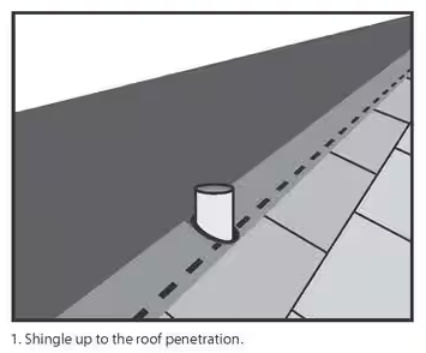
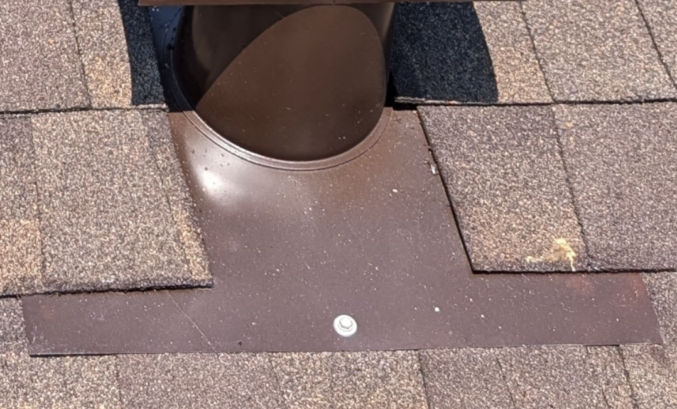
New pipe flashing painted to match roof color.
Certainteed Sure-Start 4 Star Warranty (10-yr. labor warranty % 50-year material warranty)
New TPO membrane roofing in dead valley
Includes building permit and dump fees.
New 5″ gutters with new down leaders an extra $3700
I got a quote from an all-purpose contractor who could do the job for $26,000. Here are the details:
Replace roof with California Cool shingles
Replace any dry rot
Underlayment would be felt paper, not synthetic underlayment
Since I think these quotes are outrageous, I decided to replace the roof myself with some friends, one of whom happens to be a roofer. Here’s how I did it.
Set up a ladder
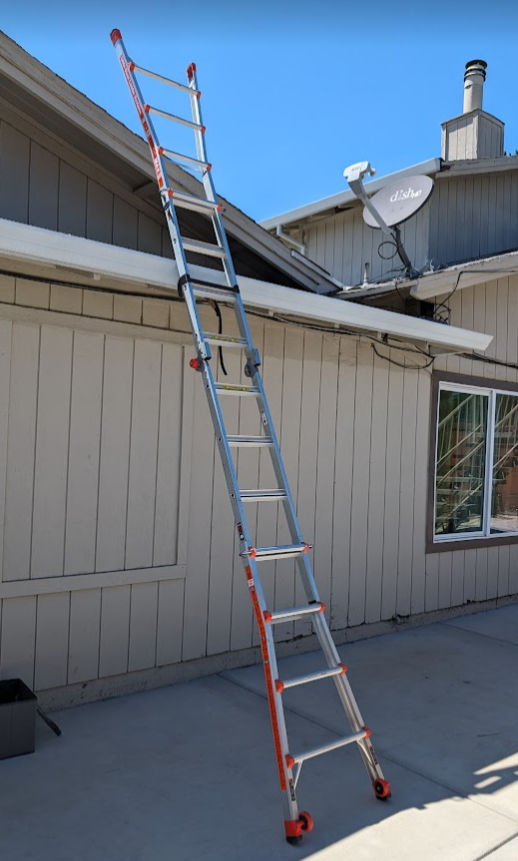
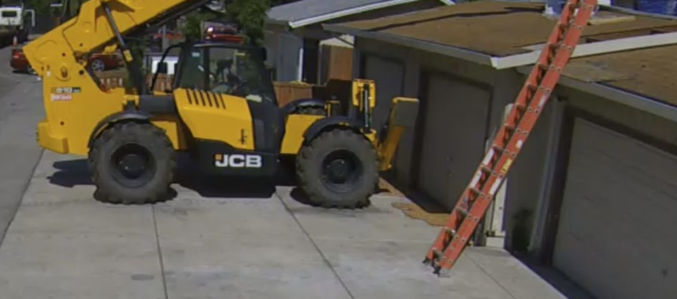
A ladder must be on the job site for the Building Inspector’s use. The ladder must be set up to meet the following minimum standards.
The ladder shall meet OSHA Standards and be rated a minimum of 250 lbs.
Find a level, hard, slip-resistant spot on the ground free of debris to set the ladder feet on.
The ladder shall extend no less than 36 inches above the edge of the roof at the point providing access and secured (tied off).
Place the feet of the ladder at a distance of 1⁄4 the height of the ladder away from the building. In other words, if the ladder is 8 feet tall, place the bottom of the ladder 2 feet away from the building. If the ladder is 12 feet tall, place the bottom 3 feet from the building.
If you have a gutter, slip a 2 x 4 into it to keep it from being crushed by the ladder.
Note: Inspectors will not walk on tile roof coverings or pitches exceeding 5/12. Ladders are still required for access to the roof edge for these inspections. If a ladder is not provided or if the ladder does not meet the minimum requirements listed above, the inspection will be canceled. If a second inspection request is canceled for lack of access, a reinspection fee will be issued.
To measure the roof area, I took a screenshot of the roof from a satellite view in Google Maps. I then annotated the roof with letters, printed out the image, and took it with me on the roof.
Tear Off: Yes You can have up to 2 layers of shingles. If you have one layer, you can add another layer on top of the first layer. If you have 2 layers, then you’ll need to tear off both layers. I had one layer, but I decided to just tear it off anyway.
Resheet: No Resheeting is to replace all plywood under the shingles.
Structure: Main Structure
Original Roofing Material: 30yr Laminated Dimensional Composition
New Roof Material Product Information: Cool Roof CRRC ID 0676-0133,
Area: 45 squares (1 square = 100 sqft)
Conditioned Space: No A conditioned space is a space between the roof and the ceiling that is air conditioned to be hot or cold.
Roof slope < 2:12 pitch? No Most residential roofs in California have between a 4/12 and 9/12 slope. Roofs with a pitch exceeding 9/12 are called steep slope roofs.
Reroof less than 50% of the entire roof area: No
Once you get your permit, you must post it on the building. The city inspector will look for it when they come to inspect the work.
Inspections
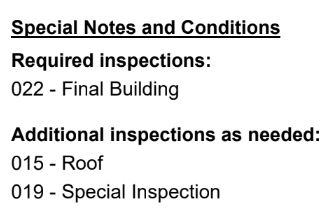
According to the permit, one inspection is required and some are depending on need.
On the permit, there will be a form for the inspection to fill out for each inspection type.
In my case, I don’t think the special inspection (019) is needed, but the other two are needed.
The permit also indicates that the following inspections are needed:
After removal of existing roofing for the plywood deck inspection.
After new plywood or OSB sheathing is installed for the nailing inspection.
After the project is complete for the final inspection
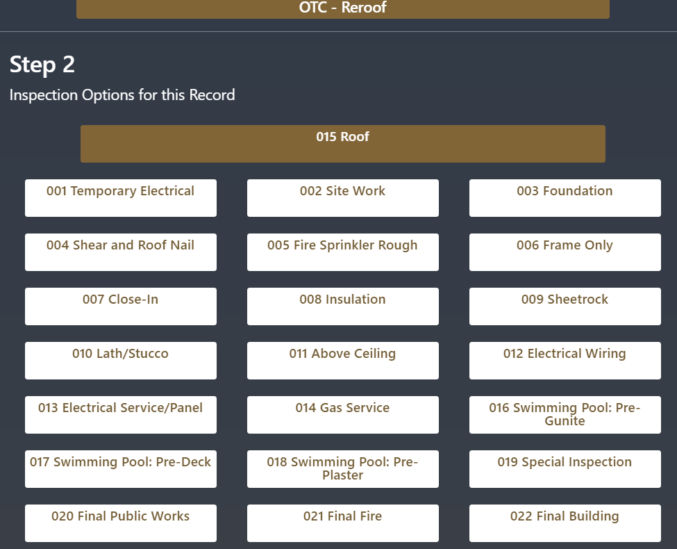
Inspections can be scheduled online at Stocktonca.gov/scheduleInspection. When you enter your permit ID, you’ll see some inspection options.
For the inspections, I would choose 015 Roof.
Inspections will occur between 7:30 AM and 4:00 PM. When you schedule an inspection, you can request an AM time window (7:30 AM to 12 PM) or a PM time window (12 – 4 PM) in the “Notes to inspector” field.
UPDATE: After scheduling the first inspection, the city inspector called and said that
he’d be at the site between 11 AM and 1 PM
the City of Stockton doesn’t require in-progress inspections, just final inspections.
So, I canceled the in-progress inspection and will just schedule one final inspection when the roof is complete.
Remove old roof
You’ll need to remove the old shingles and the underlayment (tar paper or synthetic underlayment).
You may also need to remove old roofing materials in places like the dead valley. In my case, there was a metal sheet and old TPO material.
If the fascia boards are rotten, you should remove and replace them as well. Use a pry bar and a metal-cutting blade to cut nails holding the fascia board in place.
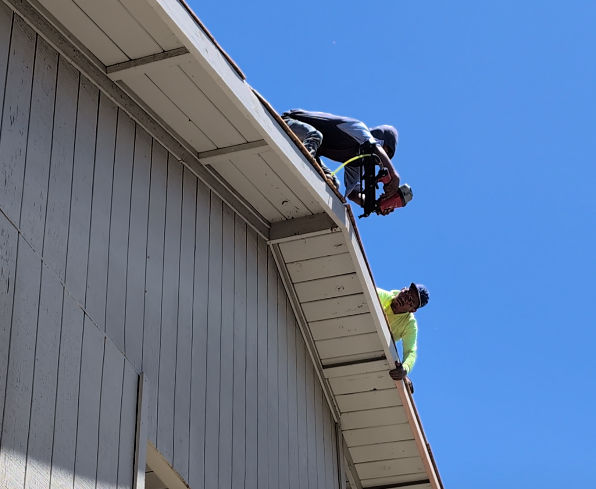
For long pieces of fascia board on the 2nd story, you’ll need multiple workers laying down on the roof and leaning over to pull the boards off.
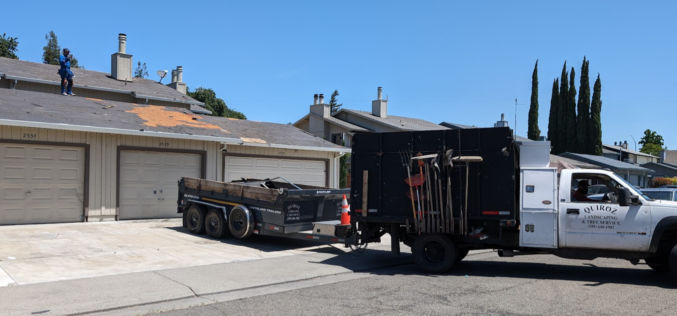
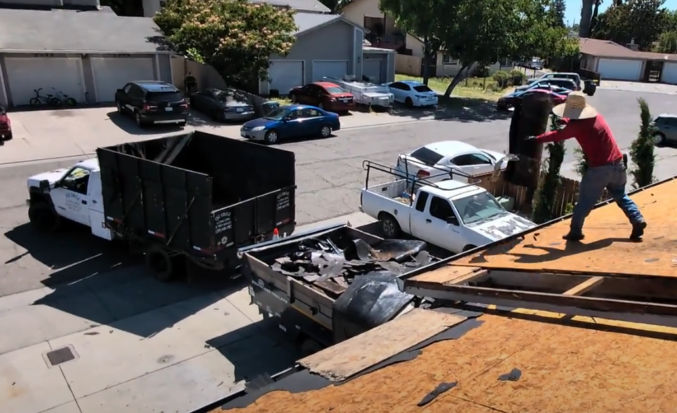
When disposing of the old roof, it’s easiest to park a dump truck in the driveway so you can throw the old roof materials from the roof into the truck. You can rent dump trailers from Home Depot, but then you need a truck to haul the trailer and you need a driver. Also, the trailers at Home Depot may not be available when you need them. In my case, I hired a guy who has a dump truck.
When you’re at the dump, you can just dump the garbage mechanically rather than by hand.
Buy new roof materials
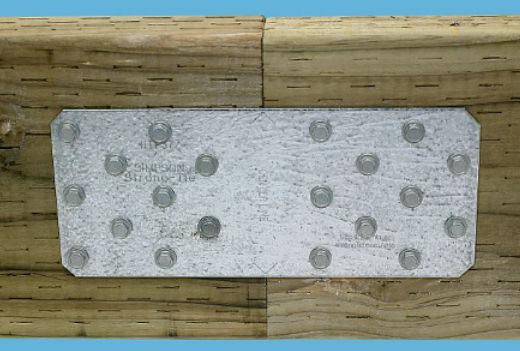
I bought 15 pieces of 2x6x16′ wood for the fascia. You can find boards as long as 20′. However, some edges are longer than 20′, so you’d still have to splice two pieces together, which can be done using a galvanized tie plate.
I also bought 9 sheets of 4×8 OSB plywood to replace any rotten parts of the roof deck.
Paint fascia boards
Make sure to paint the fascia boards before installing them, including the ends after making any cuts. Paint protects the wood and delays rotting.
Install fascia boards
Installing the fascia boards is also a multi-person job.
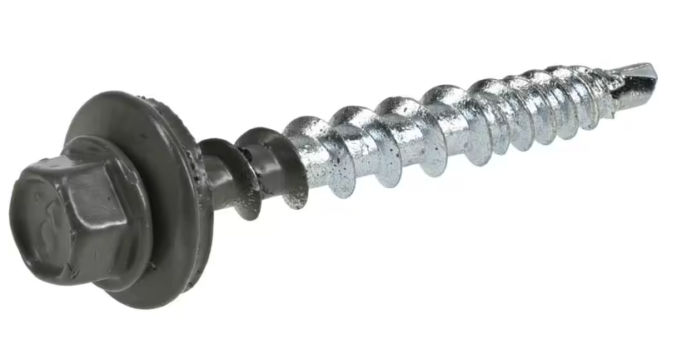
Nails are shot into the wood using a pneumatic nail gun.
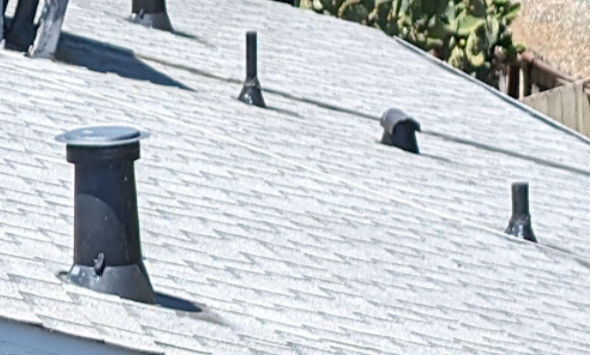
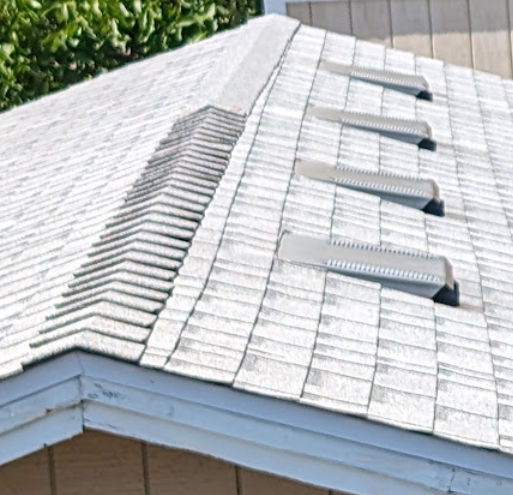
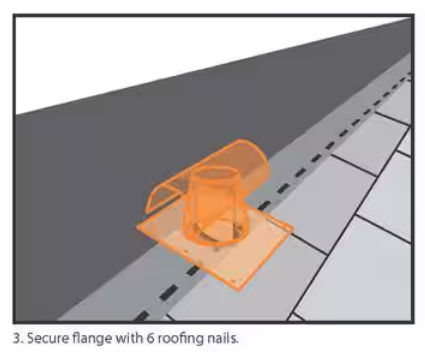
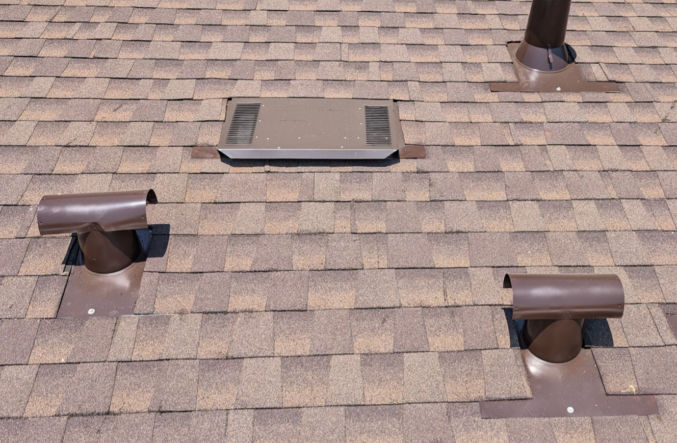
Static roof vents allow air to escape from the attic. Often multiple static roof vents are needed to adequately ventilate the attic. Roof vents should be evenly spaced across the roof and installed just below the peak of the roof where heated air will rise. Learn more.
Use this magnetic chest mount for hands-free FPV (first-person view) filming. The camera should be positioned upside down to lay flat on your chest.
Daytime Video Recording
Choose “Freeframe video” mode.
Ratio: 4:3 (in the Studio app, change it to 16:9)
Active HDR: On
Resolution: 4K (this is the only option)
Frame Rate: 30 fps is good enough (this is the highest frame rate that supports HDR)
Horizon lock: choose 360-degree horizon lock
Slow Motion Video Recording
Choose “slow motion” mode to record a video with a high frame rate. Allows you to shoot in 240 frames per second in 1080P, or up to 120 frames per second in 4K.
Night Shots and Low-Light Scenes
Choose “Pure Video” mode.
FlowState Stabilization
There are 3 stabilization options: Off, Low, Standard, and High. Choose High for very shaky situations. Note that the high setting will result in more cropping.
Field of View (FOV)
Choose Dewarp to experience a wide FOV with minimal distortion. This is ideal for scenarios such as skiing and vlogging.
Quickly cancel a recording
You can quickly cancel a recording if you’ve messed up by long-holding the shutter button while recording.
Pause recording
If you have some downtime during a shot, for example, you’re waiting at an intersection or for something to happen, tap the screen while recording (at the bottom) to pause your recording. You can then tap to resume at any time.
Quick Capture
When the camera is off, press the shutter button to start shooting with QuickCapture. The camera will start shooting using the last-used shooting mode.
Pre-recording
Save 15 or 30 seconds of footage before you start recording. This can be handy if you want to catch something on film that is imminent.
Interval (long period)
Take a series of single photos over a long period of time. The photos can then be combined into a timelapse.
Burst (short period)
Take a series of photos in a short period of time (up to 10s). One use case is if you are alone and want to take a selfie or if you are with someone who is not good at taking photos. You can set the burst setting to 30p/10s, meaning 30 pictures in 10 seconds. Then, you can stand, smile, try different poses, etc, and later pick the best shots.
Timelapse (for static, fixed-position shots)
Create a timelapse video that condenses a long scene into a short video by taking a photo at a set interval. Use a tripod or fix the camera in one spot.
Shoot length: infinite, 3m, 5m, 10m, … 10h
Interval: 0.5s, 1s, 2s, … 120s
For example, let’s say you want to film yourself having dinner on an airplane. You expect you will take 30 minutes to eat, so you choose 30m for “shoot length”. Then, you can adjust the interval to see how long the timelapse video will be. For example,
interval = 0.5s, => timelapse duration = 2m
interval = 10s, => timelapse duration = 6s
The timelapse duration is shown on the screen.
Timeshift (for moving shots)
This is like a moving time-lapse.
Auto-stop Recording
If you want to shoot a video and have the camera auto-stop recording, you can set the duration to one of the preset values. The default is infinity (until the battery dies). Other options include 15s, 30s, … 3h, etc.
Inconspicuous shooting
If you want to film without people knowing that you’re filming, you can do the following to make people think that the camera is turned off.
Turn off the indicator light so there’s no flashing red light on the camera.
Turn off “Front Screen Display”
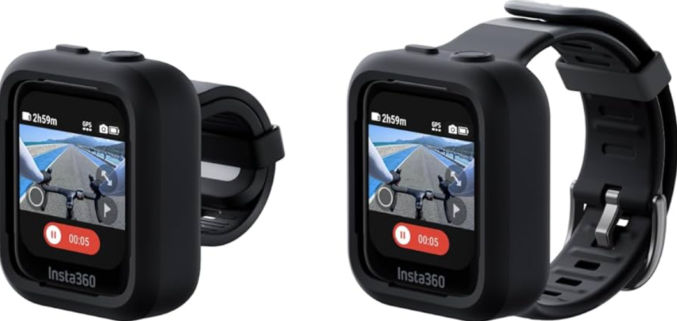
Use the GPS remote to start and stop shooting without touching the camera.