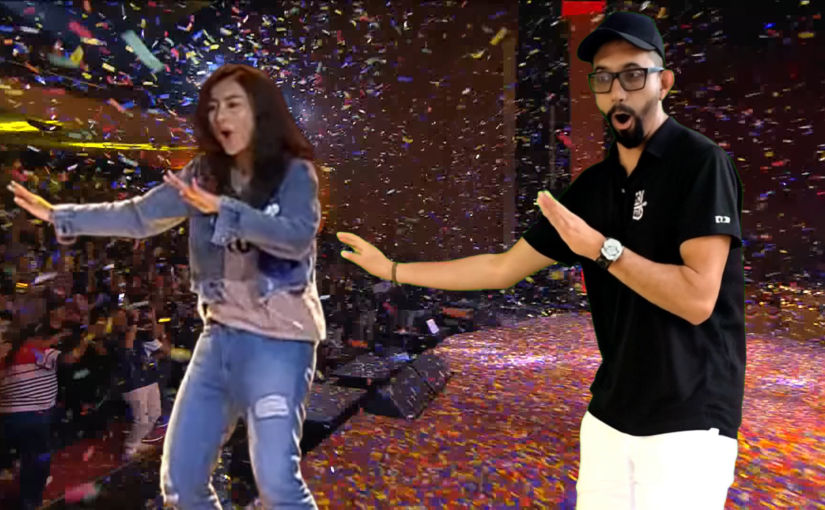
Usually, people create AI videos by describing what they want using a text prompt. This can be very difficult depending on the results you are looking for. Another way to create an AI video is by creating a “driving performance” video, which shows what movements you want to mimic. For example, if you want to make a video of yourself dancing and lip syncing exactly like someone else in an existing video, you can upload the existing video as a “driving performance” video and upload an image of yourself as the “character image”. This post explains how to do it using Runway Act-Two.
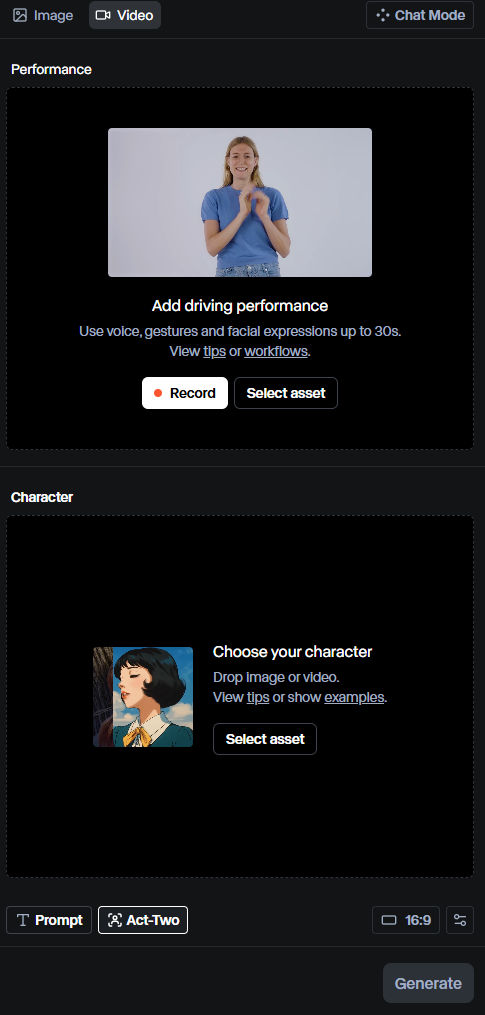
In Runway, click on Act-Two. You will see the UI below.
In the top section, you upload a “driving performance” video, which will contain the body movements and facial gestures you want to copy and apply to your character in the bottom section.
In the bottom section, your character can come from an image or video that you upload. For simplicity, and to match the driving video, I will upload an image containing my character.
For demonstration purposes, I want to make myself sing and dance exactly like the subject in the following video.
Ensure the subject’s face remains visible throughout the video
Frame the subject, at furthest, from the waist up
Well-lit, with defined facial features and expressions
Certain expressions, such as sticking out a tongue, are not supported
No cuts that interrupt the shot
Ensure the performance follows our Trust & Safety standards
[Gestures] Ensure that the subject’s hands are in-frame at the start of the video
[Gestures] Start in a similar pose to your character input for the best results
[Gestures] Opt for natural movement rather than excessive or abrupt movement
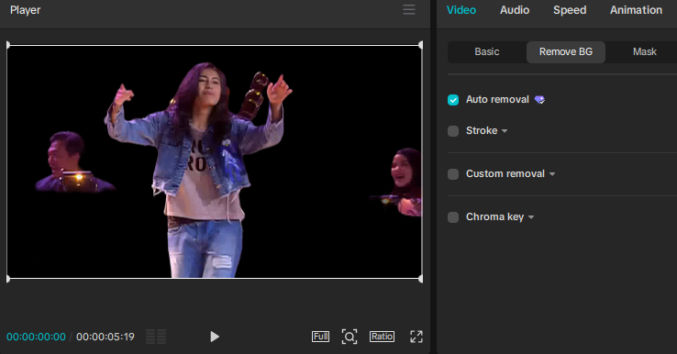
Since my “driving performance” video has people playing music in the background, I need to remove them. One way is by using Capcut’s Auto Background Removal feature.
While it’s not perfect, it may be sufficient for Runway’s Act-Two. Here are two other AI-based video background removal tools that seem to do a better job.
There are many alternatives to the tools above, but I like these the best.
Instructions
Get a song audio file
One easy way to get your song audio file is to find a song on YouTube and download it. I wanted this song:
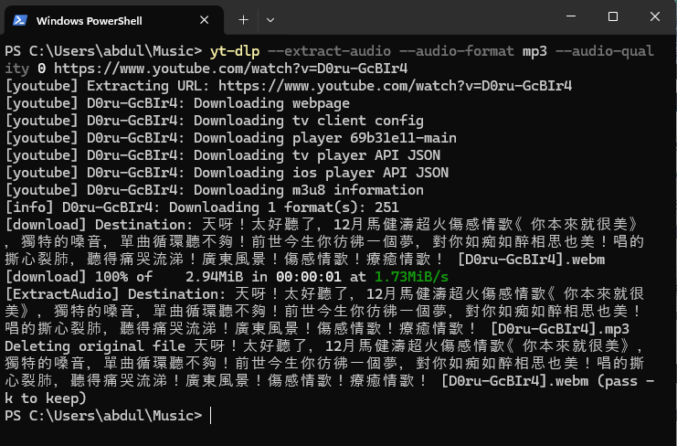
I downloaded the audio MP3 file using the YT-DLP command line tool. The URL of the song was https://www.youtube.com/watch?v=D0ru-GcBIr4, which shows a video ID of D0ru-GcBIr4. So, to download the audio, I downloaded YT-DLP and ran the following command:
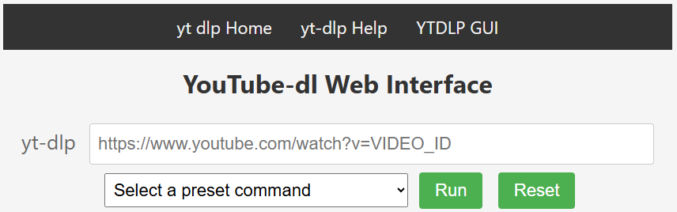
If you are a simpleton and this looks confusing to you, then just use the online version of YT-DLP, which currently looks like this:
Get background video footage
Since the name of the song I made into a music video was 你本來就很美, which means “You are beautiful”, and the original music video showed beautiful beach scenes, I looked for similar beach footage on YouTube to use as the background for my video. I liked this video (https://www.youtube.com/watch?v=0ZBqnOeIxbQ):
Since the video ID was 0ZBqnOeIxbQ, I downloaded it from YouTube using YT-DLP using the command
yt-dlp 0ZBqnOeIxbQ
You don’t have to put a video in the background of your music video; you can also just put one or more still photos, but I think a background video looks better.
Separate vocals from the song’s audio
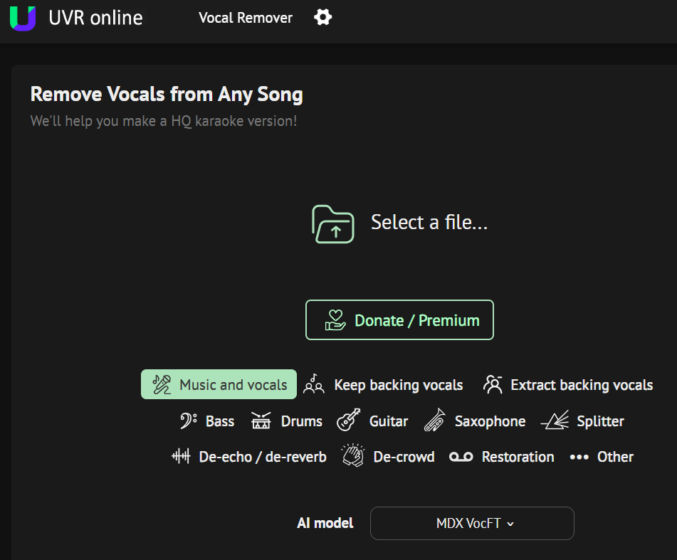
To improve lipsyncing and transcribing, we’ll need to separate the song into stems, where each track is a separate sound, e.g. vocals, instruments, etc. Go to UVR Online and upload the song’s audio file (MP3). You get process up to 12 minutes of audio per day for free.
When done, download the vocals track. Here’s what I got.
Note: I used Audacity to trim the audio to remove the silent sections to speed up AI-processing in Heygen and because Heygen has a duration limit per video.
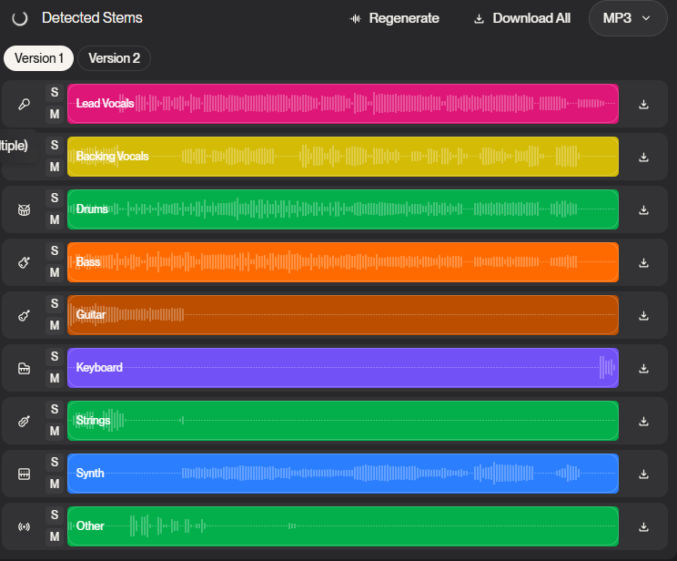
Update: You can use Suno to extract all stems.
You can also use LALAL.AI to extract vocals. Both Suno and LALAL separate lead vocals from backing vocals.
Choose photos to lipsync
The photos that work best for lipsyncing are ones that
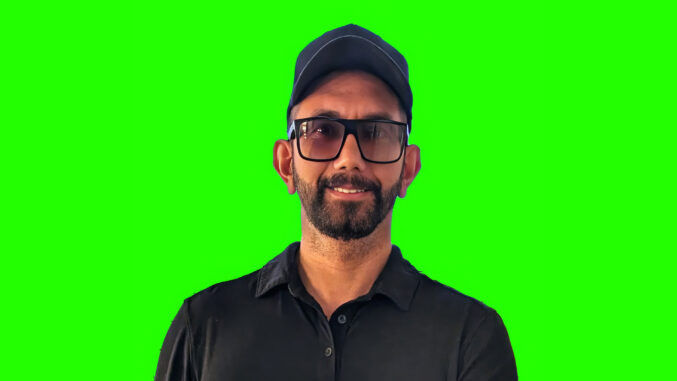
show the subject facing forward
are hi-res
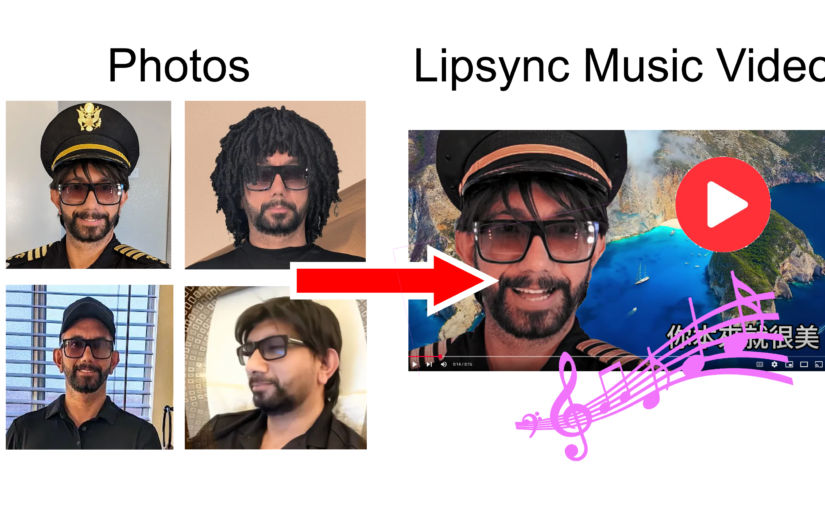
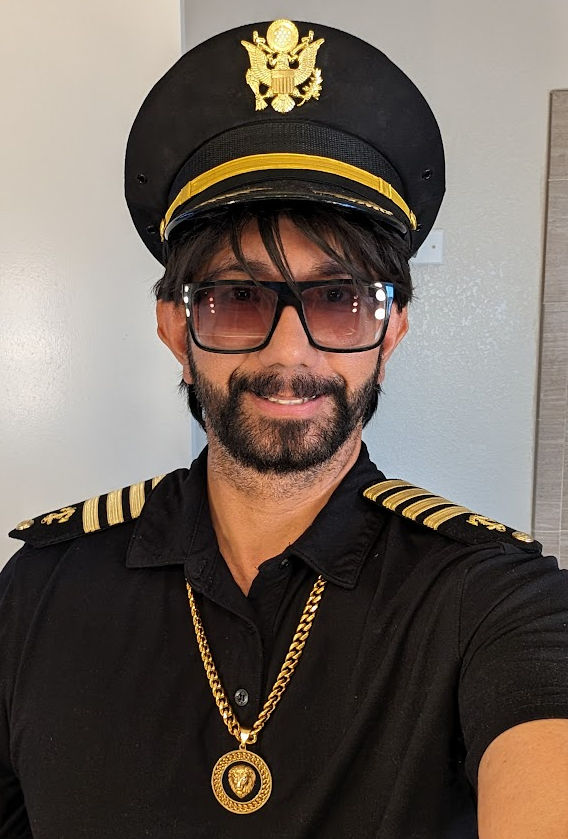
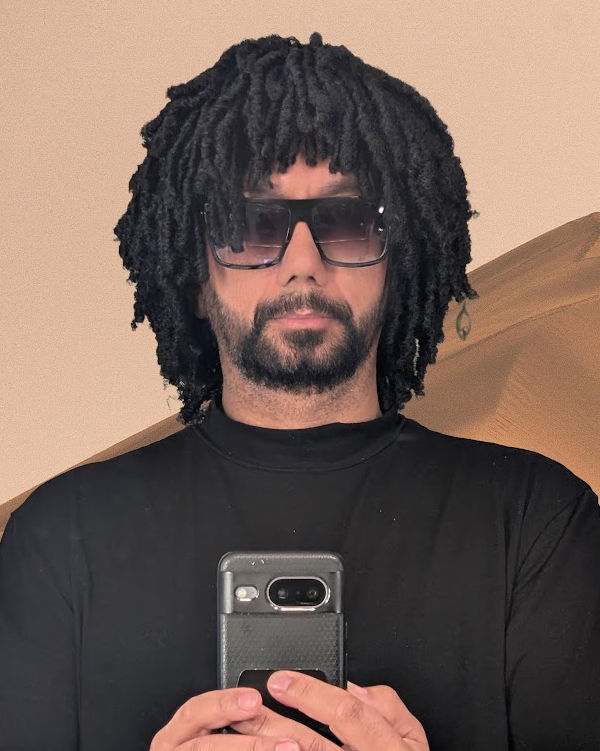
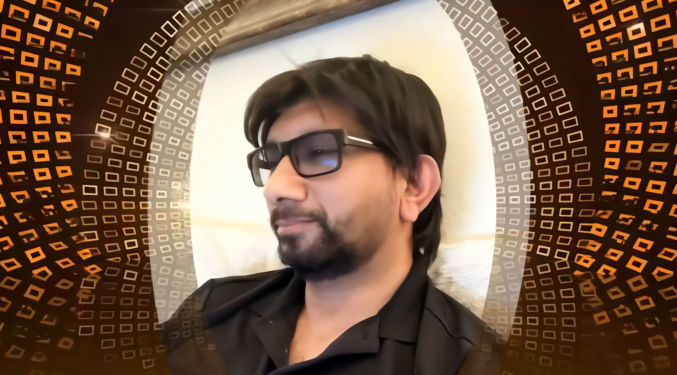
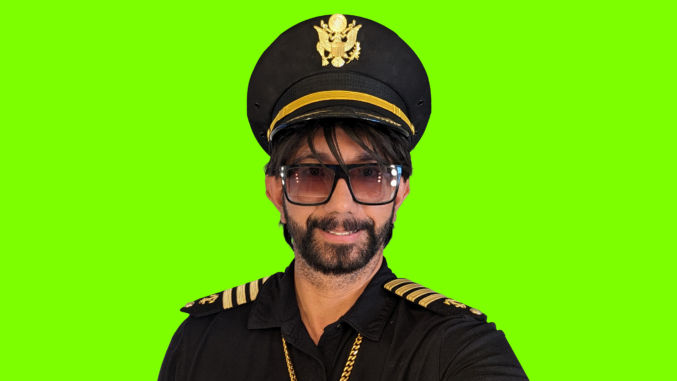
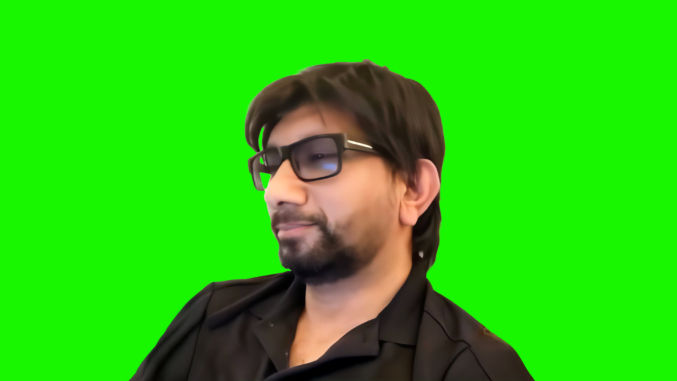
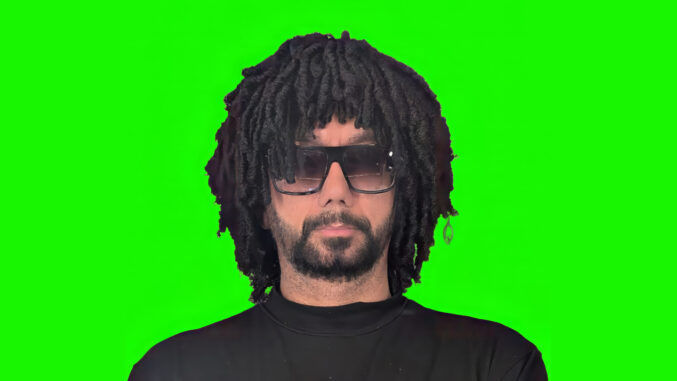
These are the photos I picked for my video.
This last photo shows me looking to the side to add variety to the video. The AI lipsyncing results aren’t perfect, but it was acceptable, so I kept it.
Remove background from photos
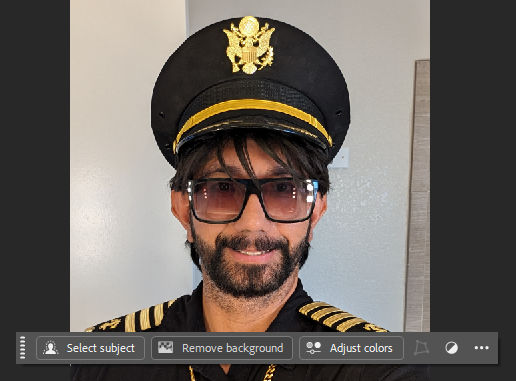
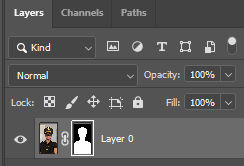
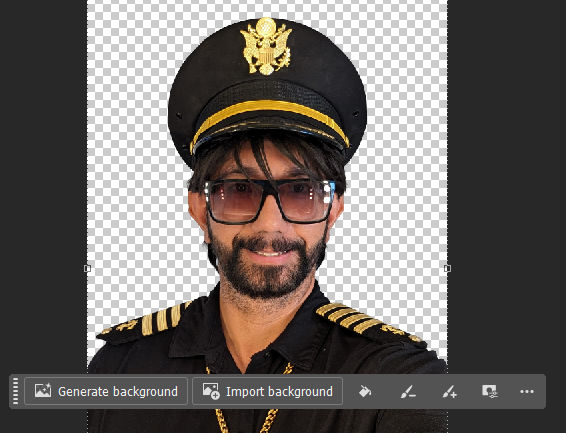
I used Adobe Photoshop to remove the background from photos. For example, when I open a photo in Photoshop, I see a floating toolbar with a button called “Remove background”.
Clicking on it add a layer mask to the image layer
which causes the background to be transparent.
If the mask isn’t perfect and you see some of the background showing or some of the subject removed, you can edit the mask by
clicking on the mask thumbnail in the layer,
clicking on the paintbrush tool,
adjusting the size of the paintbrush,
changing the color of the paint to either white or black
painting on the are of the image you want to show or hide
Change the photo aspect ratio to 16:9
Since I wanted to put my music video on YouTube, I wanted the video to be landscape format, 16:9, and 4K. I used Adobe Photoshop’s “crop’ tool to convert my portrait, 9:16 photos to 16:9. Notice that when I do that, I lose much of the photo, like the top of the hat and the shirt in the screenshot below.
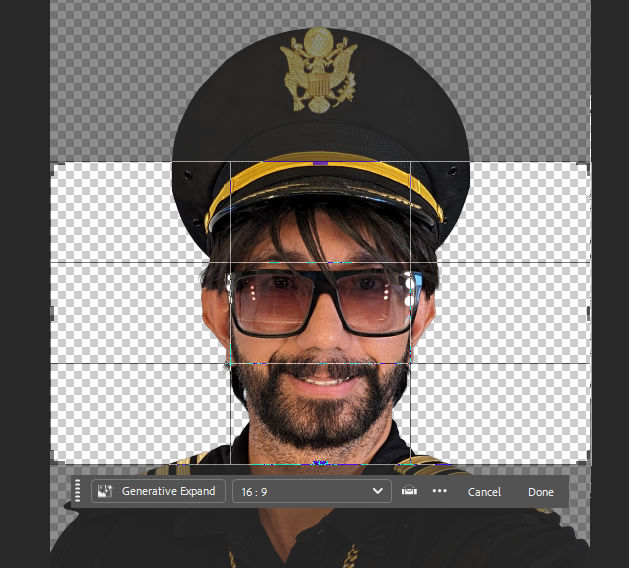
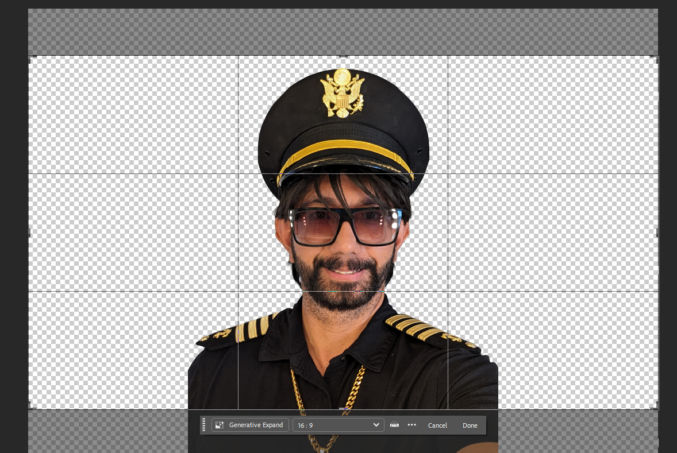
To remedy this, first I expand the canvas wider than the original image and crop it.
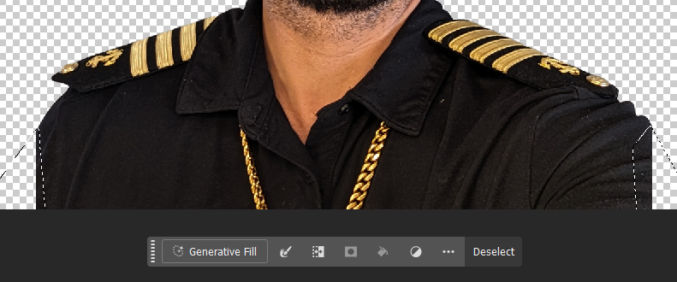
Since my arms are cut off, I select those two areas and click the “Generative Fill” button.
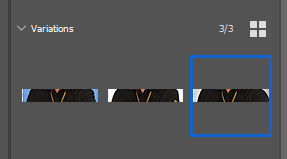
The generative fill produces 3 variations. I picked one that looked the best.
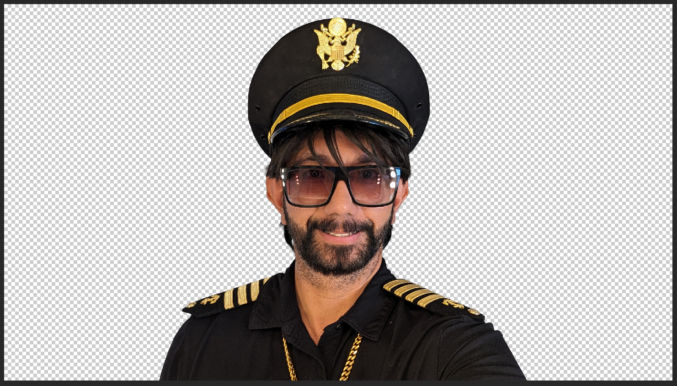
This made my image 19:6 image look like this:
Change the background to neon green
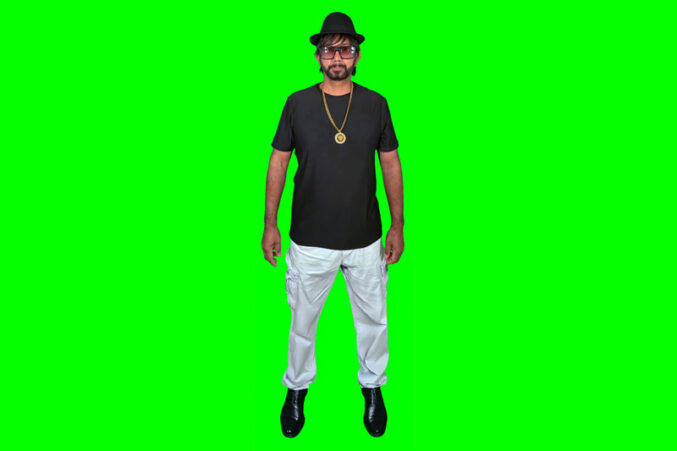
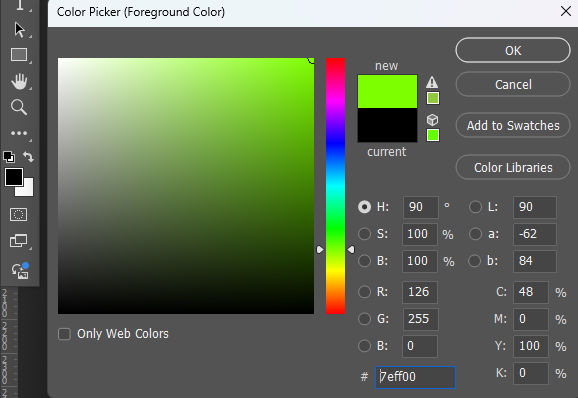
Since we’ll want to change the background of our singing subjects to show our background video, we’ll need to put our photos on a green background so we can chroma key the green background out when editing the video in Capcut. In photoshop, change the foreground color to neon green.
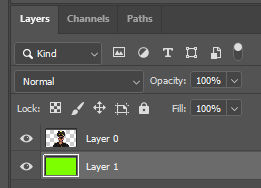
Then, use the paint bucket tool to paint the background green. You may need to create a new layer positioned below the subject layer.
I repeated these steps for all other images, as necessary.
Upscale the images
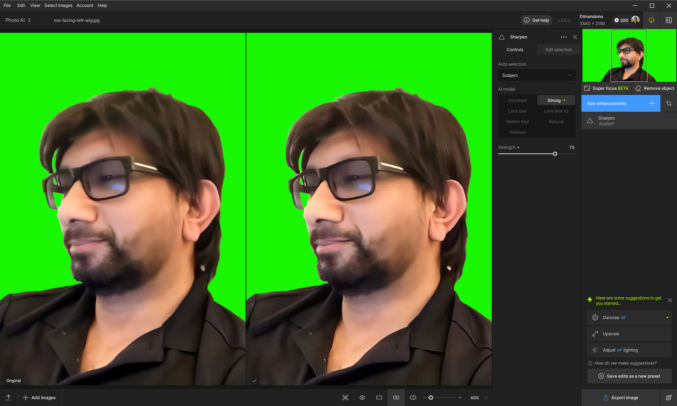
Since my target video platform is YouTube and many devices like TVs support 4K, I upscaled some of my images to 4K. I used Topaz Photo AI to do this, but there are many alternatives that may be cheaper. With Topaz Photo AI, you can also do other things like sharpen, denoise, etc.
Create an avatar in Heygen
Now that we’ve collected and prepared all of our assets, we can create convert our photos to videos with lips synced to the lyrics. I created an account with Heygen and paid for cheapest monthly plan ($29 / month). This outputs 1080p videos only. If I wanted to created 4K videos, I would need the next plan at $39 / month. However, I think Capcut was able to upscale my 1080p footage to 4K using AI.
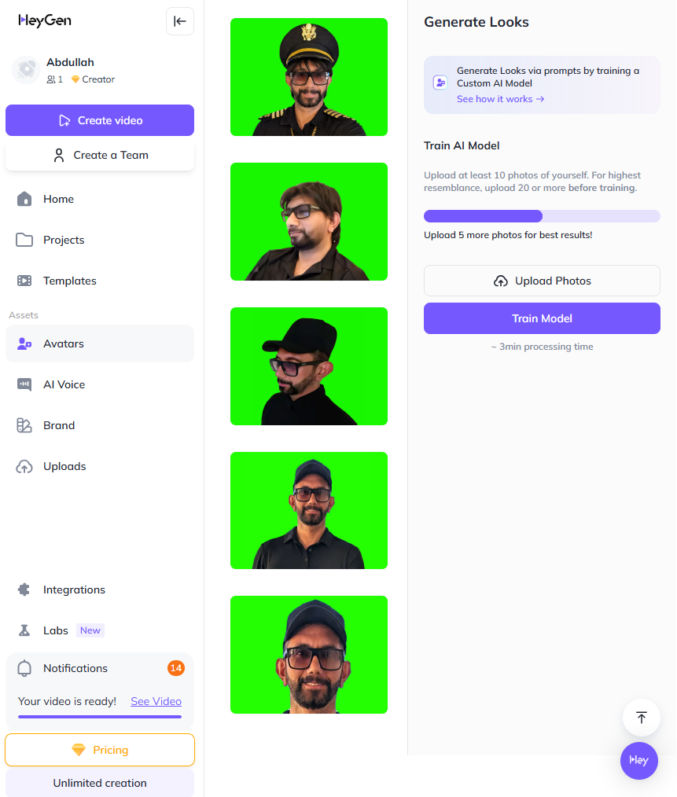
In Heygen, click on “Avatars” and create a new avatar by uploading your photos.
Create lipsync video
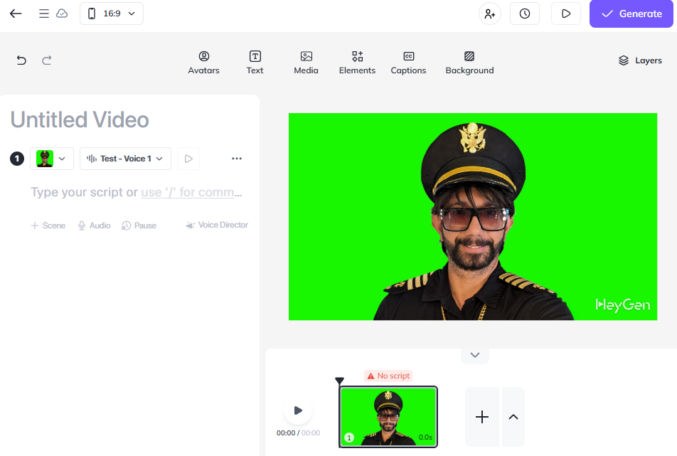
In Heygen, click the “Create video” button, choose “Landscape” for the orientation, and change the default avatar to one of your avatar’s “looks”.
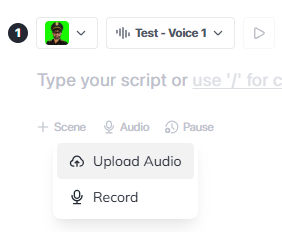
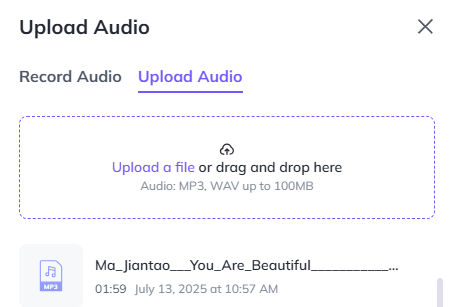
The next part is important. For the script, click the “Audio” link and “Upload Audio”.
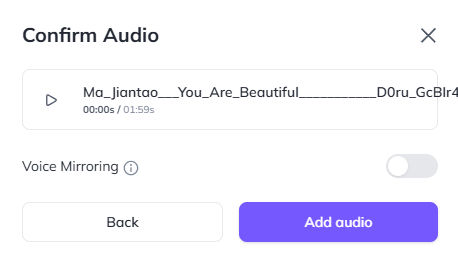
Upload the audio vocals file to Heygen, which has the backing music removed.
You can leave “Voice Mirroring” turned off so that the voice will be the voice in the uploaded audio.
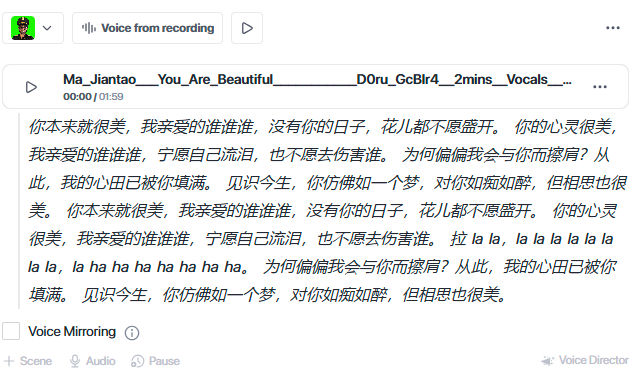
Heygen will then try to transcribe the audio and display the words (lyrics) for the AI to produce the lipsync. Depending on the quality of the uploaded audio file, this may or may not work. In my case, it worked, and Heygen even detected the language as Chinese.
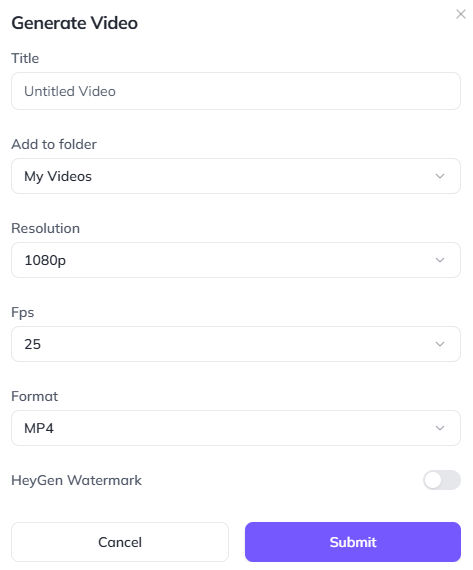
Click the “Generate” button and choose the appropriate settings.
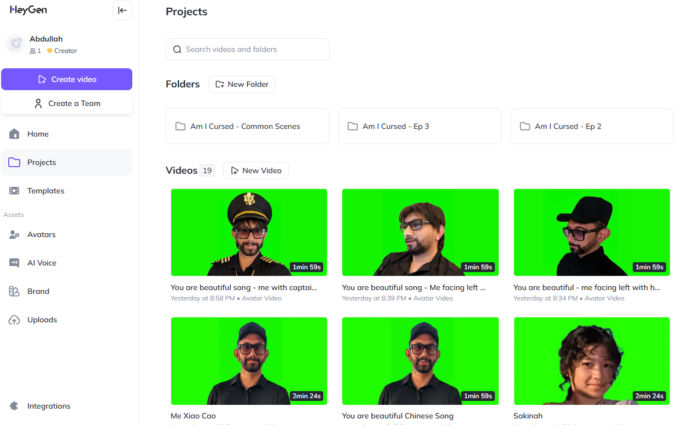
Heygen will take some time render the video, which will show up under “Projects”. Repeat the above process for all photos (avatar looks).
Note: sometimes, some portions a video will have good lipsync results while others may not. In this case, you can try recreating the lipsync video.
Create the final video
To create the final video, I used Capcut. Though Capcut can be used for free, I paid for “Pro” access so I could use some of the paid features that I needed. I won’t go through all steps in detail since there are many general video editing tutorials online.
Import (drag) all media (audio, video) to the “Media” pane (top left) in Capcut
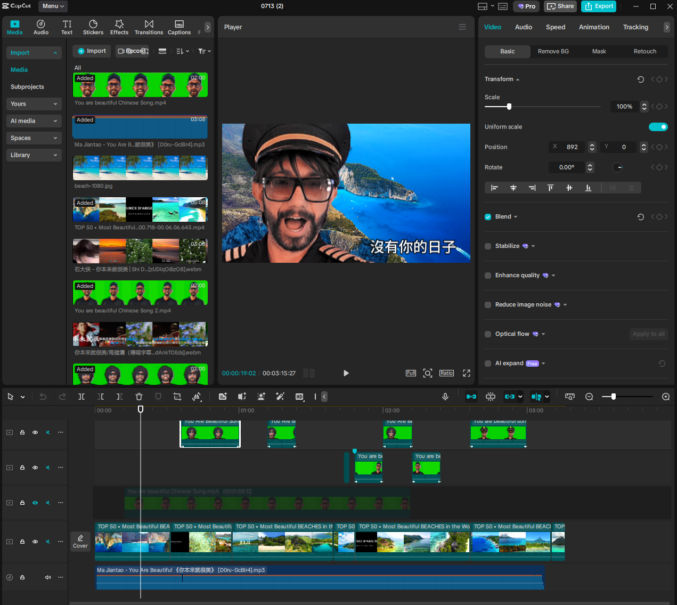
Drag your media to the timeline (bottom pane) to the appropriate tracks
The screenshot below shows the following tracks from bottom to top
Audio track (complete song, not just the vocals)
Main video track (background video showing different beach scenes)
Other video tracks (since the lipsync results weren’t perfect for the duration of each Heygen-produced video, and because I wanted to show different versions of me signing different parts of the song, I chopped the videos into sections where the lipsync results were good)
Text track (I copied and pasted the Chinese lyrics so viewers who read Chinese can read the lyrics as the video plays).
The tracks behave like layers in Photoshop, so media on higher tracks appear above media on lower tracks, which is why the tracks containing the green screen lipsync videos are above the track containing the background video.
Remove the green screen
To remove the green background from the lipsync videos,
click on the video clip in the timeline
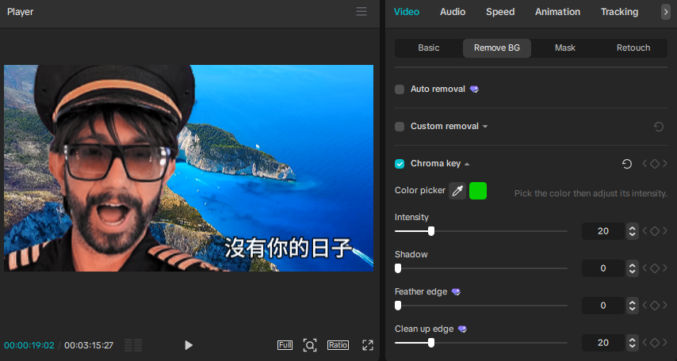
in the top-right pane, click Video > Remove BG, Chrome key, and then, using the color picker, click on any area of the green background in the “Player” pane in the middle. The green background with suddenly disappear, revealing the media in the lower track (the background video).
you may see some green artifacts around the edge of the subject. To clean up them up, slide the following sliders until you see good results: “Clean up edge”, “Feature edge”, ” Intensity”.
To improve the final video, you can do some other things as well, like
add a crossfade (“mix”) transition between adjacent video clips
Add a “Fade in” and/or “Fade out” animation to clips that are not adjacent to any other clips (go to “Animation” > “In” > “Fade In” and “Animation” > “Out” > “Fade Out”)
adjust the color of a video clip by going to Video > Adjust > Auto Adjust or Manual Adjust
Here’s another example of a music video I created using the same method.
HeyGen Avatar IV
HeyGen recently released Avatar IV, which allows you to create more realistic lipsync videos. To use it, make sure to click on Avatar IV in Heygen to use it. Here are some example inputs and outputs. The results are definitely more realistic!
INPUTS
There are 2 inputs:
Image
Script
For the image, just upload one image.
For the script, you can either type something or upload an audio file. Since we want to lip sync to a song, we’ll upload an audio file of the song containing just the vocals.
In the examples below, all script inputs will use the following audio.
INPUT
OUTPUT
INPUT
OUTPUT
INPUT
OUTPUT
INPUT
OUTPUT
Notice in the last test HeyGen can’t animate the background correctly.
There is yet another way to create a music video. It requires more effort, but the result may be more interesting. It uses Heygen, Krea, and Runway AI’s ACT-TWO feature.
Generate a Driving Performance Video
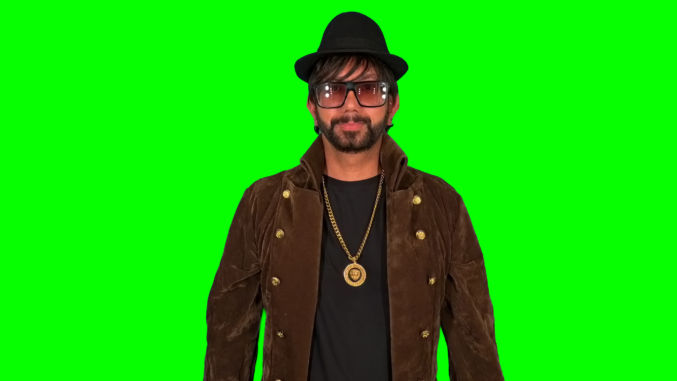
Follow the same steps above to create a lip sync video in Heygen to be used to drive another video. The background doesn’t have to be green. Make sure the resulting video is as follows:
Well-lit with defined facial features
Single face framed from around the shoulders and up
Forward-facing in the direction of the camera
Since we will give Runway Act-Two a “character video”, the most important things in the “driving performance” video are the facial features and lip movements. What clothes you wear and the background are irrelevant as Runway Act-Two will just use your facial expressions in the “driving performance” video.
For example, here’s a “driving performance” video I created.
Split the driving performance video into 30-second clips
Runway’s Act-Two feature only lets you create videos that are 30 seconds long. So, we’ll have to split the driving video into a series of 30-second clips. If your driving video is 2 minutes long, you’ll end up with 4 clips, e.g.
Clip 1 (0:00 – 0:30)
Clip 2 (0:30 – 1:00)
Clip 3 (1:00 – 1:30)
Clip 4 (1:30 – 2:00)
Train a model of your face in Krea
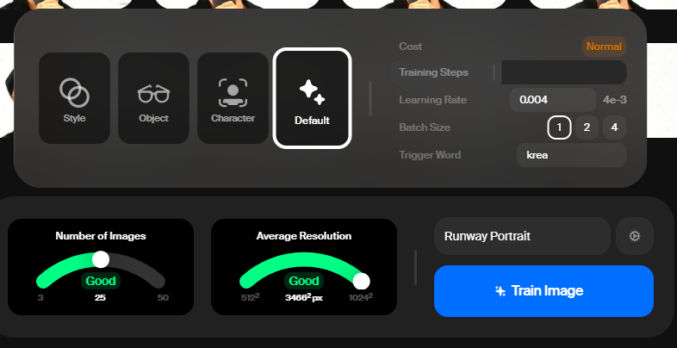
Go to https://www.krea.ai/train and follow the instructions to train a model of your face. You will need a subscription to do this. Use the Flux model.
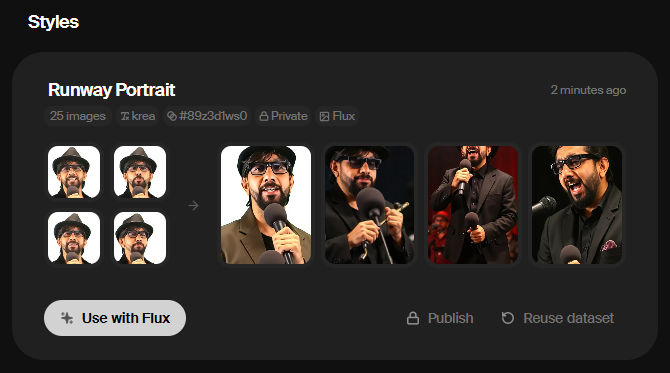
Train the AI model: Upload multiple hi-resolution photos of yourself (ideally around 40 with different angles and lighting) to the “train” section of Krea AI. You can specify whether you’re training a style, object, or character. You can choose “character” or keep the default setting.
Use the Flux model: Once your model is trained, click “Use with Flux” to generate images based on the trained model.
Generate a bunch of images of yourself singing
Add your trained style: In the Flux model, click on “add style” and select your newly trained style from the “my styles” category.
Adjust influence: Use the provided slider to control how much your trained face style influences the generated images. Increasing the slider will make your face more recognizable, while decreasing it will reduce the resemblance.
You can now use various prompts in Krea to generate diverse images incorporating your trained face. For example, you can make an image of you
singing in front of a mic facing the right with the camera close up
singing while holding a mic with the camera at a distance
playing drums
playing an electric guitar
etc
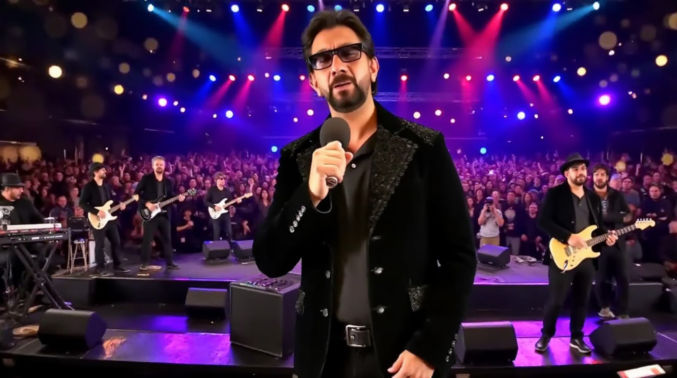
Here’s an example prompt with a reference image.
Text prompt
Subject is singing on stage in front of a band with a large audience in front of him. There are many multi-colored lights illuminating the stage.
If you’re unsure what prompt to enter, ask Chat-GPT to write a prompt for you specifically for Krea.ai.
Uploaded “image prompt”.
Output
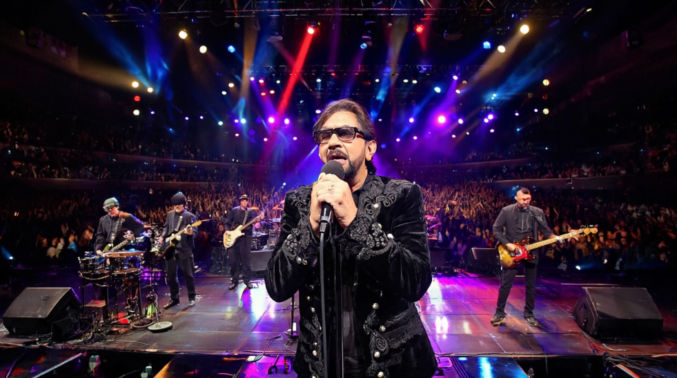
Krea generated 4 images. After experimenting a few times, I chose this image.
Generate a bunch of 30-second videos
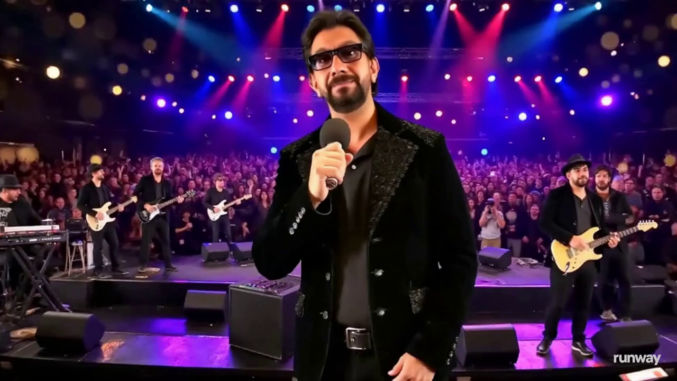
Use Runway’s image-to-video feature (not Act-Two) to create a series of videos based on the images generated in Krea. Here’s an example.
Input
You can create a video that is at most 10 seconds long. Since our song is 2 minutes long, we’ll need to create twelve 10-second videos, unless we use b-roll for parts of the final video.
Output
Create a lip sync video
In Runway, click on Act-Two. In the Performance section on top, upload your first driving performance video. In the Character section on the bottom, upload your first character video that you generated in the previous step. Click the button to generate the lip-synced video.
Runway will take the facial expressions and lip movements from your driving video and apply them to the character video. The resulting video will be the same duration as driving performance video – in this case, 30 seconds.
Here’s another example using a simple character video for demo purposes.