


Document headings (Heading 1, Heading 2, …) are useful to show a document’s content hierarchy. But, unless styled, it can still be difficult to visually scan a document to quickly find different sections. Some techniques to add styling and improve visual hierarchy include
- using a horizontal line to separate sections
- using a background color
- changing the heading text color
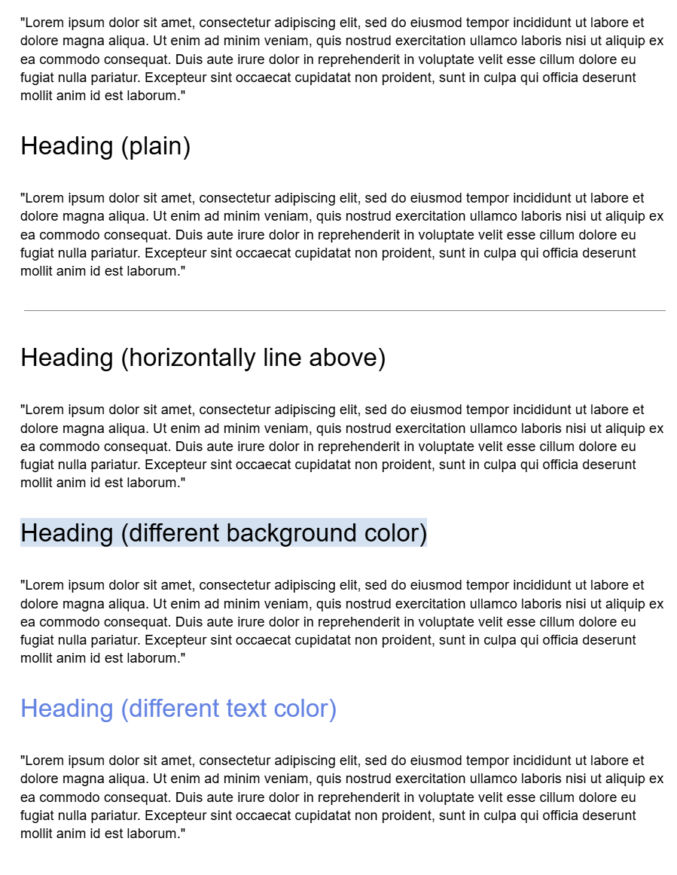
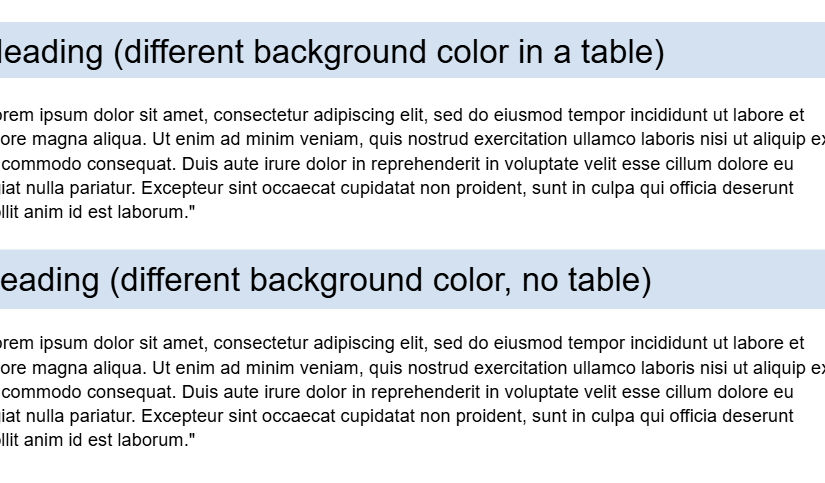
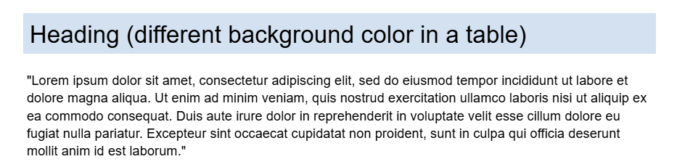
All of these styles, except the one with the different background color, look fine, but they may not suffice if you want high-contrasting section headings. You can put heading text in a 1×1 table, as shown below, but that’s not ideal, especially if your document may be parsed.
To create a table-less heading with full-width background color, do the following:
- Type your heading on its own line
- Select the entire heading line (triple-click to include whitespace after the text)
- Go to Format → Line & paragraph spacing
- Click Single
- Click Remove space before paragraph
- Click Remove space after paragraph
- With the line still selected, go to Format → Paragraph styles → Borders and shading
- Background color: e.g.
#1F2933 - Border width:
0 pt(all sides) - Paragraph padding: e.g.,
6 ptor7 pt
- Background color: e.g.
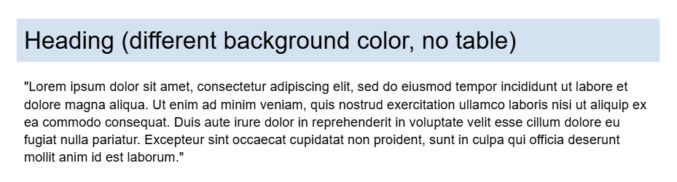
You can optionally style the heading text and create a reusable heading style (Format → Paragraph styles → Heading 1 → Update “Heading 1” to match).
Here’s a link to the test document used in this post.